Participant
April 5, 2018
Answered

VSCO film pack preset profiles missing after Lightroom 7.3 upgrade

  • April 5, 2018
  • 9 replies
  • 42229 views

Hi,

My workflow is based on VSCO Film Pack Presets. These are well-known presets but indeed, VSCO is based on a combination of presets and camera color profiles to achieve their manner to render pictures.

VSCO Camera profiles seems to be broken or ignored by the last Lightroom upgrade.

Before 7.3 upgrade of Lightroom, when I apply a VSCO preset, the preset will automatically 1/change the camera profile applied to the photo, 2/ tweak some sliders.

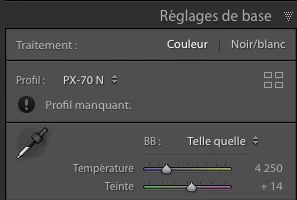
After 7.3 upgrade, Lightroom is complaining that the VSCO camera profiles are missing. When I try to apply again a VSCO preset, LR still complains that VSCO camera profile is missing. If i search in the new menu for Camera Profiles at the top of the Edit module, all the VSCO Camera profiles are missing.

Can you please tell me how to fix this ?
    This topic has been closed for replies.
    Correct answer Ian Lyons

    Ian, you’re correct. I can confirm that the interior directories can go at least one level deep.


    You should be able to manually edit the preset (simple text editor is sufficient) to point to your preferred folder. From what I can see on my presets it's only the folder name that's listed not the full path. So, editing the preset is relatively easy. Even so, it's worth making a backup copy.

    9 replies

    Participating Frequently
    October 17, 2023

    Hi,

    It seems you're encountering issues with VSCO camera profiles in Lightroom following the 7.3 upgrade. This is a common problem. To address it, you can try the following steps:

    Reinstall the VSCO Film Pack Presets to potentially restore the missing camera profiles.

    Make sure you have the latest version of Lightroom installed, as updates often contain bug fixes and improved compatibility.

    In Lightroom's "Develop" module, navigate to the "Basic" panel, scroll down to the "Profile" section, and attempt to re-sync your VSCO profiles by checking and unchecking them.

    If the issue persists, consider contacting VSCO's customer support for more tailored assistance regarding their presets and profiles.

    These steps should help resolve the problem and restore the functionality of your VSCO camera profiles in Lightroom.

    Rikk Flohr_Photography
    Community Manager
    October 17, 2023

    You’ve posted to an ancient thread. It is highly unlikely that the issue described in this thread, though not impossible, is the same one you are currently experiencing. Rather than resurrect an old thread that is seemingly similar, you are better off posting to a new thread with fresh, complete information, including system information, a complete description of the problem, and step-by-step instructions for reproduction. 


    If the issue is the same, we will merge you back into the appropriate location. 


    Thank you!


    Rikk Flohr: Adobe Photography Org
    Participant
    July 16, 2018

    VSCO MISSING PROFILE FIX!

    first a little background - i've been running my LR on two computers via an external hardrive for years. In my LR catalogue I use the "store presets with catalogue" option. This way all my presets SHOULD be accessible no matter what LR I use or what computer I use .

    A little over a year ago I had one and only one of my adjusted VSCO presets (my most used black and white preset) stop working on my desktop computer. When I'd use it it would be flat and dull - when I opened the LR catalogue on my laptop and would use the same preset it would be fine! After updating both my LR's it said that the profile was missing on my desktop computer but not on my laptop. Which I had no idea what that really meant and am still not 100% sure since I'm not a computer wiz.

    After spending hours of very frustrating research with zero success I finally got everything working today. Without knowing much about why this all worked all I can do is tell you what I finally did to fix it all which is an amalgamation of a bajillion fixes I came across through my research today -

    1) Make sure your computer systems are matching - I'm running High Sierra V 10.13.5

    2) Make sure your LR Classic CC's are both up to date and matching*

    3) Make sure your Photoshop CC versions are both up to date and matching* this was key for me!

    4) Redownload your VSCO presets

    5) Make sure you do have Mac: Macintosh HD / Users / [your username] / Library / Application Support / Adobe / CameraRaw / CameraProfiles / [your VSCO Preset Pack Folder should be here along with any other downloaded 3rd party preset]

    ** I didn't have the Library folder in my username I did have a Library folder with similar if not almost matching folder structures directly in the Mac HD folder so I thought that was the correct one originally (if you don't see the Library folder it is most likely hidden follow the suggestions on this page to find it! Access hidden Mac OS library files

    6) If all of this is aligned, reopen LR - when I did mine prompted me saying that some user permissions weren't being granted? (never saw it before) but I clicked on the learn more link and it sent me to this useful page which I followed the instructions for ( I had to do this on both my desktop AND laptop)

    link --> Solutions to Adobe Lightroom Lightroom user permission issues on launch

    Once I did all of this I relaunched my LR on my laptop, everything seemed to be working fine, so I made a new test preset and saved it. Then I launched LR on my desktop via the external harddrive and voila all my preset profiles were there (nothing missing) and the preset I had just made on my laptop was there too! Everything seems to be fine! I went and made sure that I could access Mac: Macintosh HD / Users / [your username] / Library / Application Support / Adobe / CameraRaw / CameraProfiles /

    and sure enough all my preset packs had their own folders with their corresponding .dcp files (which I couldn't find anywhere before)

    I'm not sure if when I updated the Photoshop or updated the High Sierra to the latest version it created this new Camera Raw folder structure (my desktop was running 10.13.4 and my laptop was on 10.13.5 at the time of the issue) - but either way it's all set now and I really really hope this works for ya'll!

    Best!
    Sarah

    Participant
    June 19, 2019

    It does not work for me, my vsco package comes with some DCP files that I put in the folder: Camera Raw / Camera Profile Also bring the <Irtemplate> of lightroom presets, could you please guide me? Help me please.

    victors42045959
    Participating Frequently
    July 8, 2019

    I have had this problem now, tried everything but still could not get the presets to work. These are essential to my workflow. For this reason, I have gone back to Lightroom 6 which thankfully still works with the VSCO, as if nothing had happened. I imported my most recent images there and will now continue to work without the new LR versions - as long as it will last.

    Participant
    July 5, 2018

    Is there a way to more these profiles (on the right) and not presets? (on the left?)

    ssprengel
    Inspiring
    July 7, 2018

    Not sure what exactly you're asking to do but if you have VSCO presets and the ones with camera profiles show a Missing Profile then try copying or moving the camera profiles up to the CameraRaw\CameraProfile folder instead of down underneath in subfolders.

    Participating Frequently
    May 11, 2018

    That's an issue with VSСО support. They're mainly in community management these days rather than in products.

    Personally I still shoot both film and digital, and for film simulation these days I mainly use RNI's film presets. RNI Films CC - 01 their last package and it's fully profile based. As for the quality – it's just second to none. Their simulation of Portra is a pure magic, as good as it can be.

    Arctic Sounds
    Known Participant
    April 26, 2018

    I have the exact same problem with my VSCO profiles. Every time I launch Lightroom it wants to convert my presets and rename them. It says: "Error: the following presets could not be renamed" with a list of all the presets. I've read this thread a couple of times but can't manage to find a way how to fix this. Can anyone try to explain me how I can get my profiles working again? Thank you!

    Ian Lyons
    Community Expert
    Community Expert
    April 26, 2018

    Can you be more specific about where in the thread you become stuck. Is it the location of the old/new location for presets/profile or how to edit them?

    After conversion to XMP the presets should be at:

    Mac: Macintosh HD / Users / [your username] / Library / Application Support / Adobe / CameraRaw / Settings /

    Windows: C: \ Users \ [your username] \ AppData \ Roaming \ Adobe \ CameraRaw \ Settings \

    and profiles need to be moved to:

    Mac: Macintosh HD / Users / [your username] / Library / Application Support / Adobe / CameraRaw / CameraProfiles /

    Windows: C: \ Users \ [your username] \ AppData \ Roaming \ Adobe \ CameraRaw \ CameraProfiles \

    Arctic Sounds
    Known Participant
    April 27, 2018

    Thanks Ian. I just checked and my presets and profiles are in the right folders. Lightroom still gives me this error: the following presets could not be renamed, everytime I launch it. Do you think editing the presets might solve this?

    robgendreau
    Inspiring
    April 7, 2018

    I experience the same problem but ONLY when I apply a VSCO preset that has a camera specific profile within the preset.

    For example, I have both Olympus and Canon and Standard film presets. No issue if the Oly is applied to Oly. But if I apply Oly to say Pentax, I get the error about the missing profile.

    Looking in the presets, I see this for a standard VSCO film preset:

    crs:CameraProfile="Adobe Standard"

    Looking in my Olympus specific film presets I see this:

    crs:CameraProfile="Kodak Gold 100 - O"

    And that in fact is the profile for my Olympus cameras, and only shows for those cameras. Just like how my Colorchecker Passport dcp-now profiles show for each camera they're assigned to.

    Participant
    April 6, 2018

    I'm having the same exact problem with all of my presets. Also, I often shoot with a Fuji X100F, and I used to be able to expand the Profile list and select various Fuji film simulations. This option is now gone as well. Something appears to be broken or wrong with this update, and it's making my post-production edits very difficult! Please update me with a solution!

    Rob_Sylvan
    Community Expert
    Community Expert
    April 5, 2018

    Any chance you are applying the vsco preset to a photo from a newer camera? I had the same thing happen, and then I realized it was photo from my newest camera. I went to vsco's website and downloaded the latest version of the preset pack, and then worked.

    Ian Lyons
    Community Expert
    Community Expert
    April 5, 2018

    It may be that your VSCO profiles are in the wrong location. Below is guidance published by Adobe on release day. Hopefully, it solves your issue.

    DCP profiles (such as those created by XRite Passport, the Adobe DNG Profile Creator, as well as 3rd parties like VSCO, RNI, etc.) will all need to go into the user profile location:

    Mac: Macintosh HD / Users / [your username] / Library / Application Support / Adobe / CameraRaw / CameraProfiles /

    Windows: C: \ Users \ [your username] \ AppData \ Roaming \ Adobe \ CameraRaw \ CameraProfiles \

    Participant
    April 5, 2018

    I also have the above problem, but only with a small amount of my VSCO profiles, most are just fine.

    I have double checked and they are all in the correct folder structure for my Mac running 10.13.4.  I also have the problem that every timeI launch Lightroom it tries to convert my presets and rename them.  Every time is does this it fails and says," the following presets could not be renamed" and then it lists all the VSCO presets.

    My two other machines running 10.12.6 do not have this problem and I don't want Lightroom renaming anything!

    I guess thats what I get for updating too soon.