Participant
November 29, 2020
Answered

White Box across top of screen in Develop Mode

  • November 29, 2020
  • 8 replies
  • 6146 views

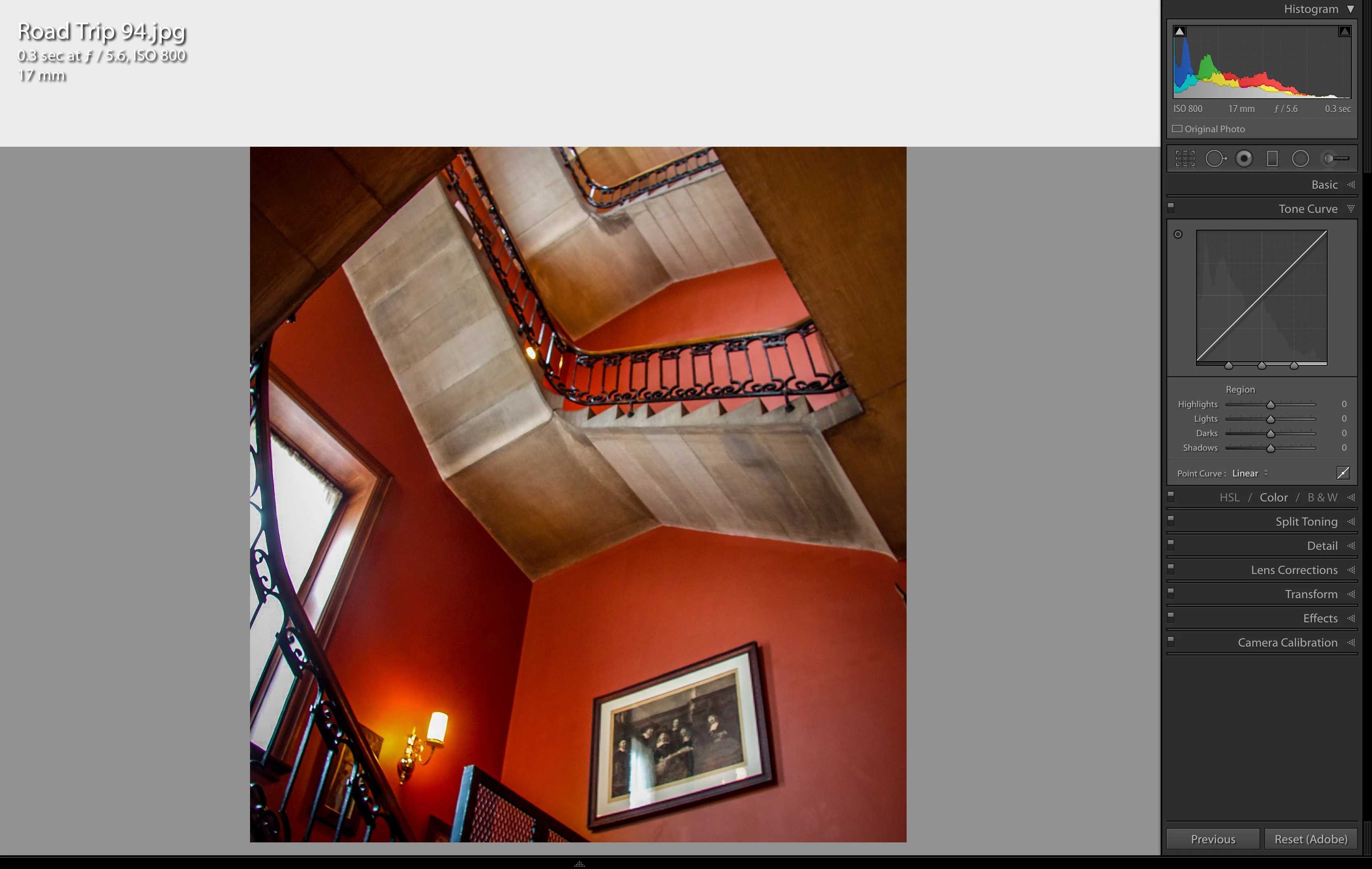
I am currently using Lightroom 6.14 in Big Sur on my Mac. When I go into Develop mode a white box appears at the top of the screen cutting off the top of the photo. I checked in Preferences>Performance and the Graphics Processor is unchecked. Is it possible to get rid of the box? 

This topic has been closed for replies.
Correct answer Per Berntsen

Press the I key on the keyboard once or twice to make it go away.

This text should have a transparent background, but it becomes white on Big Sur.

Also note that if you uninstall LR 6, you won't be able to reinstall it, since the installer is 32-bit. Installers have to be 64-bit on Big Sur.
 

8 replies

charlesr74340714
Participant
March 7, 2022

That worked great, 

Thanks,

Chuck

Community Expert
November 30, 2020

>Per, do you know if this occurs with LR 10 on Mac OS 11.0?


Not Per but that bug is definitely not present in LR 10 on Big Sur. Just happens when you run LR 6 on it.

Per Berntsen
Community Expert
Community Expert
November 29, 2020
Per, do you know if this occurs with LR 10 on Mac OS 11.0?

No, I'm a Windows user, and know very little about Macs, but I don't think it happens with LR 10.

But this is the third post I've seen about the info overlay having a white background in LR 6 on Big Sur.

GoldingD
Legend
November 29, 2020

So, looking at the screenshot, are you referring to the info overlay?


https://helpx.adobe.com/lightroom-classic/help/view-photos.html#display_the_info_overlay_on_a_photo


Inspiring
November 2, 2021

I want to say my thanks to Per.

With his tip of using the I on the Develop mode to get rid of the bar. This bar had stopped me from using Big Sur  . .   but now I'm on Monterey.

I have the impression that on Monterey the images seem sharper and better defined than Catalina, has to do with new screen configuration of course.

   - By the I  have Lightroom 6.14, am happy, and I also have a LR subscription free for a year (came with new camera) but I like 6.14 as it is . .


johnrellis
Legend
November 29, 2020

Per, do you know if this occurs with LR 10 on Mac OS 11.0?


[Use the blue reply button under the first post to ensure replies sort properly.]

Per Berntsen
Community Expert
Per BerntsenCommunity ExpertCorrect answer
Community Expert
November 29, 2020

Press the I key on the keyboard once or twice to make it go away.

This text should have a transparent background, but it becomes white on Big Sur.

Also note that if you uninstall LR 6, you won't be able to reinstall it, since the installer is 32-bit. Installers have to be 64-bit on Big Sur.


SEGOLDBAuthor
Participant
November 29, 2020
Thanks for your help. It worked! So far Lightroom is working with Big Sur so I’ll stay with it until I have no choice.

Sent from my iPad
Just Shoot Me
Legend
November 29, 2020

In the future, So people don't have to download the image you have attached, please use the Insert Photos icon found in the Tool Bar of the Post and Reply text entry dialog window as pictured below.
Since you Can't Edit your original post to remove the Attached screen shot Please include the screen shot you attached to a new reply to this conversation by clicking the Blue Reply button under your original post and use the Insert Photos icon in the tool bar.
The Insert Photos icon is this one in the Tool Bar.


Thank you.

SEGOLDBAuthor
Participant
November 29, 2020

Thanks. That's very helpful. First time poster.

dj_paige
Legend
November 29, 2020

LR 6 was never tested on Big Sur, and so this issue may not have a solution.


Of course, you can upgrade and the problem goes away.
