
Ken Nielsen
Legend
May 4, 2024
Answered

Why can I no back up my catalog?

  • May 4, 2024
  • 3 replies
  • 3553 views

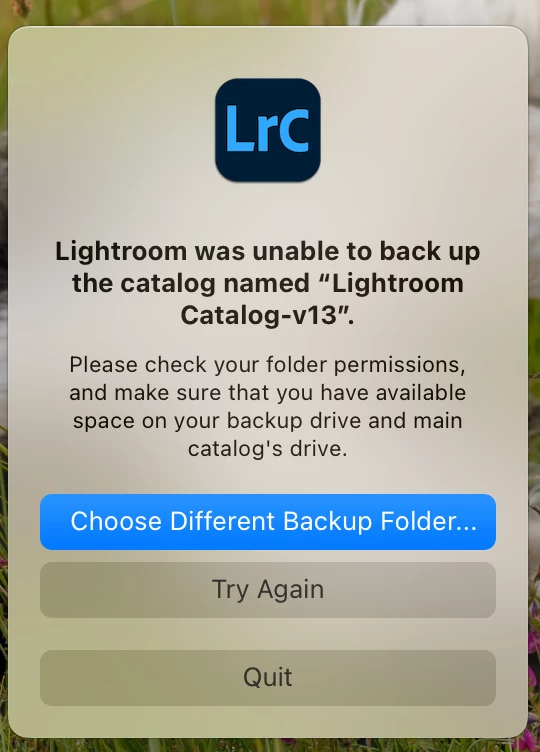
For may years I've been able to backup my Lightroom catalog upon quiting, but now I get the message "Unable to backup catalog" after it tries to backup for a minute or so. I've unchecked the option boxes to 'check catalog intergrity' and the other check box but still get the same message. The catalog opens and seems to work fine but I am unable to backup. Any help with this for a solution would be much appreciated.  TIA, Ken
This topic has been closed for replies.
Correct answer Ken Nielsen

I've spent days on this and it just gets worse. I promise I'll never delete Lightroom files again no matter how many years they've collected. I've abandoned the old catalog and moved the catalog file only to a new location on a hard disk then opened it as a new file in a new location. This, is acting normally now and I was able to back up. Live and learn and make adjustments. I only have one life to live and I do not want to spend it tangling with Lightroom. Thanks for help that was offered here as it opened the door to me moving the catalog to an outside hard drive. All is well that ends well.

3 replies

Ken Nielsen
Legend
May 16, 2024

I have been going in circles and getting nowhere with this. Lightroom refuses to back up my catalog and I want to try Exporting to a new catalog in hopes that I may be able to back up THAT catalog. I've, for weeks now, spent days giving write permissions to all folders leading up to my catalog folder on the hard drive. I moved the catalog backups location to a new folder on a new hard drive. All of the hard drives have many terrabytes of storage space available and the catalog itself continues to work just fine and I can add new images almost daily.  I've heard that Exporting a catalog and giving it a new name can be a fresh start and one person had done this and the catalog now works fine and backs up normally on every quit... like mine had been doing for years. 

Here is the menu I am looking at but being very cautious as I destroyed my last computer trying to resolve this and had to buy a new one, I do not want to go through that again. Pleas advise me simply how to export my current catalog to create a new catalog, plain and simple please, but to cover all the bases so I don't mess things up worse than they already are.


TIA,


Ken

AxelMatt
Community Expert
Community Expert
May 16, 2024

Goto the view "All Photographs" in the library and disable all filters and expand all stacks. Then mark all images und click on File - Export as Catalog...


More informations you'll find here:

How to Export Adobe Lightroom Catalog to a Stand-Alone Catalog > DINFOS Pavilion > How To


My System: Intel i7-8700K - 64GB RAM - NVidia Geforce RTX 3060 - Windows 11 Pro 25H2 -- LR-Classic 15 - Photoshop 27 - Nik Collection 8 - PureRAW 5 - Topaz Photo
Community Expert
May 16, 2024

Yes click into "All Photographs" to indicate you want to include all photos. There is no need to select them though, so stacking does not need to be expanded. Just make sure "Export selected photos only" is left un-checked.  


If you are happy with maintaining the current file locations for all your imported images, then also un-check "Export negative files". This (IMO oddly named) option will otherwise duplicate and then reference copies of all the included source files, into a duplicated folder arrangement alongside the exported Catalog.

Ken Nielsen
Ken NielsenAuthorCorrect answer
Legend
May 5, 2024

I've spent days on this and it just gets worse. I promise I'll never delete Lightroom files again no matter how many years they've collected. I've abandoned the old catalog and moved the catalog file only to a new location on a hard disk then opened it as a new file in a new location. This, is acting normally now and I was able to back up. Live and learn and make adjustments. I only have one life to live and I do not want to spend it tangling with Lightroom. Thanks for help that was offered here as it opened the door to me moving the catalog to an outside hard drive. All is well that ends well.

D Fosse
Community Expert
Community Expert
May 5, 2024

I'm glad it's sorted - but it needs to be clear that this did not happen because you deleted the other files! That's not possible.


Messy and unorganized folders will only increase the risk of problems.

Ken Nielsen
Legend
May 5, 2024

Thank you D Fosse, there will be lessons in all of this I'm sure. 

dj_paige
Legend
May 4, 2024

Did you follow the advice in the message? Check folder permissions, make sure you have enough space on both drives.

Ken Nielsen
Legend
May 4, 2024

Yes, I did that first, releasing permissions to all folders and sub folders where the backup resides on the main hard drive and also there is lots of spare room so no issue there. I've never had to alter permissions or check hard drive space in years past. Something is definitely wrong and I'm suspecting it is because I 'cleaned up' old files and old catalogs from the past off of my hard drive. Something may have gone missing that should not have been deleted but the main catalog and the several accompanying  side files are there and I understand that if anything was needed that Light room would manufacture. The catalog itself opens and works perfectly and I've even benn able to add new additional photos since this problem started a few days agao.


D Fosse
Community Expert
Community Expert
May 4, 2024
quote

I'm suspecting it is because I 'cleaned up' old files and old catalogs from the past off of my hard drive. Something may have gone missing that should not have been deleted


By @Ken Nielsen


No, that's not the reason. The catalog file will work splendidly all by itself. All of the other associated files get rebuilt as needed.


I know that because I have a separate backup regime that only copies the .lrcat file itself, none of the other files (this is across two different machines, that's why). I've done that for years and the catalog file backups normally on the receiving machine.


So with that out of the way - try a different backup location: