
Known Participant
January 7, 2018
Answered

Why can't I no longer import photos into my external hard drive using Lightroom CC External Portable Drive without a second copy of my RAW file being created

  • January 7, 2018
  • 5 replies
  • 8838 views

I use an external hard drive to store my photos. I don;t like smart previews and always work from my external hard drive. However, I am having problems importing from my hard drive in the library mode. I've been doing this successfully for years- with only one RAW file being left on my hard drive. And have spent hours trying to work out what on earth I am doing wrong.

I open Import select the folder I want to import from.

Then select the photos- the only option available is copy- which is always the case when using an external drive.

I used to be able to see the folders and files I had imported and I have many folders, with successfully imported photographs.

Now I can no longer seem to do this without generating a copy- the RAW files are big so I dont want to do this.

Can anyone point me in the right direction.

All help gratefully received.

Julie
This topic has been closed for replies.
Correct answer Just Shoot Me

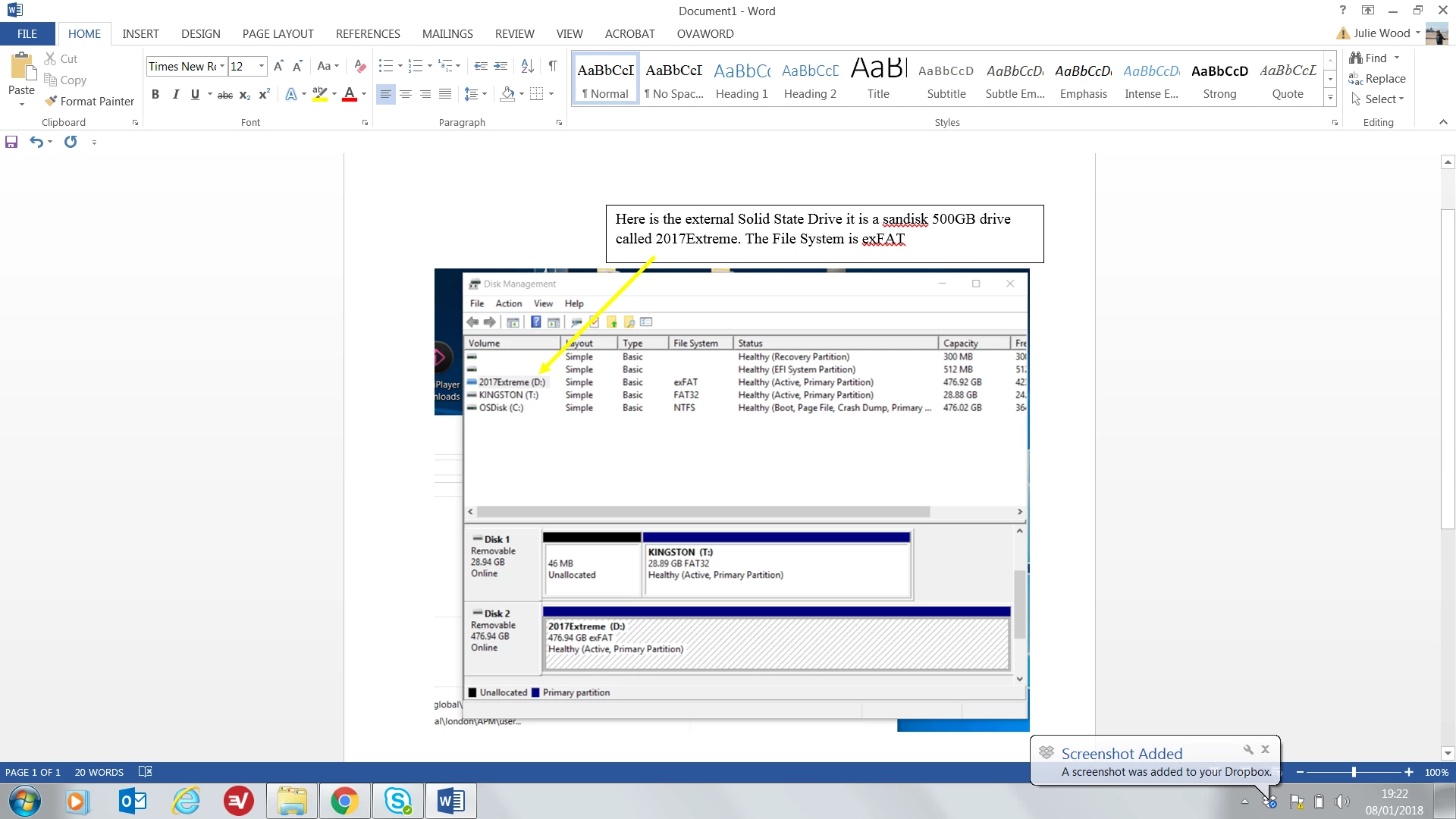
Hi there the file is an external Solid State Sandisk Extreme Drive. Below is a screen shot showing the operating system. It is connected via a lead into a USB socket in my laptop.

I use it on my Mac too. Any suggestions of what I can do.


It's probably because it is formatted exFAT.

I suggest you back up all your files on that drive then Format it NTFS when connected to a Windows computer. You will then need to install a driver on your Mac system so OS X can Write to NTFS formatted drives. OS X can read from that format but it can't write to it natively.

Windows is seeing it as a Removable drive like a cameras memory card. SD, CF, whatever type cards.

Once you do that that drive will show up as a Local drive and you can stop using Copy in the import window and start using ADD to just add the image files to the LR catalog and leave them where you placed them on that drive.

What you are doing now is Copying them From and pasting them To that same drive.

Which with SSD's will shorten it life span.

5 replies

Inspiring
January 29, 2018

I have this problem too.  I haven't changed anything - same computer, same hard drive, but I am now unable to 'add' photos to the catalogue from my hard drive.  The only available option is Copy.

Known Participant
January 14, 2018

Hi I still have a question. I am being told that if I format my sandisk to NTFS then I will not be able to write to it in from my Mac. I mainly use my Mac to work on my photographs so I'm not sure what to do next.

Julie

Just Shoot Me
Legend
January 14, 2018

You will need a utility, program of sorts, installed on the Mac to be able to write to a drive that is formatted NTFS.

Or you can format it in the Mac format and install a utility on Windows to both read and write to it.

Known Participant
January 9, 2018

Thank you to everyone who helped me get to the reason this was happening. Very much appreciated and I also learnt some new things along the way.

Julie

Just Shoot Me
Legend
January 8, 2018

So to answer the last question in your topic title, It is because LR is seeing that external drive as a SD, CF, Whatever type drive that is normally associated with being from a camera. The only option available when LR sees that type of drive it to Copy.

Once you Re-Format that drive to NTFS it will show as a Local externally connected drive and then you can start using the Add option in the LR import dialog window.

Known Participant
January 9, 2018

thank you. very much appreciated.

Julie

dj_paige
Legend
January 7, 2018

Show us a screen capture of the Import dialogbox when the problem occurs.

Also please state the EXACT VERSION NUMBER of your Lightroom. Do not state it in words like "current" or "recent".

Also please state your EXACT operating system.

Known Participant
January 8, 2018

Hi there, thanks for responding. I'm clearly doing something wrong as this has been working just find for years.

Here is the info and screen shots. Hope that you can help. Julie

Lightroom Classic version: 7.1 [ 1148620 ]

License: Creative Cloud

Language setting: en

Operating system: Windows 10 - Enterprise Edition

Version: 10.0.14393

Application architecture: x64

System architecture: x64

This is my standard view .

Community Expert
January 8, 2018

You have "Organize" set to original folders, in the destination section of the import screen. This option replicates whatever subfolder arrangement is present at the source, as brand new subfolders of whatever destination folder you have targeted.

If you want to explicitly make one folder yourself for all the images of an import batch to go into, regardless of their folder arrangement at the source, change "Organize" to one folder.

Alternatively if you want to have images filed by date (capture date, choice of filing systems and naming systems), select that and LR will carry it out - again ignoring the original source folders. In that case too, you'd be typically targeting a constant destination folder, so as to accumulate over time a systematic date hierarchy containing all imports.