Participating Frequently
February 24, 2017
Answered

Why is LR adding a pink edge/highlight on imported files?

  • February 24, 2017
  • 7 replies
  • 3316 views

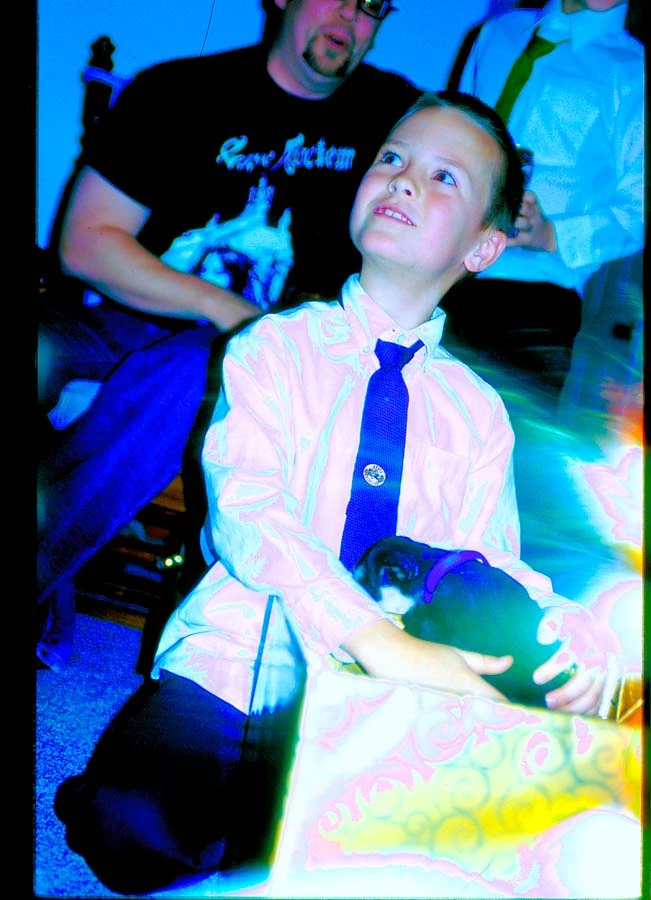
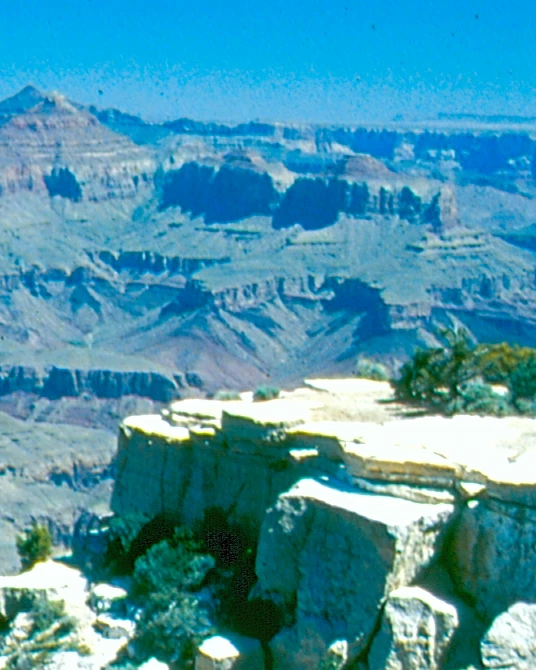
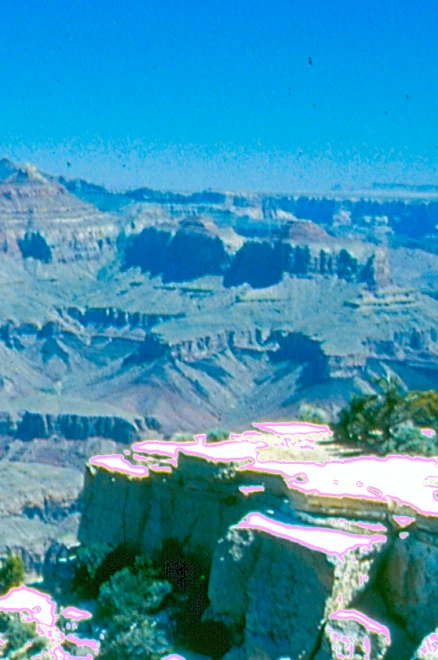
I'm in the process of scanning and importing a number of older 35mm slides.  For some reason, it apprears that Lightroom is adding a pink edge (or worse) over the top of the brightest edges or areas of some files.  I'm using an older microtek ScanMaker i800 scanner and the highlighting doesn't appear when previewing the files before import.  in the photo below there are a number of pink lines added to the brightest areas of the clouds.  In the second photo the boy's white shirt is almost entirely covered with the overlay.  What do I do to 1) prevent this from happening and/or 2) correct this in LR or PS?  Thanks,

This topic has been closed for replies.
Correct answer Bob Somrak

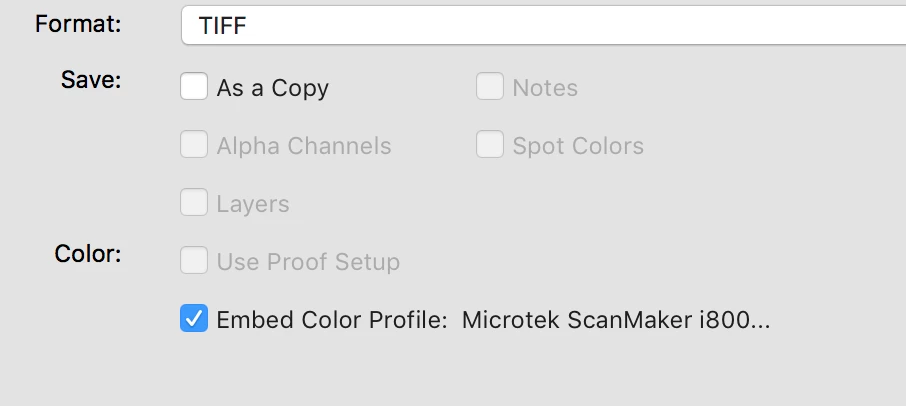
You file has an embedded profile called "Microtech Scanmaker i800  "      I imported the file in Photoshop and resaved the Tiff with the profile unchecked and the file looks ok in Lightroom and it doesn't have the ugly color casts and over saturation.  The original file would not even display in Mac Preview.!!!!  Apparently Lightroom and Mac Preview do not like the embedded profile.

Original file loaded in Photoshop

Original file in Lightroom

Original export dialog in Photoshop

Resaved file in Lightroom

7 replies

Participating Frequently
March 8, 2017

GREAT!  Knew that someone would be able to identify the problem and offer a solution. 

Bob - Does LR offer the same ability to change the profile on export or otherwise?  Would save a step in cleaning up the scans I've already completed.

Per - I will check the scanner and see if I can change the imbedded profile there. 

I appreciate everyone's help and suggestions.

Bob Somrak
Legend
March 8, 2017

When you export a TIFF of this scan in Lightroom it just saves with the pink edges even though sRGB is specified.

M4 Pro Mac Mini. 48GB
Participating Frequently
March 8, 2017

Here's a link to the original scan which I hope will download for you.  Its very large so Google adds a virus warning but it was clean when uploaded.  GCNP as scanned.tif - Google Drive

My scanner software has three settings for dynamic range - full, auto, and custom.  Playing with the settings I've found that in most cases with very bright areas "auto" will always give the pink edge upon import.  "Full" works most of the time unless there are extreme differences in light and dark areas.  "Custom" works much the same as "full".  Any other of the auto adjust features have to be off to avoid the banding.  So to me it appears to be a blow-out issue that Lightroom must be adding to highlight those blown out areas but is somehow permanent instead of just a warning highlight.

Thanks,

Bob Somrak
Bob SomrakCorrect answer
Legend
March 8, 2017

You file has an embedded profile called "Microtech Scanmaker i800  "      I imported the file in Photoshop and resaved the Tiff with the profile unchecked and the file looks ok in Lightroom and it doesn't have the ugly color casts and over saturation.  The original file would not even display in Mac Preview.!!!!  Apparently Lightroom and Mac Preview do not like the embedded profile.

Original file loaded in Photoshop

Original file in Lightroom

Original export dialog in Photoshop

Resaved file in Lightroom

M4 Pro Mac Mini. 48GB
Participating Frequently
March 6, 2017

I've tried a variety of color profiles (including sRGB and Adobe 1998), none of which significantly changed the over exposure/saturation or affected the pink banding.  I also turned off the GPU, which had no affect.  I'm using a Windows based Microtek Scanmaker i800, at 4800 dpi and multiple scan lines.  Scans are saved, in TIF format, to a common disc and then imported into LR on my iMac.  If any of the "auto" or "custom" options are turned on in the Windows software, I tend to see more pink lines in the original scans but it doesn't happen in a consistent manner.  The pink banding is always limited to the brightest edges and doesn't appear in dark or underexposed scans.  I was usually shooting Kodak Ektachrome or Kodachrome slide film and the banding appears in scans of both films.  The over saturation appears frequently but can usually be adjusted out.

Bob Somrak
Legend
March 7, 2017

Your JPG file in Post #5 loads fine.  If you could upload an ORIGINAL TIFF scan to Dropbox or another file transfer service than maybe we could get a better handle of what is going on.

M4 Pro Mac Mini. 48GB
D Fosse
Community Expert
Community Expert
March 6, 2017

I could be wrong, but I think this looks like the kind of "pseudo-solarization" you can sometimes see when one channel hard clips just before the others. In some special circumstances you can even see this with raw files, if the clipping occurs in the sensor.

Did the OP try to rescan without clipping the highlights?

And I just have to ask: Why this extreme oversaturation?

Bob Somrak
Legend
March 6, 2017

Others, including myself, have imported the files WITHOUT the pink edges so I would think it was the OP's computer setup.  As far as the clipping the original slide may have been clipped.

M4 Pro Mac Mini. 48GB
Participating Frequently
March 6, 2017

Screen shot of the develop module as imported.  As you can see there are extensive areas with the red highlighting which can be handled by reducing highlights or exposure.  The pink banding appears along the edges of the blowout areas but doesn't seem to be affected by any adjustments and the pink outline remains after these basic (exposure/highlights) adjustments.  I also checked the "Add During Import" settings to ensure that nothing was being done to the file during importing.  The only addition/adjustment was addition of a copyright to the metadata. 

As to screen calibration, I use an iMac and MacBook Pro, both with Apple calibrations, performed recently.  This problem occurs on both and has for a long time (I'm only now reaching out for help with it).  The pink banding also carries over to prints so it appears to me to be independent of monitor or calibration.

Thanks,

David

Bob Somrak
Legend
March 6, 2017

Open up your mac Display/Color preference and note what the present calibration is.  It will be highlighted.  Change it to sRGB temporarily and see what happens as a test.  I use a 2015 iMac and the import looks fine.

M4 Pro Mac Mini. 48GB
Participating Frequently
March 4, 2017

Sorry about that. This is the file after importing into LR.

The following is the original scan.

Per Berntsen
Community Expert
Community Expert
March 5, 2017

I downloaded the file from the scanner, and when importing it in LR, it doesn't change at all.

The prime suspect is a develop preset being applied at import, but I can't imagine what develop setting would cause these pink outlines. LR uses red highlighting to flag clipped highlights, but does not use pink highlighting at all, as far as I know.

But the histogram is different for the two images you posted, which indicates that the image has been edited in LR - it seems that you have dragged the Highlights or the Whites slider to the left. I tried to replicate the pink outlines by editing, but wasn't able to do it.

Please post a screenshot of the entire Lightroom window with the image open in Develop, and the History panel visible on the left and the Basic panel visible on the right.

Per Berntsen
Community Expert
Community Expert
February 24, 2017

Have you done any edits to these files in Lightroom?

Would it be possible for you to share one of the original files with us, like it came from the scanner - preferably the one with the white shirt. You can put it on Dropbox, and post a link to it here. If the original is a jpg, you might be able to post it here, the same way you posted the images above.

Participating Frequently
February 25, 2017

Thanks for the quick response. I rescanned the image of the boy today using three different sets of scanning parameters and then imported them into LR on my desktop. It appears one set of controls may have eliminated the problem. I will scan some other slides that had problems. If the settings work on other slides I will let the forum know. If it doesn’t work I’ll post the files as requested below.

Thanks again,

David