
Known Participant
January 17, 2018
Answered

Book mode red box icon

  • January 17, 2018
  • 2 replies
  • 1312 views

Templates are restrictive for multiple photos with plentiful room for texts.

For example, six landscape photos with text above and below. Only one page text box is available. Photo boxes are restricted to above photo even if align with photo is not checked off.

The only solution I found was to use one text box, with spaces after the top text to push second text paragraph to the bottom. This layers the text box over the photos.

This can be seen by the text box perimeter, and the fact that you can't alter a photo without removing the page text box first.

An icon appears at the bottom right that is a red box with an x in it. I assume this warns of layering.

How will this print in Blurb? Blurb support suggested I ask for support in LR.

I would appreciate any advice.


Thank you,

Suzanne

This topic has been closed for replies.
Correct answer Rob_Cullen

If I think I know what you are trying to achieve- then you have some difficult editing ahead-
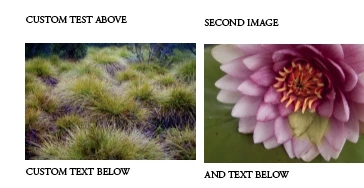
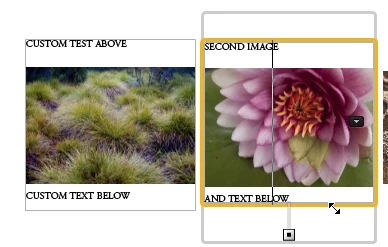
I can place the "Photo Text" box Above each photo, Uncheck [Align with Photo], and then expand the type by placing multiple line 'Returns' between the text above and below the photo, but alignment is difficult.

The page will print to a JPG and PDF ok as below, so I have no reason to suspect that it will not print ok by Blurb.

Editing the Photo Text cell-

A PDF export-

2 replies

Participant
October 13, 2022

I have published many books using Blurb Plugin in LrC.  I have experienced the red box issue a few timees in the past; fixing it required a modest change in position of title. On attached cover,  I had to move the book title to the center of the page (landscape format) in order to eliminate the red box. I have set up the cover from scratch repeatedly and nothing  eliminates the red box. Also the photo bleeds on the cover; there is always a translucent border; see back cover attached. On front cover, border appears to be solid gray, not translucent. Is this a problem, too? I emailed Blurb support; response was "contact Lightroom." Appreciate any help and/or advice.  

Rob_Cullen
Community Expert
Community Expert
October 13, 2022

"there is always a translucent border",  Yes, that is a 'Trim' area that warns you the photo might be clipped when the guillotine cuts the book Dust Jacket (which I see you are using!)

The "solid Gray" maybe because you have a Page Background set for the Front Cover- Select Front or Back and check if you have a color set in the Background Panel.

Also turn on guides that give a visual indication of the photo Cell borders- which you should be able to Drag right to the very edge of the page, thus hiding any page background, (but also allowing the edge of the image to be trimmed!)


Regards. My System: Windows-11, Lightroom-Classic 15.1.1, Photoshop 27.3.1, ACR 18.1.1, Lightroom 9.0, Lr-iOS 10.4.0, Bridge 16.0.2 .
Rob_Cullen
Community Expert
Community Expert
January 18, 2018

I am not sure I understand what template design you are trying to achieve.

But the Red X Box indicates that there is not enough space in the Text box to contain all the typed text.

Lr Text cells do not work like many other programs that will split the text and carry-over into the next available cell or page.

You can test this by typing a few words, select the text, then increase the Character size greatly- you will see the red X box appear.


Regards. My System: Windows-11, Lightroom-Classic 15.1.1, Photoshop 27.3.1, ACR 18.1.1, Lightroom 9.0, Lr-iOS 10.4.0, Bridge 16.0.2 .
S.NadeauAuthor
Known Participant
January 18, 2018

Thank you for your help. Yes, I understand your example about making the text too large for the text box and the Red box will show up.

I was hoping to split the text within the same box. On the LR view if I write a few lines at the top and then space down and continue under the photo, I am still able to see the photo in the LR view. However, perhaps this will glitch when I send it out to print with Blurb.

I want to use six photos in both of these examples. But the LR boxes available include only one page text box and 6 photo boxes that are confined to the photos space. There are no other alternatives that work better with the layout options.

Thanks,

Suzanne

Rob_Cullen
Community Expert
Rob_CullenCommunity ExpertCorrect answer
Community Expert
January 18, 2018

If I think I know what you are trying to achieve- then you have some difficult editing ahead-
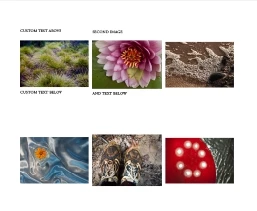
I can place the "Photo Text" box Above each photo, Uncheck [Align with Photo], and then expand the type by placing multiple line 'Returns' between the text above and below the photo, but alignment is difficult.

The page will print to a JPG and PDF ok as below, so I have no reason to suspect that it will not print ok by Blurb.

Editing the Photo Text cell-

A PDF export-

Regards. My System: Windows-11, Lightroom-Classic 15.1.1, Photoshop 27.3.1, ACR 18.1.1, Lightroom 9.0, Lr-iOS 10.4.0, Bridge 16.0.2 .