

Answered
Imported Profiles Don't Show in Browser
I am trying to create and use a custom Camera Profile (not preset) for my Google Pixel 3 phone.
I can create and import the .dcp successfully, but not matter what I've tried, the profile simply will not show up in the list of available Profiles.
Here's the steps I've tried.
- Copy a "raw" file from my Google Pixel 3's /Pictures/Raw folder to a temp folder on my PC (FYI the Pixel saves its raw files as DNG)
- In Adobe DNG Profile Editor, open that DNG image I just copied
- The "Base Profile" says "Adobe Standard (Google Pixel 3)"
- I make some random changes to the Hue, Saturation, and Lightness (just to see if it works)
- I select File > Export Google Pixel 3 profile, and save it as "T:\temp\Google Pixel 3 Test.dcp"
- The DNG Profile Editor tells me "Google Pixel 3 Test.dcp was exported successfully"
- I exit DNG Profile Editor, and choose to not save the recipe.
- At this point, I believe I have a successfully created profile that can be used for my raw Google Pixel 3 images.
Then, I open Lightroom
- I select File > Import Develop Profiles and Presets
- I pick the DCP I just saved: "T:\temp\Google Pixel 3 Test.dcp", and click "Import"
- In the Library module, I click Import
- I select the very same DNG file I used as the image for the DNG Profile Editor, and click "Import"
- When I go to the Develop module, the only profiles available are the standard Adobe ones. The profile I created and imported is nowhere to be found
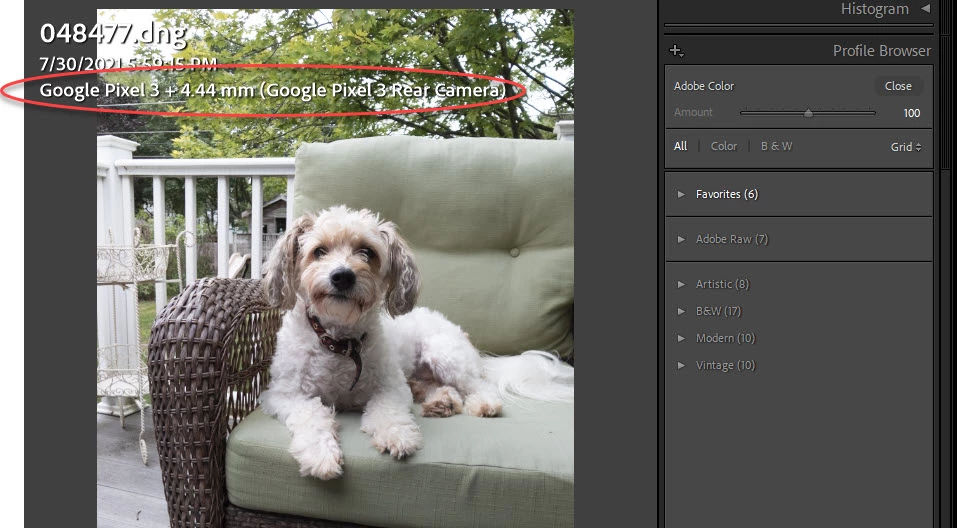
In the screenshot, you can see that it's a DNG and Lightroom knows that it's a Google Pixel 3 image
It seems like I'm doing everything right, but the profile is just completely MIA.


 AdChoices