
Participating Frequently
June 11, 2020
Question

Lightroom Classic - 'Ghost' images appearing in Grid - MacBook

  • June 11, 2020
  • 4 replies
  • 1817 views

Hi all,


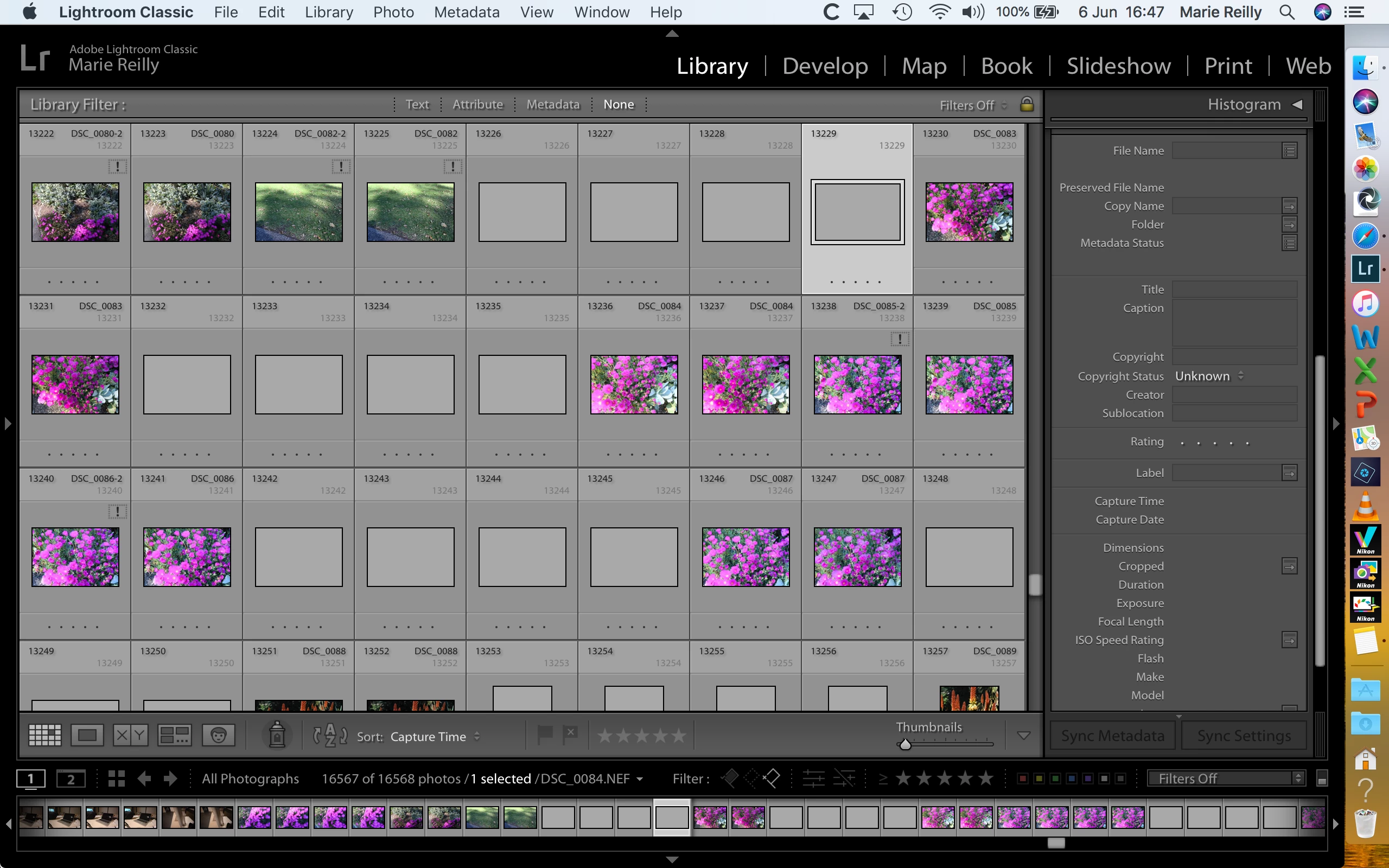
I am a relatively experienced LR Classic user but would be very grateful for help with a problem a friend is having as I have never seen anything like it before. As you can see from the capture, there are a number of blank (ghost) images.  However the library panel has no data so no idea where they came from. There appears no way to delete them. Will not accept a Cmd-Delete or a Reject (X).  


Have just been through a process where we have moved the images from the Mac to an external drive. I then checked all the links and they seem to be ok. For a number of reasons ended up with a number of  duplicates and these are gradually being removed from the catalog. There do not appear to be any missing.


My friend had the standalone version of LR which was fine but that plan fell apart when she got a Nikon Z7 so LR could not read the .nefs and could not be upgraded. Resisted changing to a subscription so as an interim used Adobe DNG Converter. A clumsy solution but it seemed to work. However, one possibility may be that this has somehow created the ghosts??? Finally convinced to upgrade to Classic and no apparent problems with Z7 files since then. She is running the latest version of LR.


The ghosts do not seem to have created problems apart from being untidy.  They have been assigned a catalog #. 


Any ideas as to why this may have occurred and how to fix it would be most appreciated.


Many Thanks


Graham


This topic has been closed for replies.

4 replies

Participant
August 18, 2020

Same issue here, but on Windows, LR9.3.

For me it occurred after I cancelled an import action. This messed up both the LR and Windows file systems and I needed to reboot to fix parts of it.


Edit:


I just discovered something that might have something to do with my ghost images:

Windows doesn't assign unique drive letters to USB drives and memory cards. In my master catalog, there is a USB drive listed from which it read images in the past, assigned "H:\". This is an external HDD, which isn't normally connected, but LR remembers it anyway, and shows it as inactive without a green "light".

When I insert my memory card, it gets assigned "H:\" as well, and suddenly LR marks the HDD as active, even though the drive letter doesn't refer to the old HDD. The memory card contents are not shown shown in the overview, until I click "Import". In the folder overview, the folders on the HDD are marked as "missing", and I cannot refresh that overview. It does allow me to remove the images from the catalog, but that is not a solution.


It feels like LR tried to import images from the "other" H:\-drive   ?


Even without the ghost images, it's annoying that LR cannot handle USB drives very well. It doesn't seem to be smart enough to at least look at the full volume name instead of the randomly assigned drive letter...


Could it be that the import function gets confused?


Edit2:


I just found another thing that could be the issue: simple duplicate filenames. I imported new photos from the SD card directly into one folder, in which files already existed. I have a new camera, and the numbering coincidentally partially coincided with the existing filename numbers already present.

This led to a weird situation: in Lightroom, the old images with their edits still "exist", but the actual image matrix has been replaced by the new file information. All other metadata is kept from the old file, including (wrong) resolution information and date taken.


There is definitely something fishy going on with the import function...

Just Shoot Me
Legend
June 13, 2020

I tried to make a reply to you this morning. Got some kind of Error.

I suggested you go back to one of your catalog backups that LR auto make once a week.

You need to First Un-Zip it and then Double click on the Expanded .lrcat file and that will open LR and load that catalog. Just keep going back in time until you find one that does not show this problem.

Participating Frequently
June 13, 2020

Thank you - that is a good idea and I can give that a try.


However, I am not sure how this might help because that would surely also mean we would lose all the work we had done between that 'good' catalog and now, ie, every change over the past year??

Just Shoot Me
Legend
June 13, 2020

You may only need to go back 1-2-3 weeks not years.


Rob_Cullen
Community Expert
Community Expert
June 11, 2020

Adobe knew about the 'bug' problem (about 2 years ago) that only Adobe could repair.

Updating to Classic v9.2 was later suggested as the fix.

See the discussion here-

https://feedback.photoshop.com/photoshop_family/topics/blank-thumbnails-showing-up-in-all-photographs-only


Regards. My System: Windows-11, Lightroom-Classic 15.1.1, Photoshop 27.3.1, ACR 18.1.1, Lightroom 9.0, Lr-iOS 10.4.0, Bridge 16.0.2 .
Participating Frequently
June 11, 2020

Many thanks WobertC. I am fairly sure the LR version is the latest but will check. 


It does seem odd that Adobe has been aware of the problem for 2 years and does not seem to have found a fix as they do seem quite responsive. 

Participating Frequently
June 12, 2020

Many thanks JustShootMe,


I trust the screen shots below will provide the basic data as you requested. 


As far as the problem is concerned I also include screen shots from where it began. The time the ghost images started to appear was the time a Nikon Z7 was introduced. The standalone LR was in use (latest version) at the time. It would not open the NEFs and ACR was not upgradeable. We tried to use Adobe DNG Converter but that did not work very well. We eventually upgraded to LR Classic which accepted the  Z7 NEFs without problem. Obviously that picked up the existing Catalog.


The problem is only visible in All Photographs. They are not apparent when viewing from a folder in the external LaCie drive. We have also just migrated all the original files from the HD to the external drive.  


Any suggestions gratefully accepted. However it is not feasible to stop work on LR while we send of a catalog as we have a project in progress. 


cheers


Graham


The selected image is the first of the Z7 photos. 

The selected image is the first ghost. 


Just Shoot Me
Legend
June 11, 2020

Please Consider including the following in your question:
Adobe product and version number
Operating system and version number
The full text of any error message (s)
What you were doing when the problem occurred
Screen shots of the problem
Computer hardware, such as CPU; GPU; the amount of RAM; etc


Having said all the above which is from a template.

IIRC there was, Is, a problem with double drive entries mostly on Mac's but also on windows sometimes.

Without seeing the FULL LR Classic Library module window. So I suggest you get and included all the info asked for and a new screen shot of the full LR Library, Specifically showing the Folders section. You can collapse the Navigator section and if you are not in a collection collapse that too.

Participating Frequently
June 11, 2020

Many thanks - first post but I should have given more detail - will get this in a day or so.