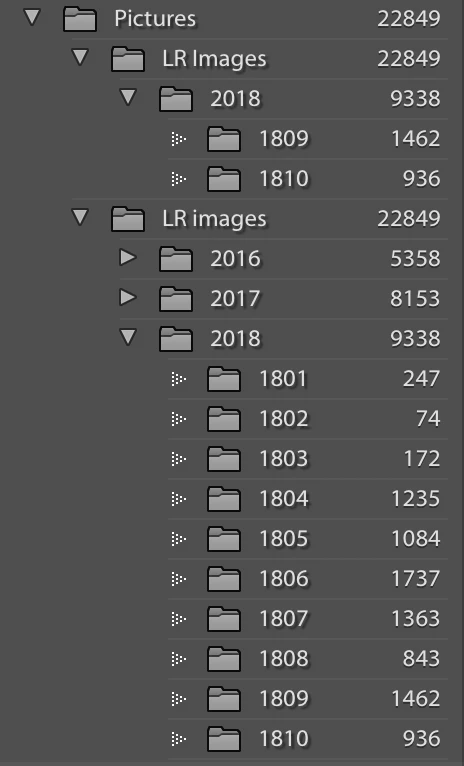
This is a well-known problem, called the 'Capitalisation problem'. Basically, what happens is that you have two different folders, one called ‘XXXX’ and the other one called ‘xxxx’. In other words, the names are the same, except for the capitalisation. Because MacOS and Windows are case-insensitive, your OS sees those two folders as one and the same folder and so it deals with this without you even being aware of it. You will only see one version. But Lightroom is case-sensitive, so Lightroom does see two different folders. In your case, the difference is the capitalisation of the ‘i’ of ‘images’. Check which version the Finder sees. That is the correct version.
Here's how to fix the problem:
1. Backup your catalog.
2. Create a folder directly on the root of your internal hard drive, call it whatever you want, say "Capitals Fix". Note: do this in the Finder, not in Lightroom.
3. Right-click on the “wrong” folder in the Lightroom Folders Panel and select "Update Folder Location". In the file browser that then opens, browse to and select the "Capitals Fix" folder.
4. Don't be alarmed as the folder will disappear from the Folders Panel, "Capitals Fix" will appear but all the sub-folders that were listed under it will now have "?" marks.
5. Now right-click on "Capitals Fix" in the Folders Panel, and again choose "Update Folder Location". This time browse to and select the correct (and only) LR images folder. You may get a "Merge" dialog box, select "Merge" and everything should resolve itself.

 AdChoices