sadiep32877858
Participating Frequently
July 17, 2017
Answered

Using Spot removal tool on a straight line LR6

  • July 17, 2017
  • 6 replies
  • 3927 views

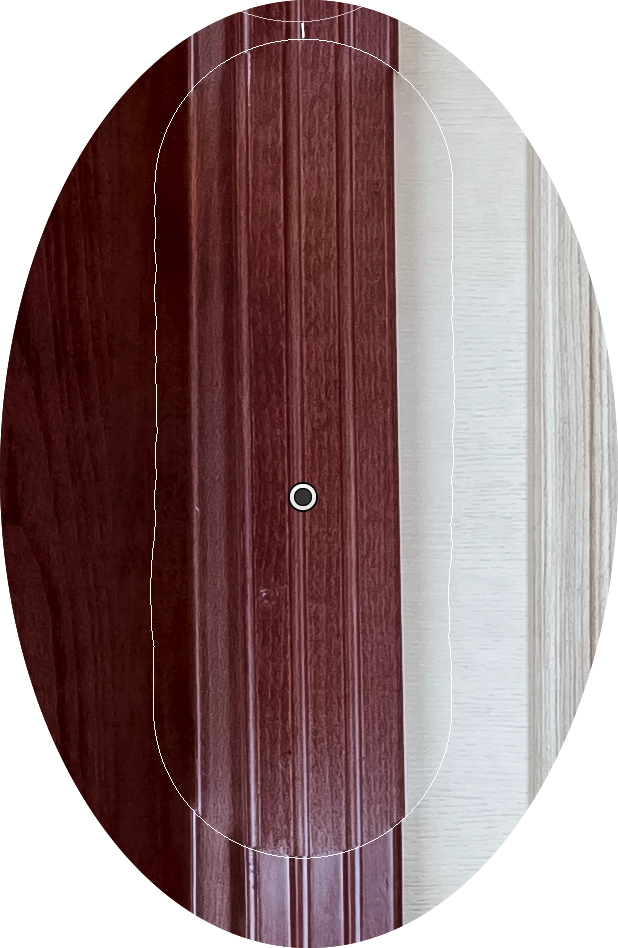
Hello, does anyone else have this issue?, I'm trying to clone a part of a straight line onto another small part but it changes the angle ever so slightly so it never matches up..

    This topic has been closed for replies.
    Correct answer F. McLion

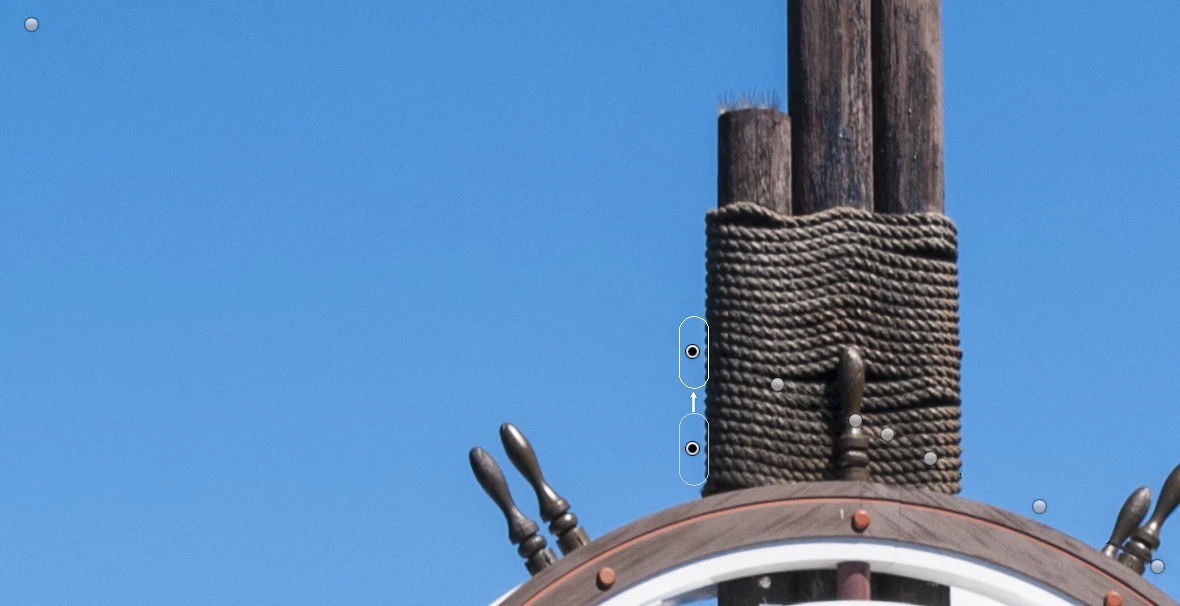
    I too have been getting good results like F. McLion.  I recreated what he did on his uploaded photo with just as good results.  I think the key a lot of times is to use the brush in small pieces instead of large chunks and a lot of careful relocation of the source area.


    Yes, using too large chunks is what many do wrong - I can see this in classes when I introduce the tool. Also make sure you are in repair mode. For the current sample posted here, the Feather was on 0 - IMHO, Feather is one of the keys of this tool which can decide to produce good results or garbage. For areas like the blue sky with no details but with gradient, i suggest to crank Feather up.
    6 replies

    sadiep32877858
    Participating Frequently
    July 24, 2017

    Ok I will try that when I have a small window tomorrow.  but for now, I was having a little play around again and I tried to take small cross sections.  Rather than do one big vertical line, I took small horizontal lines slightly overlapping one another and it seemed to work much better.  I still need to take a little extra time to do some perfect matching but I think with that patience i could achieve more of what I'm after.  But will still be interesting to see if your theory works to trshaner​. But I also agree with @F. McLion that such bug should be fixed if indeed true.

    Here is my screen shot of my play earlier.

    Todd Shaner
    Legend
    July 24, 2017

    sadiep32877858  wrote

    Rather than do one big vertical line, I took small horizontal lines slightly overlapping one another and it seemed to work much better.  I still need to take a little extra time to do some perfect matching but I think with that patience i could achieve more of what I'm after.  But will still be interesting to see if your theory works to trshaner .

    You can do that, but it will only work with clone areas that aren't significantly different. Here's an example using an Export copy with all settings applied except Spot Removal. Then apply Spot Removal to the copy image or use Edit in PS, which has better tools for this purpose.

    sadiep32877858
    Participating Frequently
    July 24, 2017

    trshaner I also too thought it was because of converging lines as in the original image they were but I fixed that problem before I started with the spot removal tool.  I also checked it with the guidelines after fixing and from eye they seemed perfectly vertically straight but the selected area seemed to twist diagonally ever so slightly, just enough to chuck the whole thing out of line.  So my guess would be that maybe the selection area is maybe selecting from the original image rather than after it has been straightened.  I noticed something else too but I will show you when I have a moment to reload that particular image back onto my computer.  I will load a larger screen shot area for you.

    Todd Shaner
    Legend
    July 24, 2017

    OK, the original image file had converging verticals, but you corrected them before applying the Spot Removal Clone tool.

    I think I know what's happening. The Clone Tool uses the original image data bit map (Before state) and not the Transform bit map (After State). Try exporting the original file with the corrected verticals, but without Spot Removal applied. Use the below Export module settings to insure best results:

    Then try applying the Spot Removal tool to the full-size TIFF image file.

    F. McLion
    Community Expert
    Community Expert
    July 24, 2017

    That would be an explanation. However, I have a hard time to believe that such a bug was left undiscovered ....

    --- Got your issue resolved? Please label the response as 'Correct Answer' to help your fellow community members find a solution to similar problems. ---
    cmgap
    Community Expert
    Community Expert
    July 24, 2017

    Please share your image and post the link to download it here.

    Todd Shaner
    Legend
    July 24, 2017

    sadiep32877858  wrote

    Hello, does anyone else have this issue?, I'm trying to clone a part of a straight line onto another small part but it changes the angle ever so slightly so it never matches up..

    It's hard to tell from the small crop provided, but my guess is that the image has converging verticals, such as in the below picture:

    The image "changes size" in the vertical orientation, which prevents the clone spot areas from aligning properly. This can be fixed by using the Vertical, Auto, Guided, or Full tools in the Transform panel to make the verticals parallel. Here's the above image using the new Guided Upright tool:

    Bob Somrak
    Legend
    July 23, 2017

    Did you try and move the SOURCE to a different area of the photo and see if it aligns better.  I have had pretty good luck with the tool but in situations like this the source and destination have to have the same alignment because the tool does not rotate the selection.

    M4 Pro Mac Mini. 48GB
    dj_paige
    Legend
    July 17, 2017

    I have found this particular use of the Lightroom clone tool to be unsatisfactory, I could never get results I was happy with.

    sadiep32877858
    Participating Frequently
    July 17, 2017

    Absolutely! Its not even that they have a curve, the lines are perfectly straight and parallel all the way through and if they are not then straightening transform tool is not doing it job neither.  But when i show the gridlines to see how straight they are, from eye ther are perfectly straight.  So i think it would be good for Adobe to give us an explination on this.

    dj_paige
    Legend
    July 17, 2017

    sadiep32877858  wrote

    So i think it would be good for Adobe to give us an explination on this.

    Honestly, I don't think Adobe explains these sorts of things. You are wasting your time trying to get an explanation from Adobe.