
Participating Frequently
January 29, 2020
Question

Weird lines being added to photos

  • January 29, 2020
  • 7 replies
  • 4480 views

Hello all,

Right off the bat; I apologize for posting as this may not be directly associated with an issue coming from Lightroom Classic. 

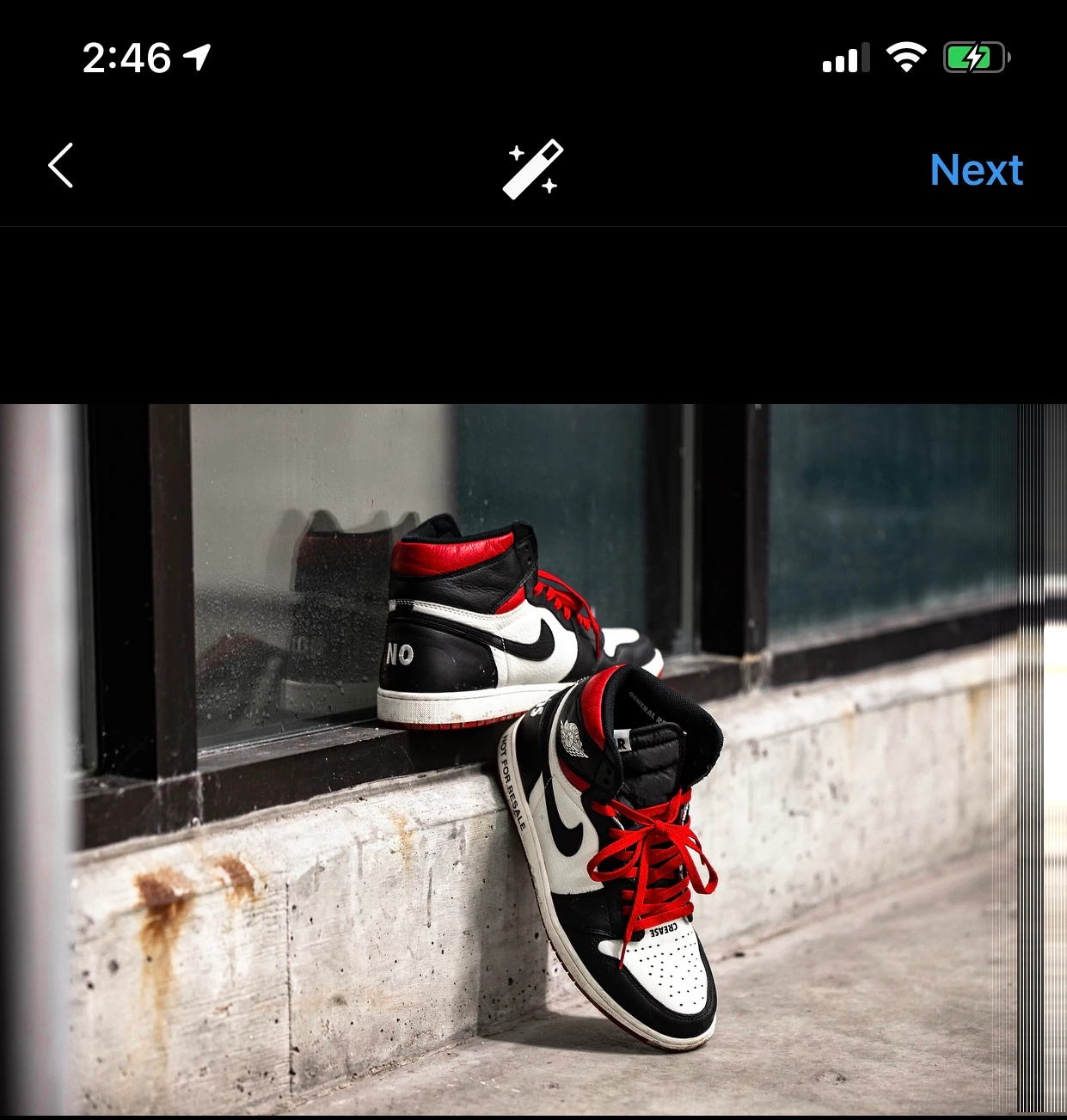
I have been editing using Lightroom Classic for about 3 years now & I am just now having this odd issue. I will export my photo like usual, Airdrop the image to myself to preserve quality, go on to post on social media (Instagram in specific;) upon posting - odd lines will appear once I arrive to the "edit" portion of Instagram. 
I do not edit or retouch my images on lightroom. 
It is untraditional, but I export my images in the following format: 

Image Format:JPG

Color Space:sRGB

Quality:100

Limit File Size: No

Resize to fit: No

Resolution: 240PPI


It May seem a bit overkill, but any other formulas I have attempted will literally SLAUGHTER my image quality. I am currently using a Canon EOS R, this issue began when I was shooting with my Sony A7R II. 
Since the problem has began, I have purchased a new SD card, am now using a new camera, attempted other formulas for export, used other (older) versions of Lightroom Classic. 
These images will not show any lines during edit, or in my camera roll - ONLY when attempting to post to Instagram. 
My images will also maintain these lines if I send to a friend, or client to post. 
Any assistance would be much appreciated!!!
 

This topic has been closed for replies.

7 replies

Participant
February 14, 2020

Are you still having this issue? The same thing is happening to me, and I don't know how to fix it


GoldingD
Legend
January 30, 2020

And I think I completly do not understand the Airdrop step? Can you expand on that?


GoldingD
Legend
January 30, 2020

When you say export. Do you mean you select the edited photo, and select export, then modify the export dialog as desired, then click on export, creating a new Photo?


OR


 Are you using a Publishing service, the one for Instagram,?


GoldingD
Legend
January 29, 2020

My gut reaction is Instagram is resampling and fouling up the data. Visit guidance at Instagram as to image size etc. Looking for what sizes get posted without resampling.


Participating Frequently
January 29, 2020

I've watched multiple videos & attempted using their exporting settings. 
All of them destroy the quality of image, but when I attempt to post - the lines do not appear. 
It is either: Post a horrible quality photo without lines

OR 

Post a GREAT quality photo with lines, or crop in to where the lines do not appear. 

dj_paige
Legend
January 29, 2020

This still sounds to me like file corruption, and since you state the problem doesn't exist at the time you airdrop it onto your device, but does exist in Instagram, the problem is in the transfer of the photo. Thus, you need to try doing this via a different piece of hardware, which I guess means a different device. 


I find it difficult to believe that with the gazillions of photos uploaded to Instagram that don't have this problem, that this is really being caused by something at Instagram. Nevertheless, you probably ought to pursue this in some Instagram help forum; if other people are encountering this problem, maybe they have heard about it. But honestly, this seems like a hardware or transfer issue, and not a software issue.

GoldingD
Legend
January 29, 2020

Does Instagram support PNG? And if so try that. Not familiar with Instagram. But many of Facebooks sins on altering photos when posted are eliminated when posting PNG files.


Participating Frequently
January 29, 2020

Just attempted to export as a PNG and post. 
Instagram does support PNG, but the annoying lines are still showing up. 

dj_paige
Legend
January 29, 2020

Do you man the vertical lines at the right of the photo you show?


Do you examine the image VISUALLY at each step of the process to see if the lines are present? By each step of the process, I mean: in Lightroom, outside of LR after export, after air-drop but before uploading to instagram?


Most likely there is some corruption in the file transfer process, but without more details, its hard to pinpoint.

Participating Frequently
January 29, 2020

Yes, those are the lines I am talking about. 

They are normally vertical at the far right of the image, or at the bottom of the image running horizontally. 
Ive attached another example. 
The photo is 100% clean throughout the editing process, after airdrop (in my phone's camera roll;) and even when I'm picking out an image to post on Instagram. 
The lines ONLY appear when I choose a photo to post, and press "Next" on Instagram. 
The lines are not an issue if I decide to check the "resize to fit" box on lightroom & make it maybe W:1080 H: 1080 - but then QUALITY becomes an issue. 


Participating Frequently
January 29, 2020

Edit: 

I am editing on MacBook Pro. 
The verticle lines are visible in the image above to the far right, but at times - the lines may be horizontal. 
These lines are not visible AT ALL until the second step of posting on Instagram - after you pick a photo, and press "Next." 

Participant
June 9, 2020

Hi! I have recently discovered that instagram increases lux on photos, without disclosing it to users during the posting process. After you hit next, and are at the filter & edit page, click on the icon at the top of the page (looks like a magician wand with stars). Then, decrease the lux to zero. This will return your photo to version you thought you were posting all along. Hope this helps!