
Changing storage locations - I don't want anything stored on my (c) Windows boot drive!
To maximize the life span of my critical boot drive, I have a dedicated 1 TB SSD drive (e) for storing all HD-intensive applications and data. How do I set all the Adobe apps to use only my e: drive, particularly Adobe Lightroom?
Despite maybe hundreds of people asking the same or similar questions, I still can't figure this out.
Notes:
- I don't need the cloud storage. For some reason, Lightroom uses over 200GB of space in the Adobe Cloud. I don't know why, nor do I want this! FYI, I ran a partial scan of my NAS photo storage before stopping it when I discovered it was eating up my c: boot drive space.
- My entire photo library is over 1 TB (stored on my local Synology NAS), which exceeds the capacity of my e: drive. This means that I don't want Lightroom to duplicate all the files.
Questions:
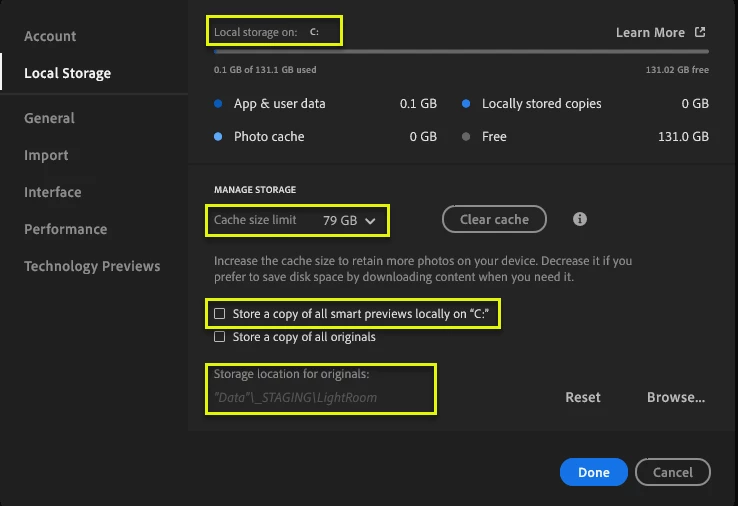
1. How do I change "Local storage on: c: TO e:?
2. Where is the Cache (79GB) stored and how do I ensure it's on e: drive?
3. What are copies of "smart previews" - I am assuming they are a kind of thumbnail? How do I configure Lightroom to store these smart previews on e: drive?
4. Storage Location for originals?? What is this exactly? If I point it to my NAS photos library, Adobe appears to insist on creating its own folder hierarchy "Z:\_PhotoLibrary\Lightroom CC\3383393df4cf4c088ea6bfd3a1093719\originals WHAT IS THIS? I don't want this! I don't want Adobe Lightroom to modify my current organization of my photos.
I just want a photo manager that is better than File Explorer which allows for quick listings and previews, smart searching of content, quick opening to edit, etc. As simple as it was, boy oh boy, I sure miss the old Lightroom or even Google's remarkable Picasa!
Thank you, all. 🙂
 AdChoices