
gewanbrown
Participant
August 3, 2022
Answered

Delete Lightroom Cloud photos stuck on the cloud not syncing to devices - in the ether apparently

  • August 3, 2022
  • 2 replies
  • 641 views

I had a Mac that started syncing 400GB of photos. Not what I wanted.  I stopped using Lightroom since do not want to use the cloud.  But now all devices have notifications and warnings about cloud being overfilled.  I don't use cloud, really wish I could eliminate it.  The files taking up space are "in the cloud" but I can't see them in my apps and devices now because they are only in the cloud and somehow not synced to any device.  I'm guessing Adobe would like me to pay to upgrade so they will sync so then I can delete.  But I'm not going to pay for something I don't use or like.  I just want to delete everything.  Seems everywhere that Adobe shows my cloud is overfilled I would be able to click see a folder with content by apps and just file manage, like Apple does with Files and iCloud.  Wouldn't that just be easy and nice to manage it all like that?  If that exists and I've mised it please let me know.  Or if you have a trick to delete all I synced files (yes I can see them on my iPad but I would need to select over 7600 files one by one since no select all in that panel on Lightroom apparently.  Or if there's a secret to select all please let me know. There's no little 3 dots, or menu on any corner in the unsynced section in the online version where I can view unsynced files.

Thanks!!!!!


{Thread title updated by moderator}
This topic has been closed for replies.
Correct answer Sameer K

Hi there,


Thanks for reaching out. We're sorry for the trouble with Lightroom. We're here to help.


If you'd like to empty the cloud storage with a few clicks, we must ensure you have all the data backed up locally.

Please export presets & the original images are stored away from the Lightroom database on an iPad or desktop.


Only once are you sure to proceed further, follow these steps:

  • Log on to Lightroom Web (https://lightroom.adobe.com)
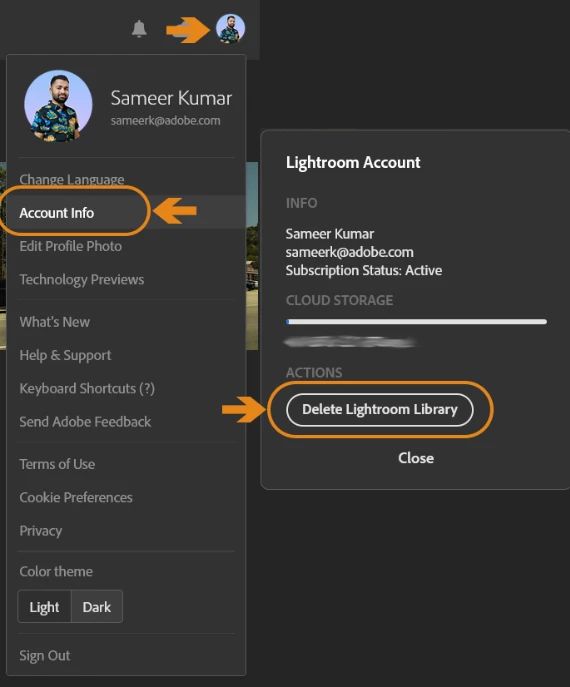
  • Click on your profile logo on the top right.


  • Click on Account Info > Delete Lightroom Library > complete the required authorization.


This is a permanent change to the Lightroom Library and irreversible. You can use the sync workflow from scratch. If you'd like to have the ability to selectively sync images between a desktop & Lightroom iPad, you can follow the suggestion I have shared here: https://community.adobe.com/t5/lightroom-ecosystem-cloud-based-discussions/about-cloud-storage-image-gallery-amp-selective-sync-lightroom-on-macos/m-p/12973713#M66109


Let us know if this helps,

Thanks!
Sameer K

2 replies

Sameer K
Community Manager
Sameer KCommunity ManagerCorrect answer
Community Manager
August 3, 2022

Hi there,


Thanks for reaching out. We're sorry for the trouble with Lightroom. We're here to help.


If you'd like to empty the cloud storage with a few clicks, we must ensure you have all the data backed up locally.

Please export presets & the original images are stored away from the Lightroom database on an iPad or desktop.


Only once are you sure to proceed further, follow these steps:

  • Log on to Lightroom Web (https://lightroom.adobe.com)
  • Click on your profile logo on the top right.


  • Click on Account Info > Delete Lightroom Library > complete the required authorization.


This is a permanent change to the Lightroom Library and irreversible. You can use the sync workflow from scratch. If you'd like to have the ability to selectively sync images between a desktop & Lightroom iPad, you can follow the suggestion I have shared here: https://community.adobe.com/t5/lightroom-ecosystem-cloud-based-discussions/about-cloud-storage-image-gallery-amp-selective-sync-lightroom-on-macos/m-p/12973713#M66109


Let us know if this helps,

Thanks!
Sameer K

gewanbrown
Participant
August 3, 2022

Thank you! This is the best option for what I was looking to do!

Gewan Brown

[moderator edited to remove personal information]

Theresa J
Community Expert
Community Expert
August 3, 2022

First off if you don't want your photos in the cloud you should use Lightroom Classic instead of Lightroom. 

To delete everything shown in your screen captures click the checkmark icon in the upper right corner to enter select mode. Then click the first image in the grid, and shift click the last image. Now with all the images selected you can delete them.