

L.Griffs
Participant
June 1, 2023
Answered

Error Initializing Lightroom: Win32 API error 122

  • June 1, 2023
  • 1 reply
  • 1496 views

Hello,
I get this errror when I try to open lightroom and lightroom classic.
I don't know what info you might need so... I have a Huawei 16s: intel core i7-12700h 2.3ghz, 16gb ram, 64 bit operating sys, running windows 11 .
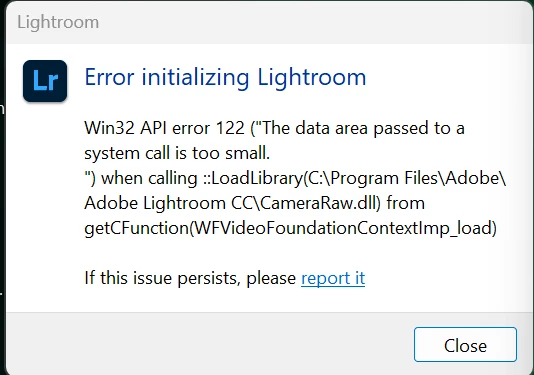
Camera Raw works with photoshop. 


{Title edited by Moderator}


This topic has been closed for replies.
Correct answer Ranjisha Sengupta

Hi @L.Griffs 

Thanks for reaching out. Let's try to fix this.

Which version of Lightroom are you using? Have you followed the solution mentioned on this related page? https://helpx.adobe.com/photoshop-elements/kb/vcruntime-error-on-launch.html 

You can also do a manual clean-up & re-installation of the Camera Raw plug-in.


In the Creative Cloud app, press CTRL + ALT + T (Win) to launch Creative Cloud Troubleshooter & select 'Close Creative Cloud and related processes' > click on Go. Go to the following location and rename the specific folder by adding .old at the end of the folder names. C:\ProgramData\Adobe > Camera Raw > Rename as > Camera Raw.old
Press Windows + R to open Run Dialogue > enter Appdata go to Local > Adobe > Camera Raw > Rename as > Camera Raw.old. Download & install Camera Raw: https://helpx.adobe.com/camera-raw/kb/camera-raw-plug-in-installer.html.


Let us know if this helps,

Thanks!

1 reply

Ranjisha Sengupta
Ranjisha SenguptaCorrect answer
Legend
June 1, 2023

Hi @L.Griffs 

Thanks for reaching out. Let's try to fix this.

Which version of Lightroom are you using? Have you followed the solution mentioned on this related page? https://helpx.adobe.com/photoshop-elements/kb/vcruntime-error-on-launch.html 

You can also do a manual clean-up & re-installation of the Camera Raw plug-in.


In the Creative Cloud app, press CTRL + ALT + T (Win) to launch Creative Cloud Troubleshooter & select 'Close Creative Cloud and related processes' > click on Go. Go to the following location and rename the specific folder by adding .old at the end of the folder names. C:\ProgramData\Adobe > Camera Raw > Rename as > Camera Raw.old
Press Windows + R to open Run Dialogue > enter Appdata go to Local > Adobe > Camera Raw > Rename as > Camera Raw.old. Download & install Camera Raw: https://helpx.adobe.com/camera-raw/kb/camera-raw-plug-in-installer.html.


Let us know if this helps,

Thanks!

L.Griffs
L.GriffsAuthor
Participant
June 1, 2023

I had already tried this, after reading another post but for some reason it seems to have worked this time. 
Thank you