
Participant
October 29, 2019
Answered

How can I delete custom profiles from Lightroom CC?

  • October 29, 2019
  • 11 replies
  • 16070 views

Hi,

I've been searching for an answer to this question but I can't find anything useful.

I added a demo pack of RNI Films 5 profiles and they now appear in the profiles list within Lightroom CC as seen in this screen shot:
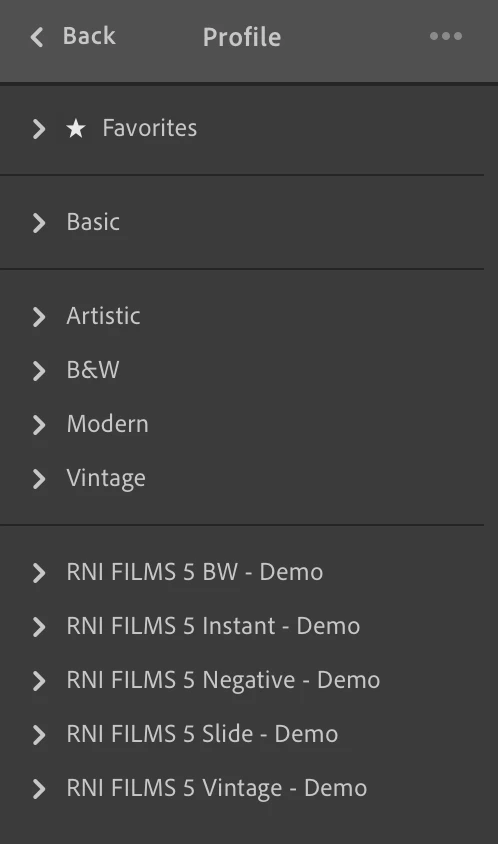


How do I delete those RNI Films profiles from my Lightroom CC account?

I've tried right click but it just gives me the option to hide.

I've tried the Manage Profiles option but again I can only hide them.

I've tried deleting them from the following directory:

/Users/<username>/Library/Application Support/Adobe/CameraRaw/Settings/


There doesn't seem to be a way to get rid of them in Lightroom CC, does anyone know if this is possible or have Adobe overlooked this one?


The reason I want to delete them is because when I use Lightroom on my iPhone or iPad they are not hidden and there is no option to hide them even if i've selected to hide them in Lightroom CC on my MacBook.


Thanks
Alex

This topic has been closed for replies.
Correct answer JohanElzenga

Have to tried right-clicking on the individual profiles? That should give you the option to delete them. When you delete the last one from a group, the group will be deleted too. Profiles are stored in the cloud, so there is no local folder to delete them from.

11 replies

JohanElzenga
Community Expert
JohanElzengaCommunity ExpertCorrect answer
Community Expert
October 29, 2019

Have to tried right-clicking on the individual profiles? That should give you the option to delete them. When you delete the last one from a group, the group will be deleted too. Profiles are stored in the cloud, so there is no local folder to delete them from.

-- Johan W. Elzenga
Participant
October 29, 2019

Thanks Johan!!

I feel stupid for not thinking to right click the individual profiles and this works. 🙂