Participant
August 28, 2018
Answered

How do I only import RAW and not the JPG-file in new Lightroom CC?

  • August 28, 2018
  • 1 reply
  • 22607 views

Hello! I've been searching the internet for this question, but the answers only refers to Lightroom CC Classic. I've been shooting with RAW + L (Canon Eos 70D), and I want to import only the RAW-file. When I go to Settings in Lightroom CC, it's barely anything I can change there, not as it is in Lightroom CC Classic. I know how to import only RAW in Classic, but I want to try it in Lightroom CC too. Does anyone know the answer to this question or do I have to start shooting in only RAW?

Correct answer JohanElzenga

JohanEl54 I'm using version Lightroom CC 1.5. I'm using a Cannon EOS Digital Rebel XSi (aka EOS Kiss Digital X2). It's on the list of supported cameras for Adobe Camera Raw: Cameras supported by Camera Raw.

I also double-checked that I had been shooting those images as raw files and yep--it's just like I set it up on the first day. Large Raw files.

Here's a screenshot of the file info pane in Lightroom CC in case you see something I may be misunderstanding:
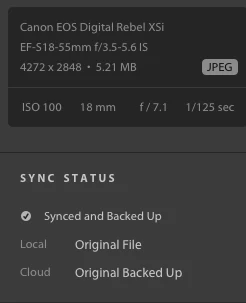
Seeing "Original File" makes me think that should be the raw file. But then it says JPEG...

I'm not sure whether I shot raw+jpg or just raw. The settings on my camera look as if it's just raw. Is it always a default that a camera shoots both? If so, then ok, that's fine, but I want to know 1) where exactly the raw files are so I can rest easy, 2) why Lightroom CC only imported the jpgs into the library.


Lightroom does not automatically change raw files to jpegs. It couldn't do that even if you wanted it. So if Lightroom only imports jpeg images, then the most likely explanation is that you have shot only jpeg images. That can happen to the best of us. You would not be the first person who insisted that they shot raw images, only to find out that the camera settings had changed and they had been shooting jpegs for some time...

One possibility is the following. As far as I know, Canon has some kind of 'Green' program setting on some consumer EOS cameras. If you choose that setting, the camera will automatically switch to shooting jpeg, even if the camera settings are raw. When you switch the camera to another program again, you'll be shooting raw again. That means that you cannot rely on just looking at the camera settings. You have to actually look at the images on the SD card to see what you have been shooting. And if you do not have those images anymore, then shoot a few more and import them into Lightroom to see what happens.

1 reply

Sahil.Chawla
Adobe Employee
Adobe Employee
August 28, 2018

Hi Matildaii,

When you click on the Add/Import button in the new Lightroom CC, you get to the operating system browser window first, you can use that dialog to select only specific files (the raw files), rather than the entire folder. Then, when you get to the LR dialog, it'll only show the photos you selected.


Regards,
Sahil

Participating Frequently
October 8, 2018

Sahil's answer seems to assume importing from local drive instead of straight from the camera (which is one of the benefits of Lightroom). I'm importing from the camera (also a Canon EOS) and my problem is that it seems to automatically import JPGs instead of my RAW files. I prefer to keep and work with my RAW files at least to start.  I can't figure out why or how to change that. Can someone troubleshoot this particular problem?

JohanElzenga
Community Expert
Community Expert
October 8, 2018

If you should raw+jpeg, then Lightroom should import both. If it only imports the jpegs, then you may be using an older version of Lightroom CC that does not support your camera yet. So check the version of Lightroom and update it if it's not version 1.5. What Canon EOS camera are you using?

Another possibility that sometimes happens is that the photographer thinks the camera is set to raw (or raw+jpeg) because it always is, but something changed those settings without getting noticed.

-- Johan W. Elzenga