

Exit
  • Global community
    • Language:
      • Deutsch
      • English
      • Español
      • Français
      • Português
  • 日本語コミュニティ
  • 한국 커뮤니티
1

How to get out of Compare Before/After mode?

Participant ,
Feb 14, 2025 Feb 14, 2025

I'll start with my original question, then follow up with the *real* problem, which I'm now stuck in.


Adobe's documentation for version 8.2 says

  • View and compare two images or your edits' before and after versions with the new Compare View.


This is weird. Compare view is not new in Lightroom - we've had it for a year. How is it "new?" I can't see anything new about it.


I am interested in the ability to compare before/after for the same image, as that line implies. But I can't find a way to do it. If I select a single image and enter Compare view, it automatically compares it to the next image, not the same image. What's changed? And how do we do a Compare on the same image?


Update: OK I figured out that if I right-click a thumb and select Compare Before and After it does work. Almost hidden option, but OK. But... next I want to do a normal compare between two images and can't - it seems to be stuck on Compare Before and After and I can no longer do a normal compare.  Once you enter this hidden feature, how do you get out of it? Now I can't find a way to do a normal compare of two images!


Suggestion: We didn't need a new menu item for this. It should just work based on whether 1 or multiple images are selected. If 1, then compare to self. Otherwise do the normal multiple-image Compare. Why is it unnecessarily complicated? And how do I get out of this mode?
TOPICS
macOS
282
Translate
Report
Community guidelines
Be kind and respectful, give credit to the original source of content, and search for duplicates before posting. Learn more
community guidelines

correct answers 1 Correct answer

Participant , Feb 14, 2025 Feb 14, 2025

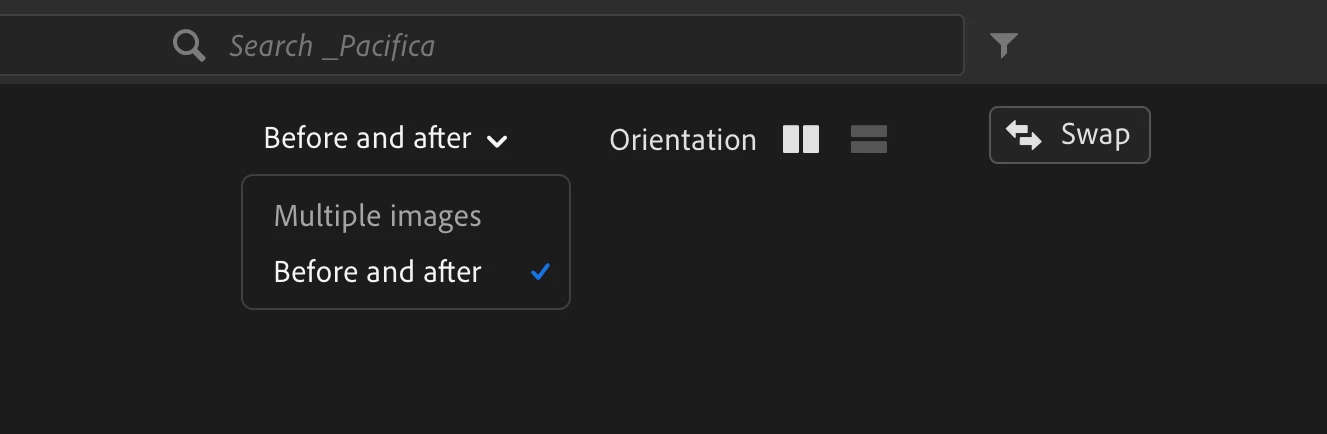
OK I figured it out - there is a new dropdown at the top of the view that I hadn't seen previously:


scothacker_0-1739606226807.png


That does the trick. I had thought I would exit the mode the same way I entered it, via the menu. At first I though this was a really bad bug, but now realize it's just a matter of difficult (for me) discovery.


I still think this would have been much cleaner with "If 1 selected, compare to self, otherwise compare multiple."

Translate
Participant ,
Feb 14, 2025 Feb 14, 2025
LATEST

OK I figured it out - there is a new dropdown at the top of the view that I hadn't seen previously:


scothacker_0-1739606226807.png


That does the trick. I had thought I would exit the mode the same way I entered it, via the menu. At first I though this was a really bad bug, but now realize it's just a matter of difficult (for me) discovery.


I still think this would have been much cleaner with "If 1 selected, compare to self, otherwise compare multiple."

Translate
Report
Community guidelines
Be kind and respectful, give credit to the original source of content, and search for duplicates before posting. Learn more
community guidelines