
New Participant
September 12, 2019
Answered

How to remove Histogram in Lightroom Mobile?
  • September 12, 2019
  • 3 replies
  • 26658 views

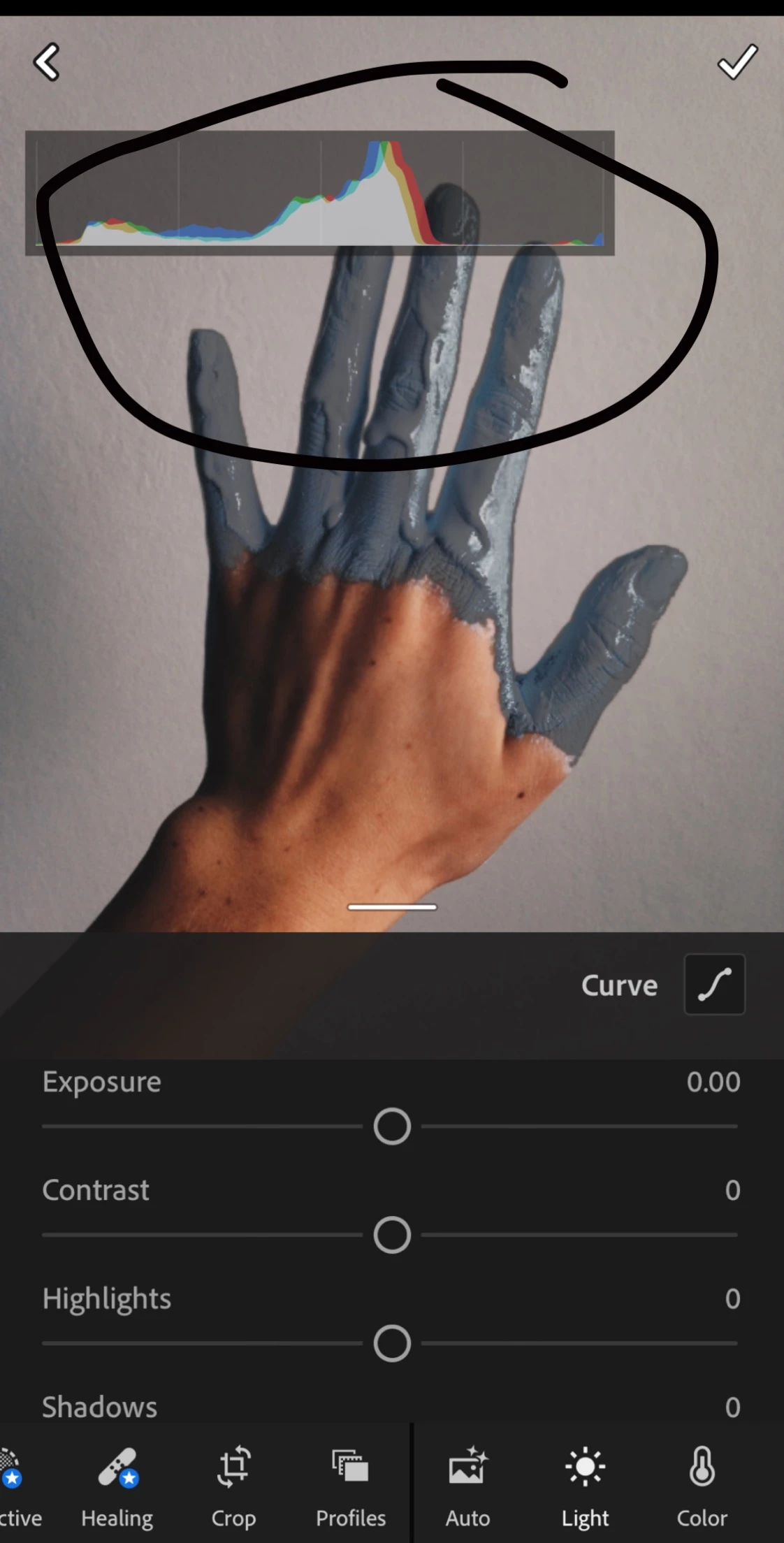
Hi! I’m quite new to Lightroom so I’m a bit confused. When I orginally began using this app the bar that is circled never appeared on the screen like that but now it’s always there. It gets in the way when I try to edit pictures. Can someone please tell me how to hide it? 


{Thread title modified by Moderator}

This topic has been closed for replies.
Correct answer Jim Wilde

The quickest way is the two-finger tap on the image. That cycles through the Info Overlay, the Histogram, and Off. Note also that if you turn off the displays via the tri-dot menu as suggested by the other replies, the two finger tap will turn the display back on again. Just be aware of that.

3 replies

Jim Wilde
Jim WildeCorrect answer
Community Expert
September 12, 2019

The quickest way is the two-finger tap on the image. That cycles through the Info Overlay, the Histogram, and Off. Note also that if you turn off the displays via the tri-dot menu as suggested by the other replies, the two finger tap will turn the display back on again. Just be aware of that.

nikunj.m
Community Manager
Community Manager
September 12, 2019

Hi There,


To remove the Histogram you are getting at the top of the image while using Lightroom Mobile you can open an image and then select the three dot icon on the top right to disable the option to Show Histogram.


Let us know if that helps.


Regards

Nikunj

99jon
Brainiac
September 12, 2019

Click the three dots - top right and go to view options. Switch off info overlays.