
Known Participant
October 19, 2017
Answered

Leave Photos Where they Are on Import?

  • October 19, 2017
  • 6 replies
  • 4501 views

I have just started to play with the new Lightroom. I went to import files from my network but it told me I didn't have enough room because it wanted to copy the files to my local drive. I don't want Lightroom to do this. However, there is not an option in the app to leave the photos where they are during import. I believe this option does exists in the "classic" Lightroom.

Am I missing something or is this a (pretty glaring) oversight on the part of Adobe?
This topic has been closed for replies.
Correct answer Brad Lawryk

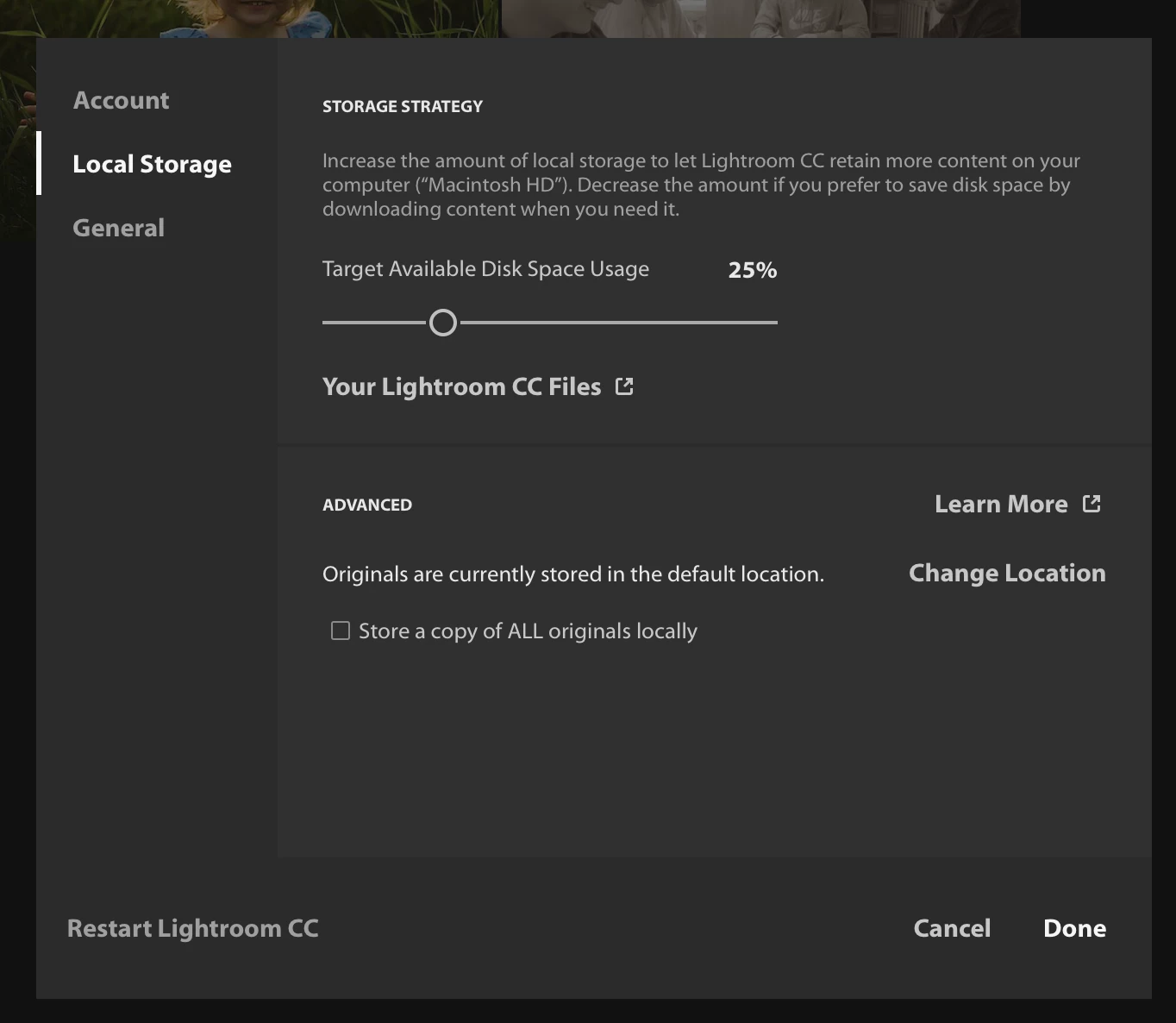
You can change your local storage settings in the preferences (or turn off local storage completely)

6 replies

Participant
August 9, 2018

I recently tried Lightroom CC and imported about 0.5TB. I didn’t find the functionality as comprehensive as Classic so I cancelled the plan.

Afterwoods I found that my local storage had increased by 0.25TB almost filling my local hard drive. I don’t know how to get get of the local files that Lightroom has created.

Can anyone point me to the files so I can delete them?

Participant
October 24, 2017

I mean, I guess.  If it's really unrelated and separate, with limited features like, that, I'm not sure why I wouldn't use Mylio instead..?

Participant
October 24, 2017

This is a pretty horrible glaring omission.  For those of us with hundreds of gigs of photos on a NAS, and just want to add them to the catalog in place, Lightroom CC is rendered completely useless.  I guess I'll be using classic until they figure out how to make this work for those of us with a backup solution?..

Community Expert
October 24, 2017

davidd27946157  wrote

This is a pretty horrible glaring omission.  For those of us with hundreds of gigs of photos on a NAS, and just want to add them to the catalog in place, Lightroom CC is rendered completely useless.  I guess I'll be using classic until they figure out how to make this work for those of us with a backup solution?..

If you already have 100's of gigs of images or like me multiple terabytes of them, you are not the target audience with Lightroom CC. Lightroom Classic is the solution if you have this much data. You can still use Lightroom CC and sync from Lightroom Classic just parts of your Library and access them in Lightroom CC on mobile or desktop OS and edit. Lightroom CC is very much a v1.0 app that misses 90% of what it needs to make it a full solution. If your needs are modest it is great but if you shoot 1000's of images in one day, have a gigantic library already, have limited internet bandwidth or need to batch edit, use curves, print (lightroom CC cannot print!), use virtual copies, use editing history (no such thing in CC), etc. etc, LR CC is not a solution to switch over to completely but you can still use it on the side.

RWMOREY71Author
Known Participant
October 24, 2017

The only reason I was interested in using the "new" Lightroom was to backup my photos to the cloud. it would be nice to have occasional access to them online but mostly just as a way to back them up.

I followed someones advice about setting my local storage to "0" but the location I specified for my images is using the same amount of disk space (900mb) as the first small set of images I synchronized with the cloud.

I ran the import before I went to bad last night so that my PC could sync overnight which it did but the local files never got erased.

The net net of all this is that I won't be using Lightroom CC until I'm forced to when Adobe inevitable end of lifes Lightroom "classic"

Community Expert
October 19, 2017

If you want to import a large amount of images this way, you will have to either import in small batches and wait until they are uploaded to the cloud after which the app will release some of the local storage used, or change the location of the local storage to a big external or network disk in Preferences.

RWMOREY71Author
Known Participant
October 19, 2017

This is a really poor design decision by Adobe. I don't understand why the app can't upload the images from wherever I have stored them and let me tell it to just leave them where they are.

I don't want to make the location of "local storage" to be the actual location where the files are stored for fear they will get "down sampled"

Is it possible to upload the images to the Creative Cloud storage myself?

Community Expert
October 19, 2017

RWMOREY71  wrote

Is it possible to upload the images to the Creative Cloud storage myself?

Yes, you can upload them through a web browser by going to http://lightroom.adobe.com

selondon
Community Expert
Community Expert
October 19, 2017

Are you trying to Migrate a Catalog from Classic or just Import Photos?

RWMOREY71Author
Known Participant
October 19, 2017

I was experimenting with importing files.

williaml16012882
Participant
October 19, 2017

How many images/videos are you trying to import?   Do you know the total size of the files?

How much disk space is available on your local drive?

if you choose not to store originals locally, all the originals will be stored in the Cloud.  Lightroom CC only caches the originals on the local drive as you need them.  If an original is not used for some time, it would be removed from the cache to save storage space.

When importing, it is possible Lightroom CC is using storage space to generate smart previews and temporary storing the files until it is sync to the cloud.

Lightroom CC is cloud based and does not store originals locally, unless specified.

Brad Lawryk
Brad LawrykCorrect answer
Legend
October 19, 2017

You can change your local storage settings in the preferences (or turn off local storage completely)