
Participant
April 11, 2021
Beantwortet

Lightroom displaying washout out colors - Sony ARW

  • April 11, 2021
  • 1 Antwort
  • 670 Ansichten

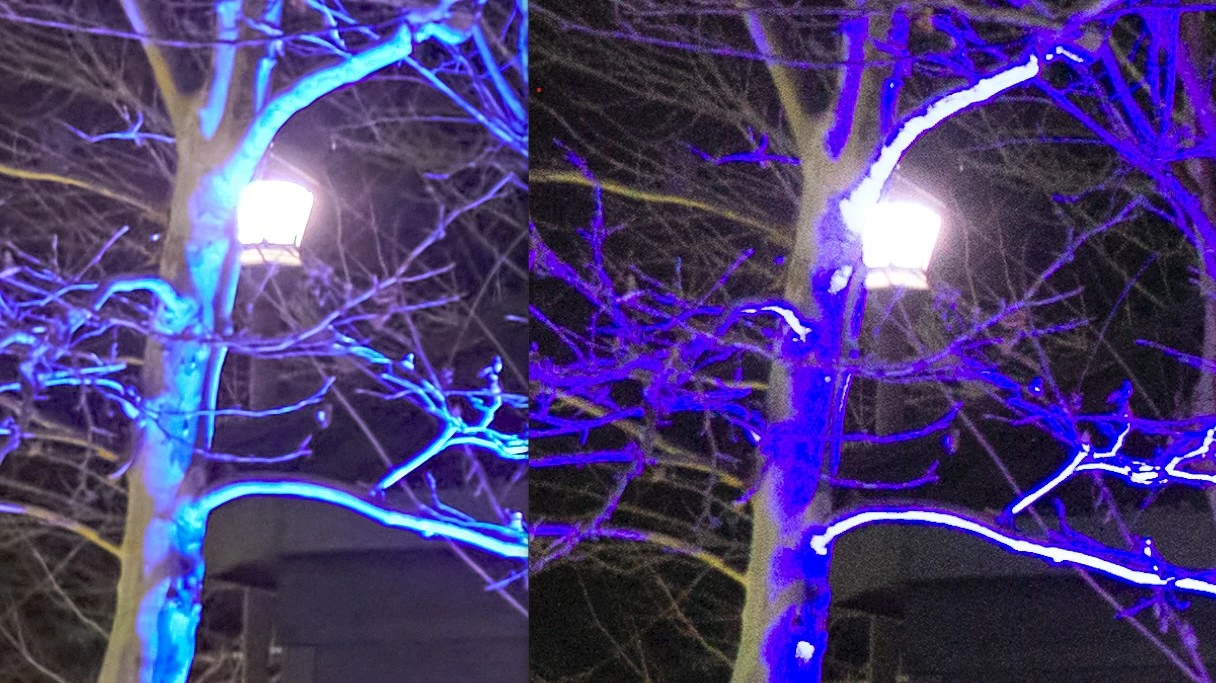
Since I had purchased my Sony A6000 many years ago I have used Capture One to process my raw files. I decided recently that I wanted to try Lightroom and see if I liked it better or not. As I was trying out the software and going through images I hit a few that Lightroom processed so differently that I was not sure how I would handle it. Attached is a sample image from both applications. Capture One on left.... Lightroom on the right. As you can see the image from Lightroom has taken the purple lighting and completely washed out all detail on the tree. On some of the branches the images shows almost pure white. My question is there anything I can do to guide Lightroom into processing these images correctly?


Dieses Thema wurde für Antworten geschlossen.
Beste Antwort von Jao vdL

Very strange. Never seen anything like that. The white areas showing red does mean that they are blown out which is of course expected for this subject. Have you tried using the camera standard profile for these files?

1 Antwort

Community Expert
April 11, 2021

Looks like you might have clipping warnings turned on. It is enabled by clicking the little triangles at the left and right ends of the histogram. You can also turn the clipping warnings on and off by hitting the J key. Very easy to happen by accident. Not sure why the blue areas under the tree are showing bright white. What kind of edits are you applying?

BradN1Autor
Participant
April 11, 2021

Currently, Its has only the default settings when you first import a image. I turned off and on the clipping warnings but it doesn't see related. Though the dark areas that are clipped are almost the exact same color as the tree. White areas show red.


Community Expert
April 11, 2021

I played around with it a bit but didn't notice it the first time around. There is a grouping for Camera Matching. That seemed to get me much closer using that setting. Still is a little washed out but I wonder if there is a profile I can download for my camera then. I think this is the issue. Thanks for you help! I think this will get me where I needed to be.


Not sure if this camera is supported but one thing to do is to enable the use of camera settings. In Lightroom Cloud, the setting is in Preferences -> Import. Set it to camera settings there and if the camera is supported, Lightroom will read the profile you selected in camera and will select a close as possible profile, contrast settings, etc. That might help in this case. You can also after import try to use the camera settings preset which you can find in the presets window under defaults. By default Adobe uses their own profile Adobe Color which many people don't like as it is often too garish.