
Participant
March 5, 2018
Answered

Lightroom does not open / library missing photos

  • March 5, 2018
  • 2 replies
  • 6842 views

Hello,

I am having a problem opening Lightroom and loading my photo library. When I open the application, the library does not load and instead a blue circle loops continuously (screenshot below).

I believe that the error is related to the following discussion: Re: SQLite Database Corrupt  ​; however, the suggested solution (deleting the "Managed Catalog" files and redownloading the images from the cloud) does not resolve my issues because I have been working offline in an area with unreliable internet for an extended period of time and I cannot redownload thousands of unsynced images, edits, and collections. These images

I do not know if the computer lost power during a sync (as some have reported for this/similar errors), but it is possible. As soon as I experienced this problem, I backed up the local version of the "Lightroom Library.lrlibrary" file.

I subsequently attempted to delete the files suggested in the discussion referenced above and was successful in loading an empty library (which is obviously not helpful as I can't redownload images that have never synced to the cloud). I then played around with deleting one or two of the individual "Managed Catalog" files and successfully loaded partially-complete libraries (ranging from ~1/5 to ~4/5 complete); however, all were missing certain images or collections (some of which I can still see on my iPhone/iPad from the cloud library).

I would greatly appreciate any suggestions for how I can recover ~1.5 months of field work!

Thank you,

William Smith
This topic has been closed for replies.
Correct answer AK_4423

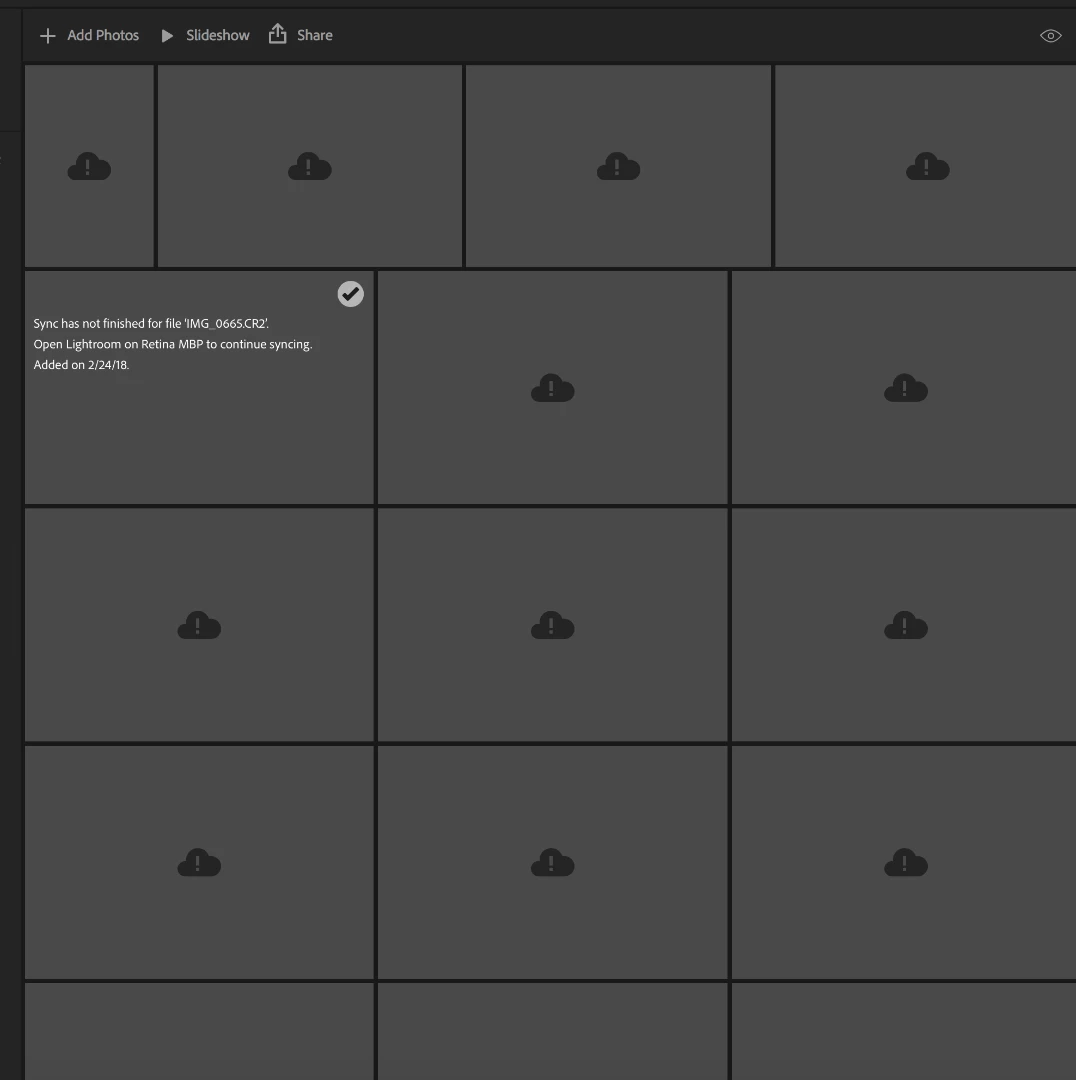
The desktop Lightroom CC application does not show any collections on the left hand side (as seen in the screenshot in the original post). The library and collection structure appears correct/intact in the Lightroom web application; however, many images had not finished syncing to the cloud when the local files were corrupted and do not show up in the web app.

For example, the web app shows the following:


  1. Quit Lightroom CC
  2. Navigate to the catalog folder
    1. In Mac Finder, go to Pictures.  Right click on Lightroom library.lrlibrary and choose “Show Package Contents”
    2. In Windows Explorer, go to c:\users\<username>\AppData\Local\Adobe\Lightroom CC\Data
  3. You’ll see a folder with a long string of characters for the name.  Open that.
  4. Select any file that starts with “Managed Catalog” and delete or move the files to the desktop location in one single folder. Note: if you see an error trying to remove any of these files, reboot the computer then try the delete again.  If any of these files are left behind, corruption is almost certain to reoccur.
  5. Start Lightroom CC. It will sync down your images from the cloud.

(Credits to Mohit Goyal)

Regarding missing images, the same are due to the incomplete synchronization.

Regarding difference in the count of image from Cloud and the application is due to the paused synchronization on your desktop application.

Let us know if the above steps help you fix this issue.

Regards,

Anil.Kandalam

2 replies

Participant
June 26, 2020

I dont see what this is supposed to do other than rebuild the catalogue. I have the similar issue in Lighroom as the poster above. When I did as you suggested it made the problem worse in terms of the programme ordering files or knowing when files were last imported. Since the update to v3.3 Lightroom has lost the imports for the last 10 days. I can't seem to retrieve them. Its a frustration that any online help seems to be for Classic and searching for Lightroom only returns Classic responese/help.

Akash Sharma
Legend
March 8, 2018

Hi William,

Sorry to hear that Lightroom CC is not loading your images as you've mentioned in the discussion Re: SQLite Database Corrupt

The latest version of Lightroom CC is 1.2, please check that you have the updated version installed. Also, have you tried reinstalling the app from the Creative Cloud desktop app?

Thanks.

Akash

Participant
March 8, 2018

Akash,

I have tried reinstalling the app and I can confirm that I am running Lightroom CC 1.2.

Thanks

Akash Sharma
Legend
March 8, 2018

Thanks for the update William, does Lightroom shows you the synced collections under the "All photos" menu?

Also, do you see the missing images or collection in Lightroom web: Photo Editor | Online Photoshop Lightroom

~Akash