
Participating Frequently
October 30, 2024
Frage

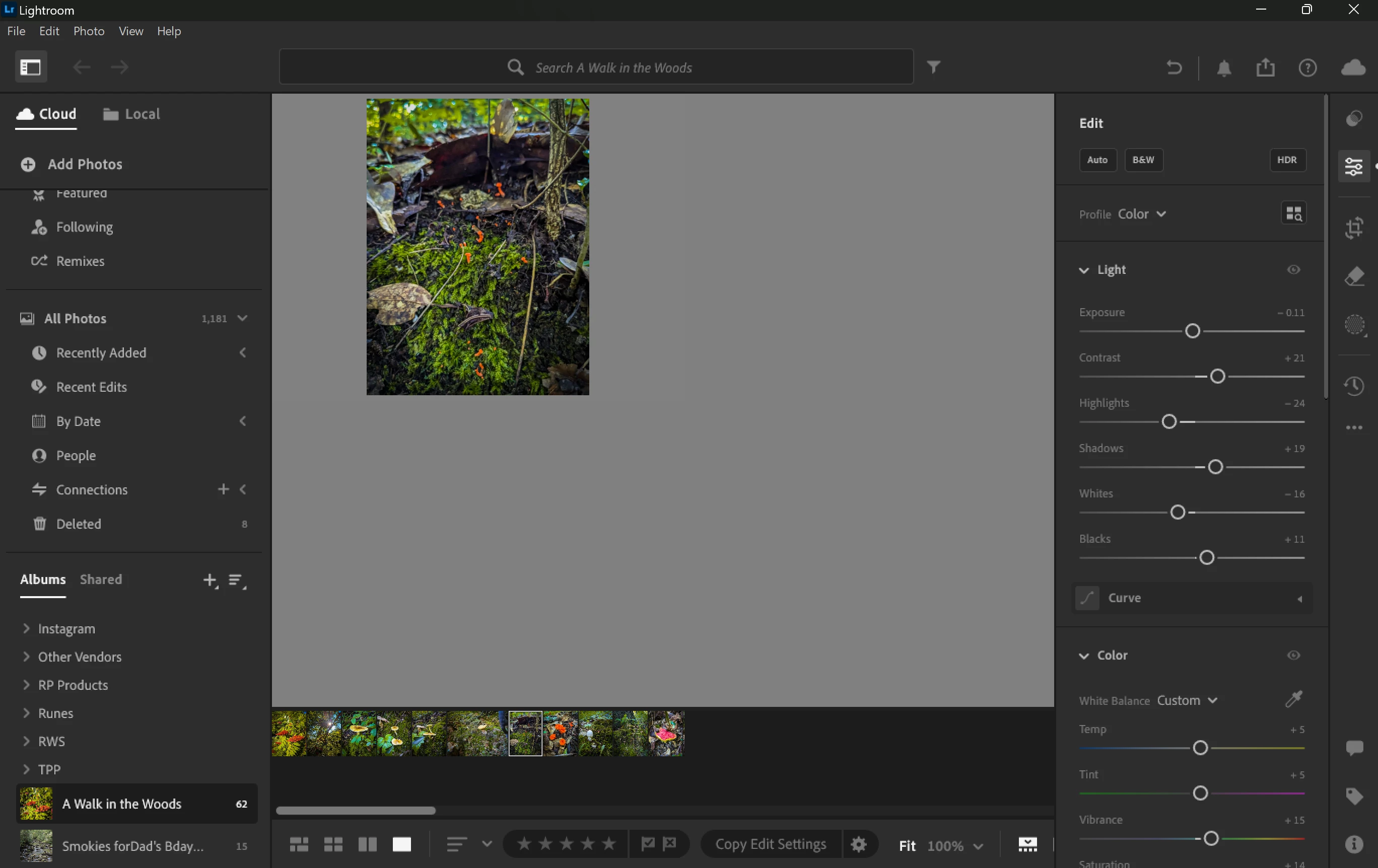
Lightroom grid and detail display is shrunk and cursor is not synced with click

  • October 30, 2024
  • 2 Antworten
  • 729 Ansichten

Does anyone have any idea what would cause this? I've opened and closed the app, uninstalled/reinstalled, rebooted by computer, etc., but every time I open it today it's like this. Aside from the tiny display being annoying, the whole app is unusable because anytime I click, the click happens several inches to the left of the cursor. This is only happening in this app, none of the other screens or programs on my computer. 


I'm running Windows 11 on a surface pro, there are no updates available for LR that I've missed, there isn't an external monitor connected, I'm not getting any error messages when I open the program... I'm not sure what other info to include or where else to look for the problem. Any help would be appreciated, this is driving me crazy.


Dieses Thema wurde für Antworten geschlossen.

2 Antworten

Adobe Employee
October 30, 2024

The pop-up suggesting Generative Remove...is that coming up every launch for you?

Participating Frequently
October 31, 2024

No, just the first time I launch LR after I restart my computer, or if I completely uninstall/reinstall the program.

Adobe Employee
October 31, 2024

Can you please try the following:
Dismiss the Generative Remove popup by click on the (x) icon -> Restart Lightroom

  • Does the popup show after the restart?
  • Is the grid still off-center? (Please provide another screenshot in this state) 

Rikk Flohr_Photography
Community Manager
October 30, 2024

A preference reset may help. If possible, before you reset the preferences, we'd like to get a copy of your current preference file. 

Mac: 
The file is called: com.adobe.lightroomCC.plist and located at:
 /Users/yourusername/Library/Preferences

Win:  
The file is called Lightroom CC Preferences.agprefs and is located at:
C:\Users\[user name]\AppData\Roaming\Adobe\Lightroom CC\Preferences\


Grab a copy of this file and save it someplace safe.  Then, follow this procedure to reset your preferences:

This procedure works for both Lightroom Classic and Lightroom Desktop.

If you are using Lightroom Desktop, it can change your local storage location. Please review this setting after resetting preferences. 


Reset Procedure:

1. Close Lightroom.

2. Hold down [Alt/Opt]+[Shift] while restarting Lightroom.

3. Overwrite the Preferences when prompted by the dialog.

4. Close Lightroom.

5. Restart Lightroom.

If it works, we would like to collect your old and new files. 


Rikk Flohr: Adobe Photography Org
Participating Frequently
October 30, 2024

Thank you for the suggestion, but unfortunately it didn't work.


I'll also note that the only other different than usual thing I noticed today is a pop-up advertising the new generative AI feature. It seems odd that it would be the cause of the issue, but when I try to close the popup, it doesn't always full close, and the partial side of the display that seems to never become available is aligned with where the popup originally appears. screenshot below.


Rikk Flohr_Photography
Community Manager
October 30, 2024

I would recommend taking a look at your video driver next. Make sure you are up to date on the latest Studio driver for your video card. 

Rikk Flohr: Adobe Photography Org