Participant
June 5, 2024
Answered

Lightroom Mobile App - bring back clone stamp

  • June 5, 2024
  • 4 replies
  • 1659 views

Bring back the clone stamp in Lightroom Mobile App. The generative AI tool is not good.

Correct answer Matt Rae

Hi @megan37861326jz3h 

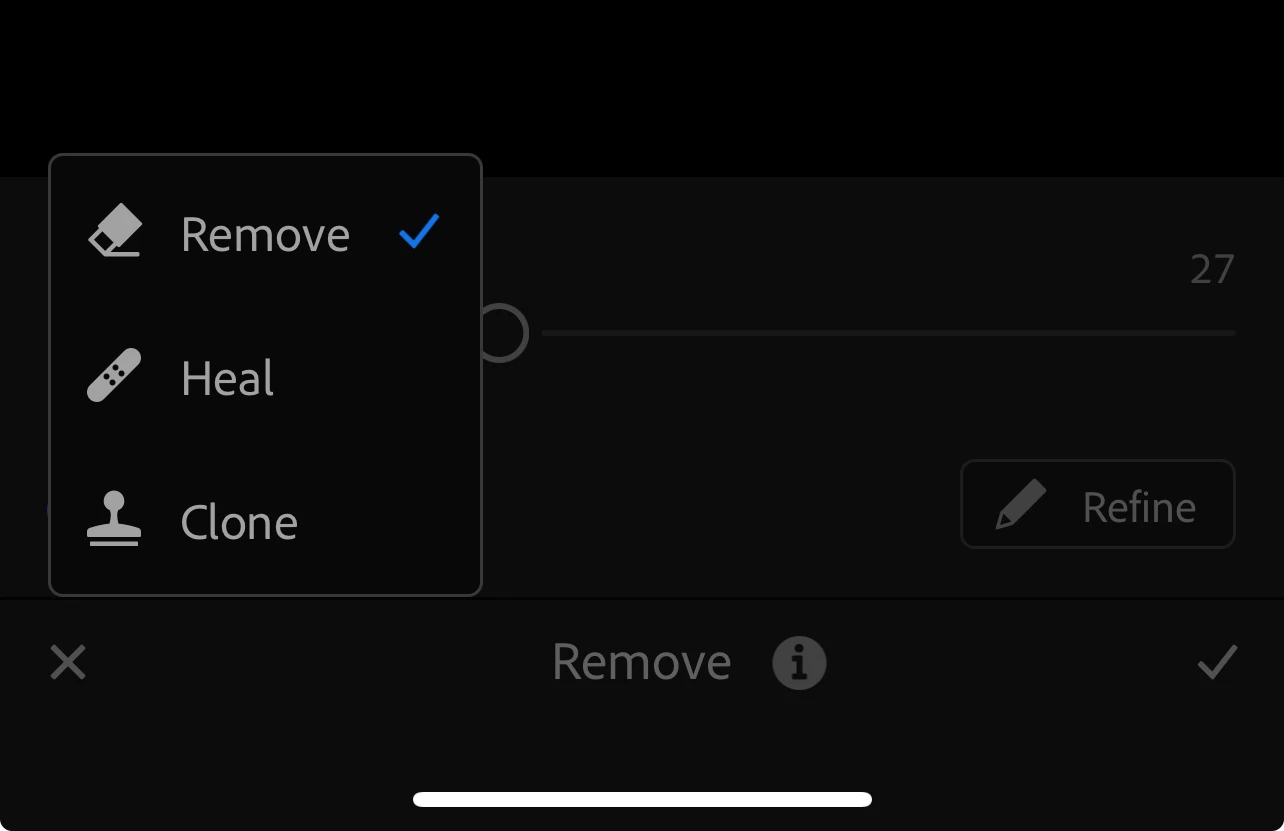
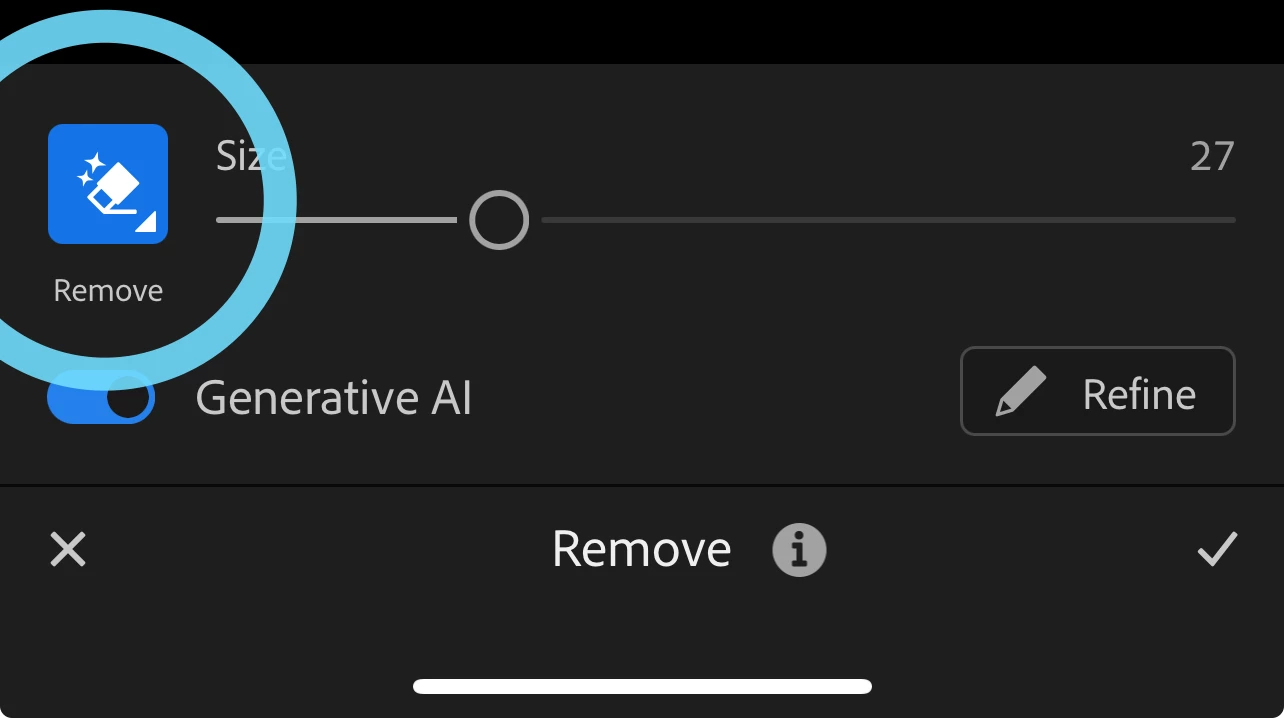
All of the existing remove and heal tools are still available in Lightroom Mobile. If you click on the blue eraser icon in the remove panel, you will be able to switch to the other tools.  

When using the Generative AI Remove tool, keep in mind a few best practices; 
- size your brush to be a little larger than the object you wish to remove
- ensure you select all of the object, including any shadows, otherwise you may get undesired results. 
- perform removal before using AI masking or applying Lens Blur, or if you're using Denoise - perform Denoise before doing a removal. 
Generative Remove is also currently an Early Access feature. 

4 replies

Participant
September 18, 2025

Yes please!!

Matt Rae
Community Manager
Community Manager
June 19, 2024

@megan37861326jz3h The clone tool in Lightroom for Mobile is also a brush based action. I'm not familiar with the Photoshop Fix tool, but in Lightroom you can brush over the area you would like to fix and once you have brushed you can move both the target area and the clone sample area by dragging them around with your finger. Hope this helps!

Participant
June 5, 2024

This helps so much, thank you! One question though...I really liked the clone tool in the Photoshop Fix App because it was more of a brush that you could move around, not just "one stamp" - do you know if the clone tool like the one on Photoshop Fix will be available anywhere else?

Matt Rae
Community Manager
Matt RaeCommunity ManagerCorrect answer
Community Manager
June 5, 2024

Hi @megan37861326jz3h 

All of the existing remove and heal tools are still available in Lightroom Mobile. If you click on the blue eraser icon in the remove panel, you will be able to switch to the other tools.  

When using the Generative AI Remove tool, keep in mind a few best practices; 
- size your brush to be a little larger than the object you wish to remove
- ensure you select all of the object, including any shadows, otherwise you may get undesired results. 
- perform removal before using AI masking or applying Lens Blur, or if you're using Denoise - perform Denoise before doing a removal. 
Generative Remove is also currently an Early Access feature.