


- Home
- Lightroom ecosystem (Cloud-based)
- Discussions
- Re: LR Mobile export to Camera Roll (Photos - IOS)...
- Re: LR Mobile export to Camera Roll (Photos - IOS)...

Copy link to clipboard
Copied
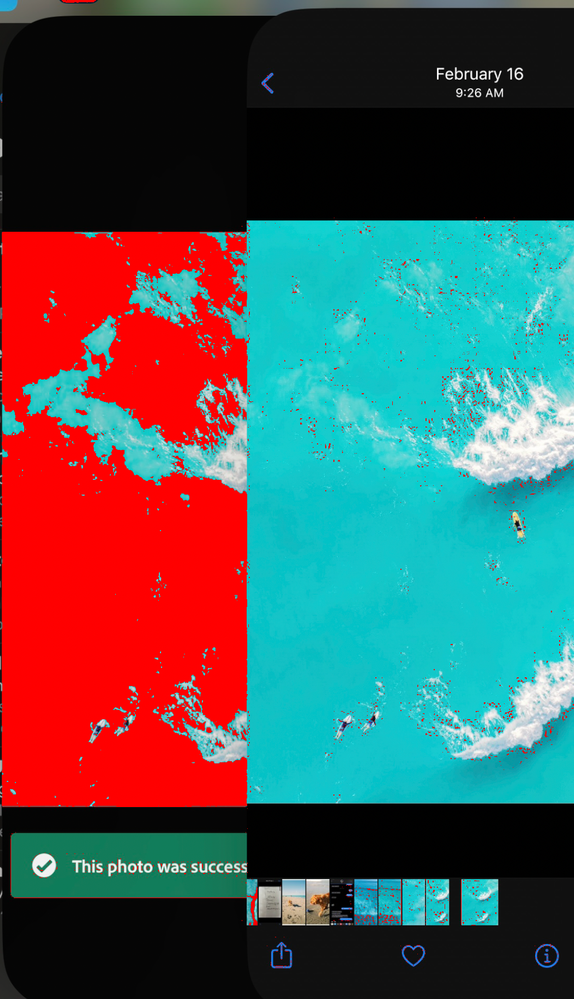
This is becoming super frustrating and continues to drive me to the brink of madness. Attached is the photo i'm editing in LR Mobile on the left (which has the correct color and contrast, detail etc) and when i save it to my Iphone 13 Pro you can see the color is chalky, washed, and loss of contrast; on the right. This is one unacceptable and infuriating, to spend all this money on equipment and software just to get an inaccurate photo is mind boggling. I have also turned off my 'HRD' settings in my Photos app so this is the direct comparison. Any help is super appreciated!!!


 1 Correct answer


The reason this is happening is that you are selecting a too narrow colorspace for the color of the sea in that image. You are probably chosing sRGB and that jade color is not possible in sRGB. So simply make sure you export to display P3 instead (the colorspace your iPhone's display is in).
Here is the proof. Soft proofing your screenshot to sRGB in Classic. You can see the left (your Lightroom app) is way out of sRGB gamut (red areas). That color simply cannot be displayed in sRGB. Right is no
...
 22
Replies
22
22
Replies
22

Copy link to clipboard
Copied
The reason this is happening is that you are selecting a too narrow colorspace for the color of the sea in that image. You are probably chosing sRGB and that jade color is not possible in sRGB. So simply make sure you export to display P3 instead (the colorspace your iPhone's display is in).
Here is the proof. Soft proofing your screenshot to sRGB in Classic. You can see the left (your Lightroom app) is way out of sRGB gamut (red areas). That color simply cannot be displayed in sRGB. Right is not clipped because the export already clipped it to sRGB and dulled the colors as a result. You can set the options on how to export using the tiny little buttons on the right hand side of of the share button, then choose "More options"->Color Space

Copy link to clipboard
Copied
I really wish Adobe would offer more guidence, or ever default to P3. I bet a lot of users are affected by this and don't even realize it.
Copy link to clipboard
Copied
I agree. It should just default to P3 nowadays. That said, it is fairly rare for images to have large areas of color outside of sRGB. Most people would never notice and most of the web and popular apps (instagram, facebook, etc.) are still all sRGB.
Copy link to clipboard
Copied
Thank you very much for your explanation.. i was going absolutely crazy! Can you please assist me into how to changing my LR CC to only be able to edit the SRG color space? Thank you!!
Copy link to clipboard
Copied
@jjc97158674 You cannot change the colorspace Lightroom edits in. It is always 16 bits prophotoRGB with linear gamma. What you can change is the color space it exports in. In mobile Lightroom this is done in the litle slider button icon next to the share option. Tap that and select more options and look for color space.
Copy link to clipboard
Copied
I am editing on LR CC on my macbook and just export via my Iphone.. If i want the colors to export as the same as i view on my screens, can i adjust the SRBG color space i am editing in? Otherwise i wont know until i export which seems entirely ridiculous
Copy link to clipboard
Copied
A few things to understand. The color space you edit in does not matter because the display is color managed and more importantly cannot be changed! You also cannot fully control what people see as most displays on phones, especially android phones that vary all over the place, are not calibrated and will show wildly different colors no matter what you do. Worse, many online services such as facebook and instagram convert the color space your image is in into sRGB or worse, strip the color profile. So you simply cannot control it completely, no matter what you do. So you unfortunately have to give up on the dream of being able to control this. You can get close but not perfect.
What matters a bit is what color space you export to. Most Mac Book Pros have display P3 capable displays as do recent iPhones. All Apple devices color manage nowadays so all that is great. Doesn't mean they show the correct color though as most people will have true tone enabled which completely destroys color accuracy. Regardless, if you want to have a chance of seeing similar the same color as on your display, export to display P3 color space. Do know that if your device uses true tone, or is a android device, it won't be perfect. Worse, if you upload to instagram or such, the color space will change. If you want to control for the latter, you need to soft proof to the sRGB color space and edit your images while soft proofing. Unfortunately the cloud based Lightroom cannot soft proof (a big missing feature in the cloud based Lightroom). You can only do that in Lightroom Classic or in Photoshop. There is a bit of a trick if you have a recent MacBookPro. You can set the display profile on the mac book to "Internet and Web (sRGB)" and the operating system will limit the display to sRGB and will sort of soft proof for you, even in cloudy Lightroom. You can't do that on the phone though.
Copy link to clipboard
Copied
Thanks Jao this is helpful - for some background i have a pc and use to edit on LR classic, but what i was exporting was so distinctly different, i went and bought a macbook to help tighten up color consistentcy.. So i do not use True Tone on my Iphone, so since i typically edit on my MBP and then export through my Iphone to upload to IG, can you explain to me how to export in P3? and I should have Internet and Web selected on my macbook LR cc? This is just such a frustrating process and to be frank a rabbithole that i never wanted to enter haha
Copy link to clipboard
Copied
Color management and consistent color is a very deep rabbit hole indeed. It used to be that the only way to get consistent color is to calibrate your displays and to only use sRGB for your exports that go to the web. Nowadays you can buy machines lie the mac Book Pros that have really consistent color from the get go but now you will run into problems with the web not being that consistent yet. More and more browsers are color managed so that has lightened the problems but unfortunately many of the apps such as instagram do a terrible job of this. Now we have the addition of HDR images such as the HEIC images and HDR video that iPhones now all shoot but is very inconsistent in whether devices and software can display them. Just shoot a HDR enabled image in HEIC of something with extreme brightness differences (neon lighting is a good one) on your phone (it's the default) using the phone camera and import that image into Lightroom. You'll see that the image in the photos app will look amazing and very dull in Ligtroom since Lightroom does not yet support HDR images (the built in HDR function has nothing to do with actual HDR images).
To answer your question, as I noted a few times above, to export into displayP3 color space from Lightroom on your phone, you should tap the small slider button next to the share option (or use the "export as" button) in the share screen
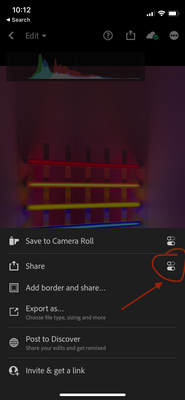
Then tap: M ore options:
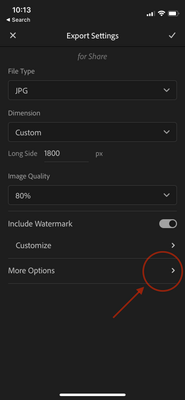
And finally select the color space.
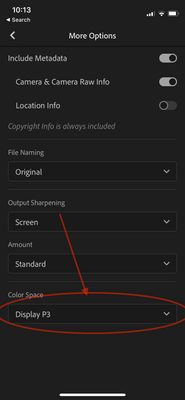
It will remember these settings for the next time you export from the app.
If you selected "export as" in the first screen you will get to use all the same options.
Copy link to clipboard
Copied
Got it! and now what i see in my Photos app is much more representative with colors, the next issue is..getting that edit to match instagram.. What's frustrating is when i initially go to select the photo in IG i see it take in the whole color edit but then downgrade it to match SRGB i beleive.
Copy link to clipboard
Copied
Just wanted to follow up with you sir! How can i softproof my image on Cloudy within sRGB

Copy link to clipboard
Copied
Hi all,
I am using Lightroom iOS mobile v10.2.3 and with this in place I have observed my photos in jpeg format looks little bit unsaturated when it exported from RAW format.
Following are the settings used while exporting. Could anyone please let me know the root cause?
1. Selected Max available dimensions
2. image quality as 100%
3. Output sharpening as screen
4. amount set it as standard
5. color profile set it as sRGB
Copy link to clipboard
Copied
Hi Vijay, the problem is the color space you export to is fairly narrow and cannot represent the most saturated colors especially reds. Most displays nowadays are able to display colors more akin to displayP3 color spaces, so if you export to sRGB, you cut off a chunk of colors that you might have had in your original. To retain this, use wider color spaces such as P3 or adobeRGB for your export, but be aware that not every program color manages correctly especially on windows where lots of software is not color managed. Luckily almost all web browsers nowadays are and on Macs basically everything is color managed.
Copy link to clipboard
Copied
Hi Jao,
Thanks for the response and I have now exported my raw image to jpg using display p3 color space resulting again a less saturated image. Am I doing anything wrong in the export process. I do understand that there is no possibility to reproduce the exact colors in the photo but if we could bring the color close to what we see in the LR editing then it would be good. Attached image is for reference. Is there any alternate solutions we have to remediate the issue?
Copy link to clipboard
Copied
What are you using to view the file? If the viewer is correctly color managed, you should not see any difference between Lightroom and the export especially if you are using P3 color space. Also, make sure you don't have HDR enabled in the Lightroom app when you are editing and not when you export. Not every (i.e. basically none) app understands HDR exports.
Copy link to clipboard
Copied
Copy link to clipboard
Copied
So i was able to change my MBP color profile but once applied the Internet Web it killed my brightness, so it was impossible to edit. Im not sure how this doesnt affect more users and isn't an issue for the majority.
Copy link to clipboard
Copied
So i was able to change my MBP color profile but once applied the Internet Web it killed my brightness, so it was impossible to edit. Im not sure how this doesnt affect more users and isn't an issue for the majority.
By @jjc97158674
If it killed your brightness, your brightness before was set WAAAAAAAAAAY too high. The brightness it takes your display to is the standard that conforms to the sRGB standard. To calibrate yourself, white on your display should be similar to a white sheet of paper in the same space you are editing. If you are set much brighter, you will edit all your images much too dark to compensate. This is quite essential. Displays are getting brighter and brighter which allows you to edit in brighter spaces but that comes at a price that the displays are going to be far too bright to reliably edit your images if you don't tone it down for typical office environments. If your environment is bright enough that you need more brightness in the sRGB setting, what you want to do is clone the preset in System preferences creating a sRGB setting that allows you to change the brightness of the display. It is not hard to do. From the preset popup, select Custpmize presets, select the sRGB preset and hit the little plus in the bottom left corner. Set the SDR luminance to something like 160 nits which is typical for a quite bright room.
By @jjc97158674
Just wanted to follow up with you sir! How can i softproof my image on Cloudy within sRGB
You cannot. There is no soft proof in Cloudy. You have to use Lightroom Classic or Photoshop. The thing with setting the display to sRGB is a trick to emulate it but won't completely solve this.
This is an issue for the majority by the way. Most people are simply not aware of it and never notice. This has NOTHING to do with Lightroom which does the right thing and trusts that the OS is doing the right thing. The issue is due to how displays, color spaces, calibration, etc. work. It is not simple to get right and you really need to dive into this to get it right. Editing software cannot protect you from this.
Copy link to clipboard
Copied
I think you would be better off exporting in P3.
Copy link to clipboard
Copied
why do you say that Rick?
Copy link to clipboard
Copied
It just seems like most displays we're accuracy matters now support P3. All modern Apple devices do. My windows display does.
Copy link to clipboard
Copied
Understood, but if i want to edit within the SRGB color space to allow a better representation to match what i upload on IG


Find more inspiration, events, and resources on the new Adobe Community
Explore Now
 AdChoices


