Diane in Ohio
Inspiring
March 4, 2023
Answered

Missing Gradient Lines/Pins in Masking in Lightroom (latest version)

  • March 4, 2023
  • 2 replies
  • 3232 views

When I drag the Linear Gradient in Masking, the lines are there, but as soon as I let go, they are gone!  I read that others had the same problem but it referred to Lightroom Classic and also read something about pressing the "H" (don't recall what that was about).  In any event, I want to be able to see the lines and pin(s) when I drag the gradient across an image.


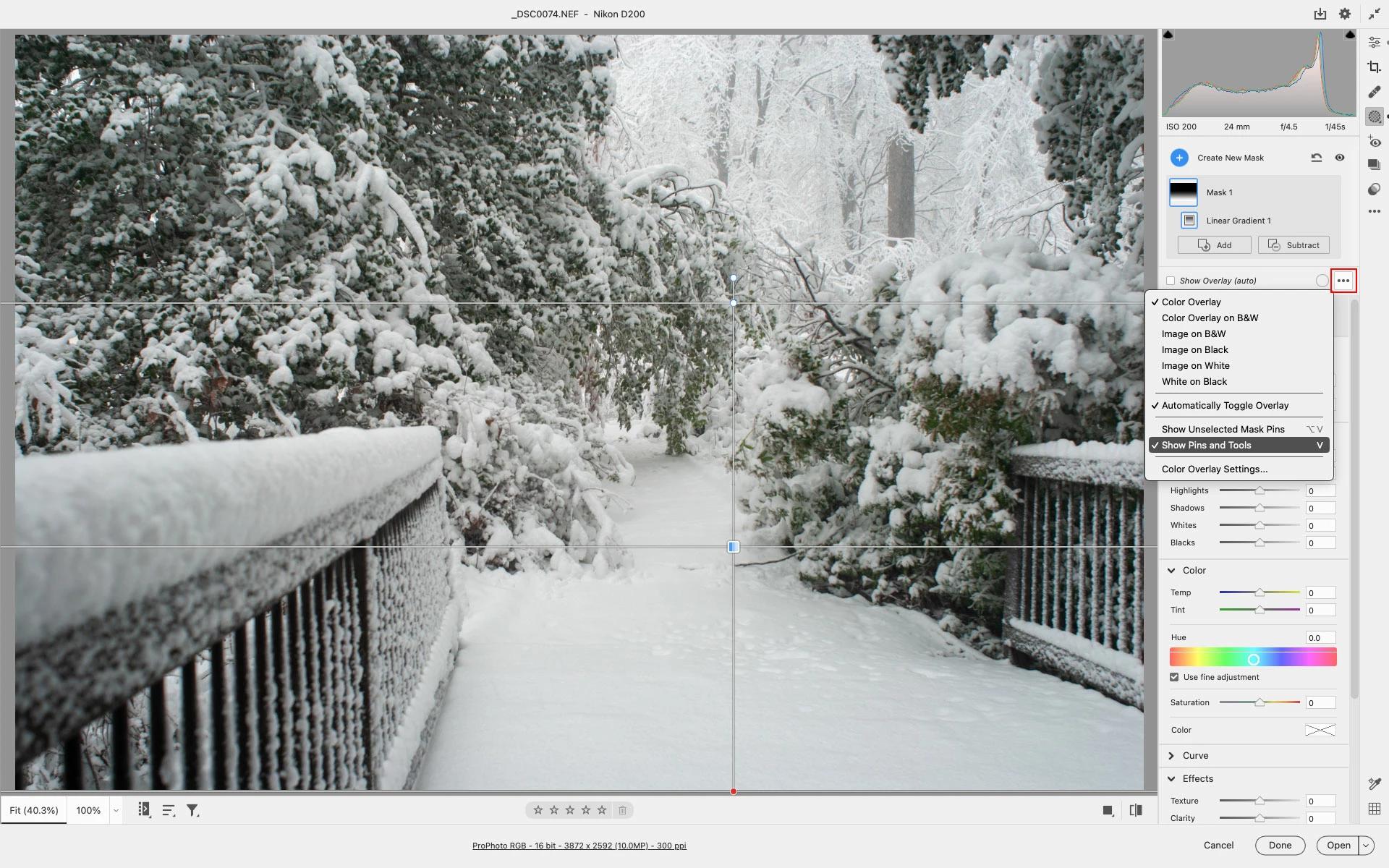
The attached image shows what mine DOES NOT do.


Thank you!


Diane K.


[Subject changed from "Photoshop" to "Lightroom", as later posts clarified that the question is about LR.]

[Moved to LR]


Correct answer Jeff Arola

To the right of where it says Show Overlay (auto) click on the three little dots for

more overlay settings and verify Show Pins and Tools is checked.


2 replies

jane-e
Community Expert
Community Expert
March 5, 2023


...and also read something about pressing the "H" (don't recall what that was about)..

By @Diane in Ohio


The "H" that you read about is Ctrl+H (View > Extras), which hides/shows everything that is checked in the "Show" menu just underneath.

Jane

Jeff Arola
Community Expert
Jeff ArolaCommunity ExpertCorrect answer
Community Expert
March 5, 2023

To the right of where it says Show Overlay (auto) click on the three little dots for

more overlay settings and verify Show Pins and Tools is checked.


Diane in Ohio
Inspiring
March 5, 2023
That response just made my day! I'm new to the "masking" in Photoshop and
actually didn't even notice the three dots.

Thank you!

Diane K.