
Known Participant
May 29, 2021
Answered

New to Lightroom Classic and Having Brilliant Blue Appear

  • May 29, 2021
  • 2 replies
  • 3250 views

When I'm editing a RAW B&W photo on Lightroom Classic, a brilliant blue caste on certain parts of the photo appear when adjusting either exposure or contrast. It's quite strong, and becomes more so when increasing and less when decreasing the slider. I've posted a photo while this effect is  happening on the 'develop screen', but it doesn't appear on the posted photo, only on the develop page during editing.

It must be a simple fix I'm not aware of - Thanks! 
This topic has been closed for replies.
Correct answer Michael J. Hoffman

Hi Eric,


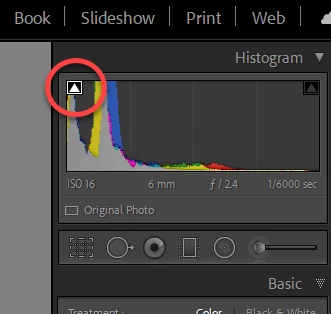
Just to clarify, *within* the histogram are two triangles that illuminate as a clipping warning. If you click the triangles, they get a white box around them and are then enabled. The one on the left shows shadow clipping with a blue overlay, while the one in the right shows highlight clipping with a red overlay. When the white box is absent, hovering over the triangle will show the clipped areas. Click to toggle the box on and off; when the box is present, it enables the visibility setting persistently until you turn it back off. In my screen shot below, you can see the white box around the shadow clipping warning, and no white box around the highlight warning on the right:


Here's a quick video from Adobe's Benjamin Warde that explains further if you're interested:


2 replies

john beardsworth
Community Expert
Community Expert
May 29, 2021

That sounds like the shadow clipping indication is enabled. On the Histogram are two little triangles - click whichever is highlighted.

eric2626Author
Known Participant
May 29, 2021

Thanks John, I seem to have one triangle on the 10.2 copy, clicking on it moves from down to the side, but the bluing effect remains the same. I tried it on another RAW photo before going to mono, the symptoms on that are the same.

Michael J. Hoffman
Community Expert
Michael J. HoffmanCommunity ExpertCorrect answer
Community Expert
May 29, 2021

Hi Eric,


Just to clarify, *within* the histogram are two triangles that illuminate as a clipping warning. If you click the triangles, they get a white box around them and are then enabled. The one on the left shows shadow clipping with a blue overlay, while the one in the right shows highlight clipping with a red overlay. When the white box is absent, hovering over the triangle will show the clipped areas. Click to toggle the box on and off; when the box is present, it enables the visibility setting persistently until you turn it back off. In my screen shot below, you can see the white box around the shadow clipping warning, and no white box around the highlight warning on the right:


Here's a quick video from Adobe's Benjamin Warde that explains further if you're interested:


eric2626Author
Known Participant
May 29, 2021

I should have mentioned that the RED slider removes this blue caste on the photo.