Ubuntu011
Participant
May 15, 2021
Answered

No Sync in Collection or in Nameplate

  • May 15, 2021
  • 1 reply
  • 635 views

I am trying to sync a Collection to my Cloud.

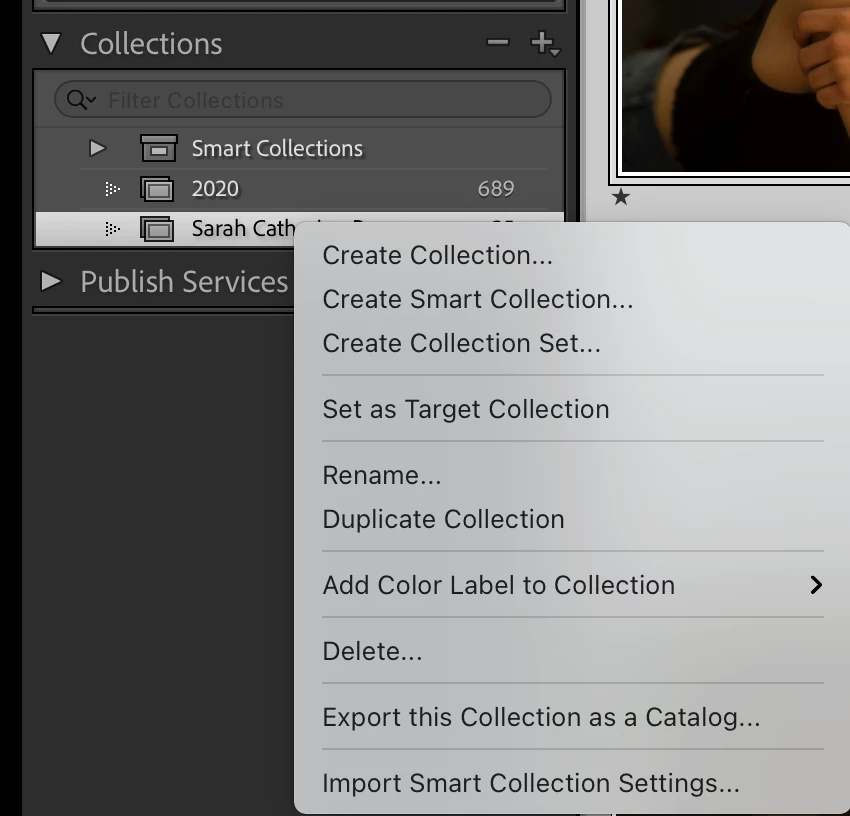
There is no tab available for enabling Sync when right-clicking on Collections

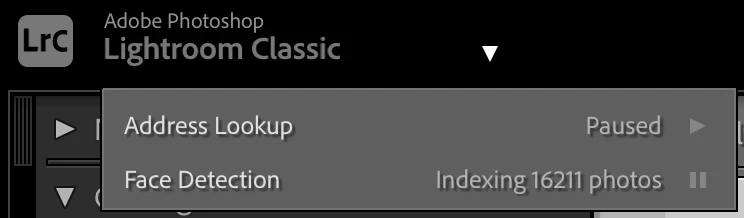
or on the Nameplate.

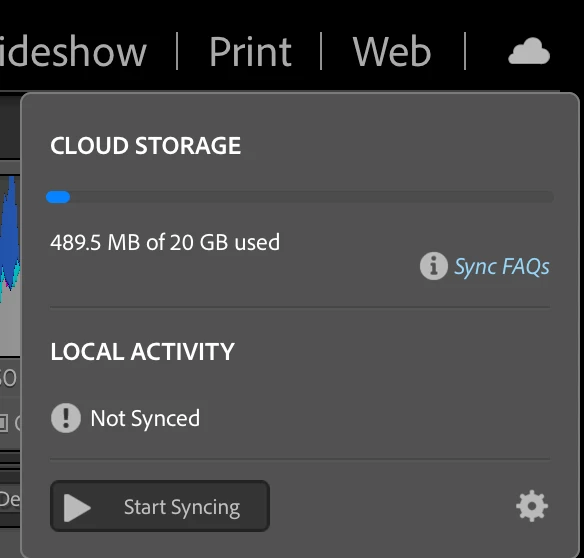
Am I supposed to sync my entire Catalog via the cloud icon at the top right?

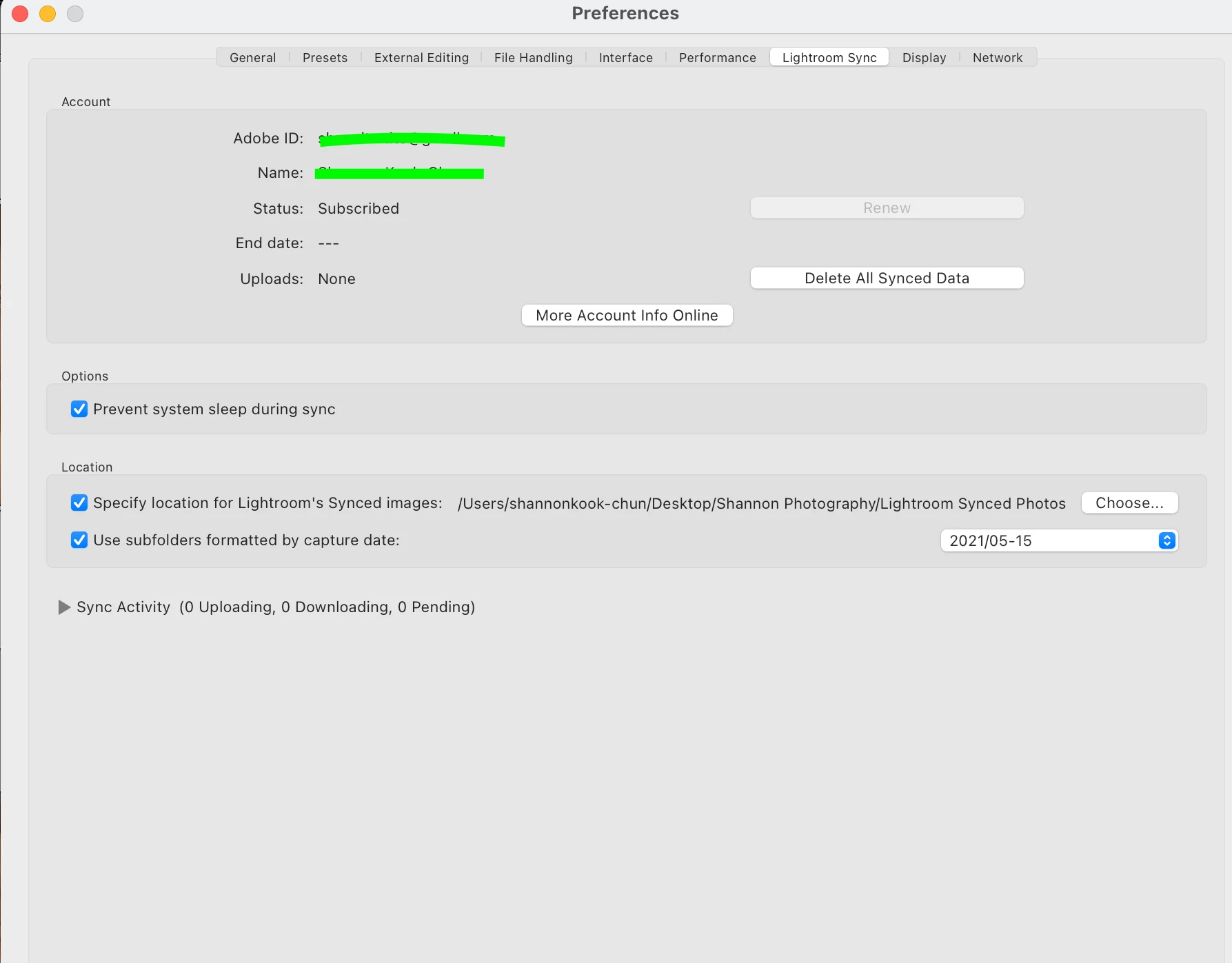
Is there only way to sync a Collection by syncing the entire catalog first because I am not seeing any options in these steps or the Preferences tab.


Please help 🙂


This topic has been closed for replies.
Correct answer Rob_Cullen

Wow!!!

Thank you so much!

This looks like some sounds advise and

I will give this a whirl!


You mentioned that, "the 'Desktop' is not the best folder location to download all your 'Cloud' files, as you have set in Preferences-"

- what are the mechanics of this? As in which files exactly am I downloading into my selected location?

Am I downloading the files that I have selected and synced into a specific location?


And would your recommendation then be to select an external hard drive such as the one I am already editing my photos from in Lightroom?


Thank you so much!


You mentioned that, "the 'Desktop' is not the best folder location to download all your 'Cloud' files,

Yes it is possible, but, where do you store all other photo files in your computer- The {Pictures} folder?, {Documents} sub-folders?, your External hard-drive! (I try not to clutter my desktop with folders and files- a tidy freak!)

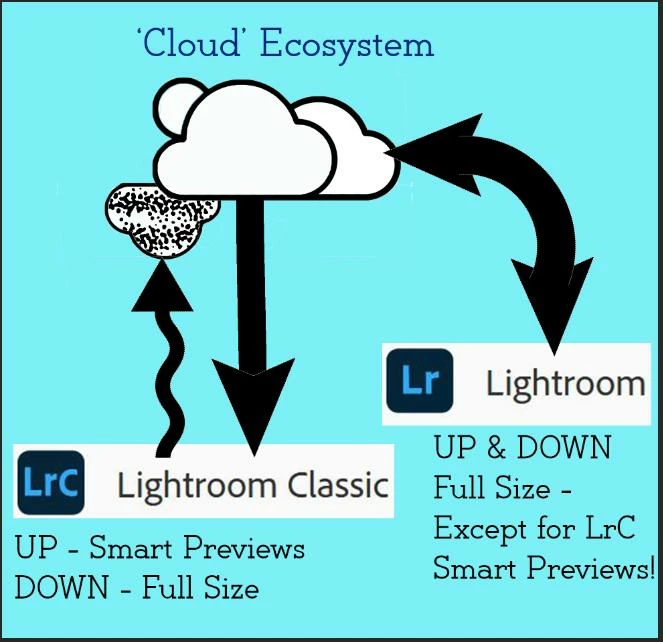
When you 'Sync' Lr-Classic it will download a copy (full-size) of ALL the files you have imported to mobile devices, and the folder for these downloads is best located with your other photo files, be it on your external drive. (I have an internal drive-D: that is only for image files).

Any photos you sync UP from Classic Collections- will always remain exactly where they are located on the (external) Hard-drive. Only Smart Previews are synced UP to the Cloud.

 

1 reply

Rob_Cullen
Community Expert
Community Expert
May 15, 2021

The Identity Plate Sync location was only in older versions of LrC. Now use the Cloud icon top-right of screen.

Click on the button [Start Syncing]

Then you will have the capability to click on the box to the left of a Collection where a double-arrow sync icon will appear.  (It is not the [Right-Click] context menu!)


Note:

The 'box' to the left of Collection names is almost invisible.

You cannot Sync a Smart Collection or a Collection Set.


And some might suggest that the 'Desktop' is not the best folder location to download all your 'Cloud' files, as you have set in Preferences-


Regards. My System: Windows-11, Lightroom-Classic 15.1.1, Photoshop 27.3.1, ACR 18.1.1, Lightroom 9.0, Lr-iOS 10.4.0, Bridge 16.0.2 .
Ubuntu011
Ubuntu011Author
Participant
May 27, 2021

Thank you 🙂


I thought I had to create a "Smart Collection" to be able to share the photos with a recipient to select their favourites.


Please advise on the steps to create a Collection, with the tabs to check upon creating the Collection for my photos to be able to be sent to a person to view their selects and favourites 🙂


Looking forward to hearing on this further.

Rob_Cullen
Community Expert
Community Expert
May 27, 2021

NOT a Smart Collection!  Any Standard Collection. 

Add photos to the standard Collection, [Start Syncing],

Set the Collection to Sync (can be done when creating the Collection!).

[Right-Click] on the Collection to 'Lightroom Links' > [View on Web] -

A Broswer page of the Collection photos will open.

'Invite' to share your photos with a recipient-


The (eye) context menu allows you to mark it as "Can Contribute"

Then either enter an email address for Adobe to send the Invite, or copy the 'Link Access' to the clipboard and provide this link in your own email to the recipient.

Someone else will need to add more detail on the Collaborative "selects and favorites" as I have very limited experience with this detail.

https://jkost.com/blog/2019/12/15093.html


Regards. My System: Windows-11, Lightroom-Classic 15.1.1, Photoshop 27.3.1, ACR 18.1.1, Lightroom 9.0, Lr-iOS 10.4.0, Bridge 16.0.2 .