Participant
July 2, 2024
Answered

P: Samsung Expert Raw DNG output shows green/over exposed photo in Lightroom

  • July 2, 2024
  • 10 replies
  • 12629 views

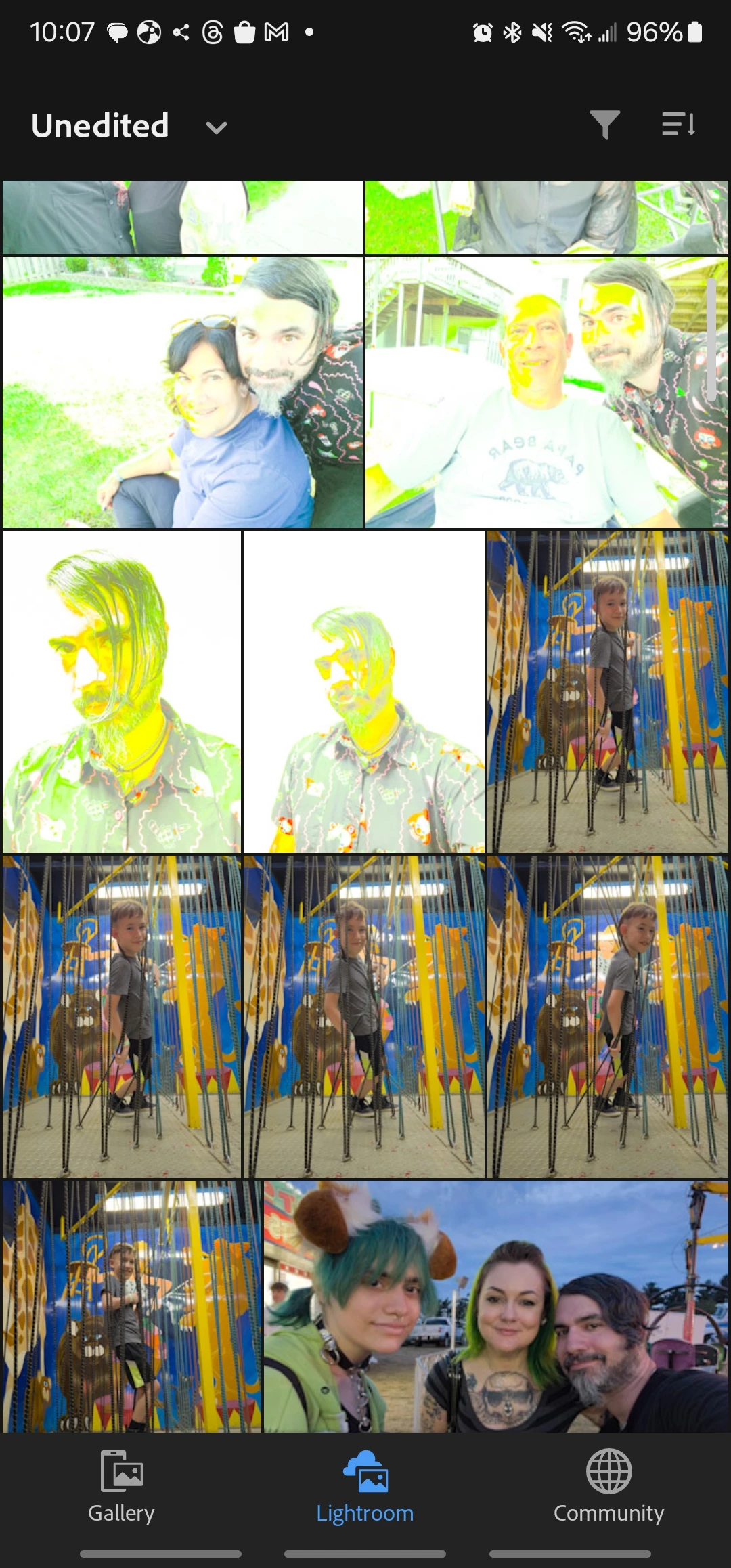
It looks like something with Lightroom is incorrectly processing Samsung s23 ultra expert raw photos. They now immediately turn green when opened in Lightroom. This was not the case before. The bottom are photos that were done before and the top are what happens to them now.

This topic has been closed for replies.
Correct answer flyingdogfish

[This post contains formatting and embedded images that don't appear in email. View the post in your Web browser.]


@Eugen38751249qo17, I dug into the first of your problem DNGs, 20240720_210626.dng, and the evidence strongly indicates this is a problem with the DNG itself, not LR's rendering (see below).  There have been many reports over the past year or two of problems with DNGs produced by Samsung's Expert Raw app:

https://community.adobe.com/t5/forums/searchpage/tab/message?sort_by=-topicPostDate&advanced=false&allow_punctuation=false&q=samsung%20expert%20raw%20dng 


This post in the Camera Raw forum suggests that uninstalling Expert Raw and reinstalling the latest version fixes these symptoms (but only for photos taken after reinstallation):

https://community.adobe.com/t5/camera-raw-discussions/samsung-dng-looks-fine-through-windows-photos-looks-washed-out-green-in-camera-raw/m-p/14738399 


That aligns with Adobe employee @Sameer K's advice that the most recent version of Expert Raw fixes some previously reported issues with DNGs.  


Unfortunately, the Samsung app isn't recording a human-intelligible version number in its DNGs (as reported by Exiftool), so I can't tell from your sample DNGs which version produced them.


Examining the DNGs


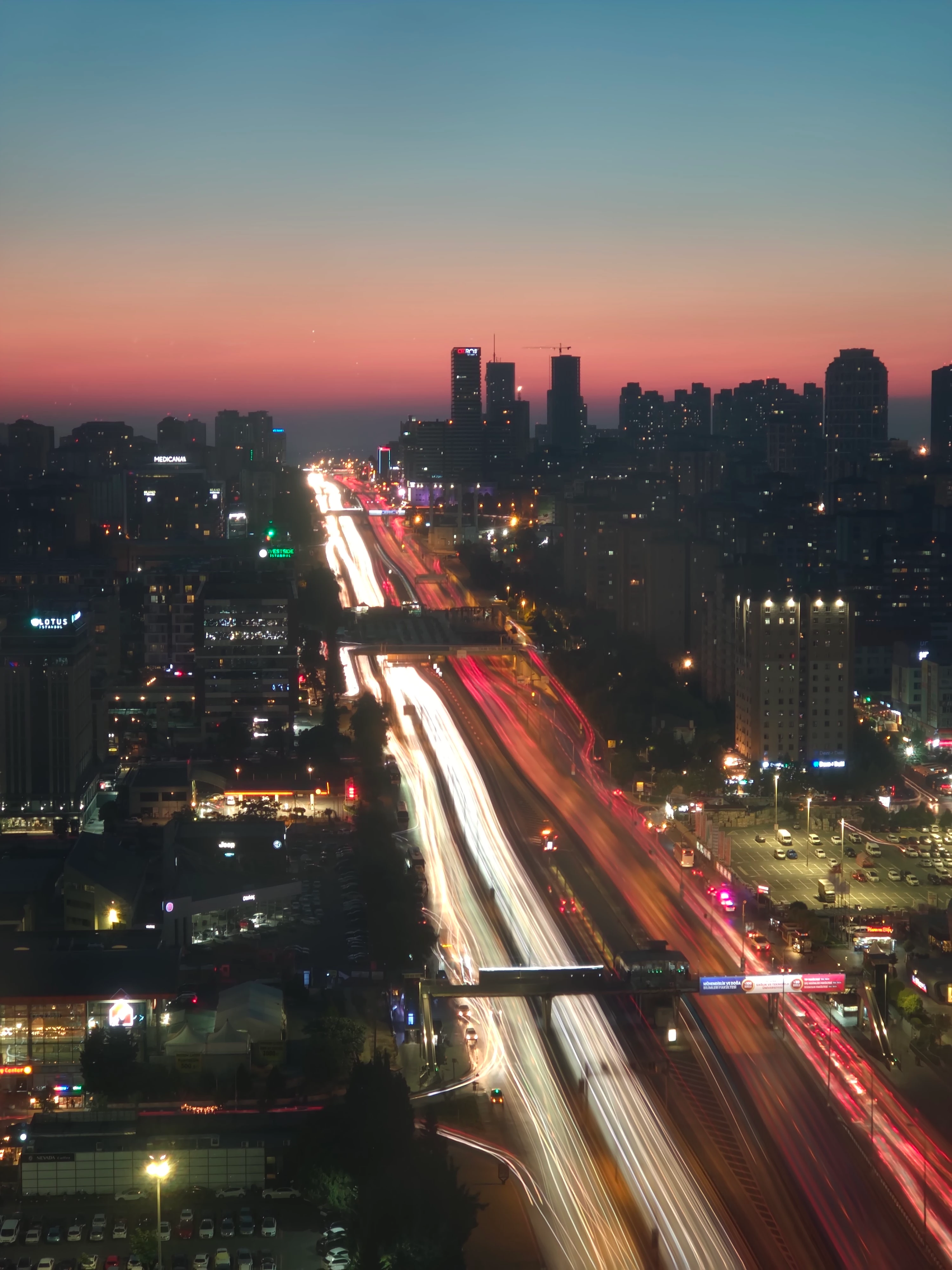
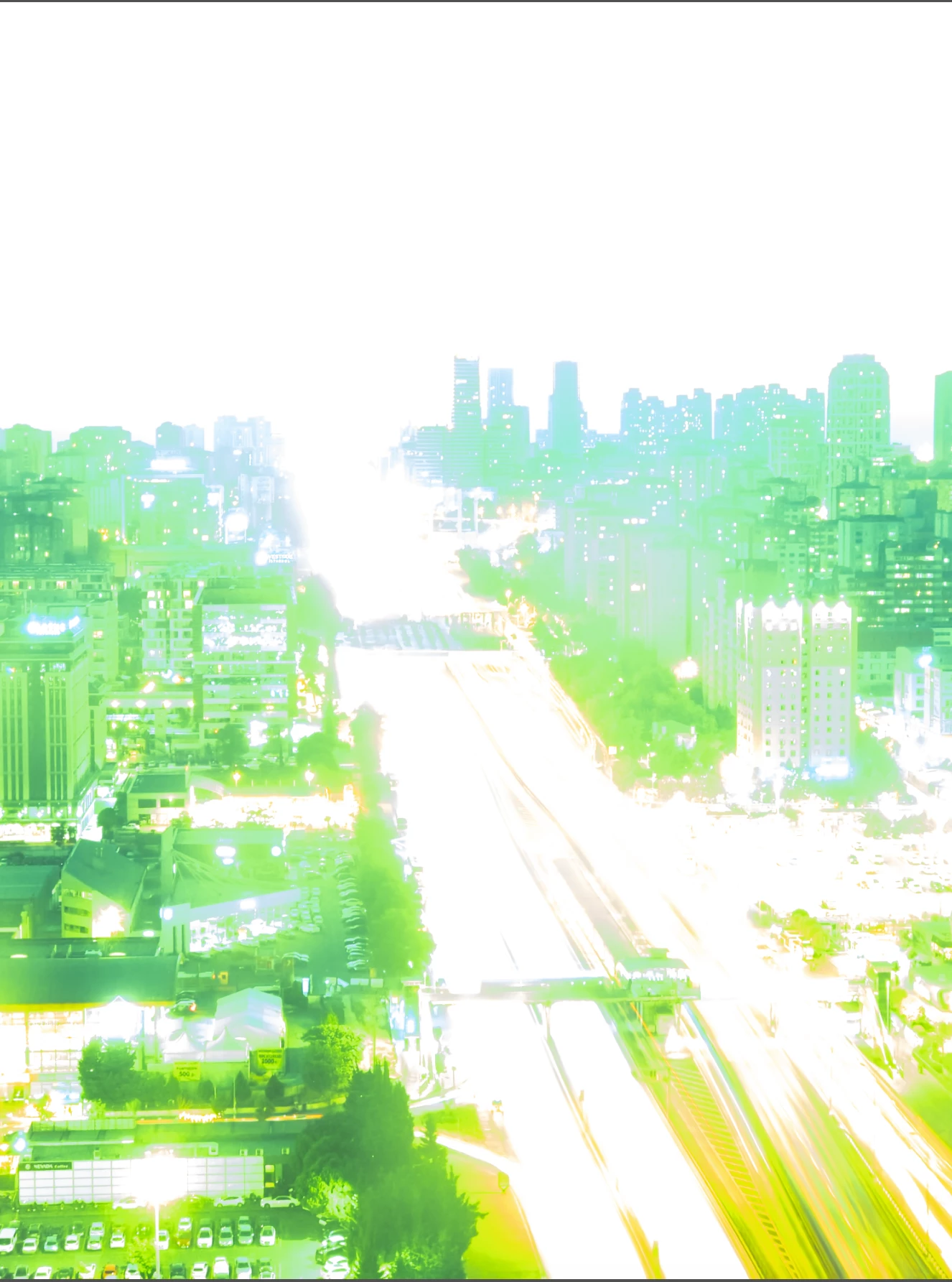
Here's the JPEG preview embedded in the DNG by the camera app (which LR initially shows after import) and LR's much-different rendering:
 

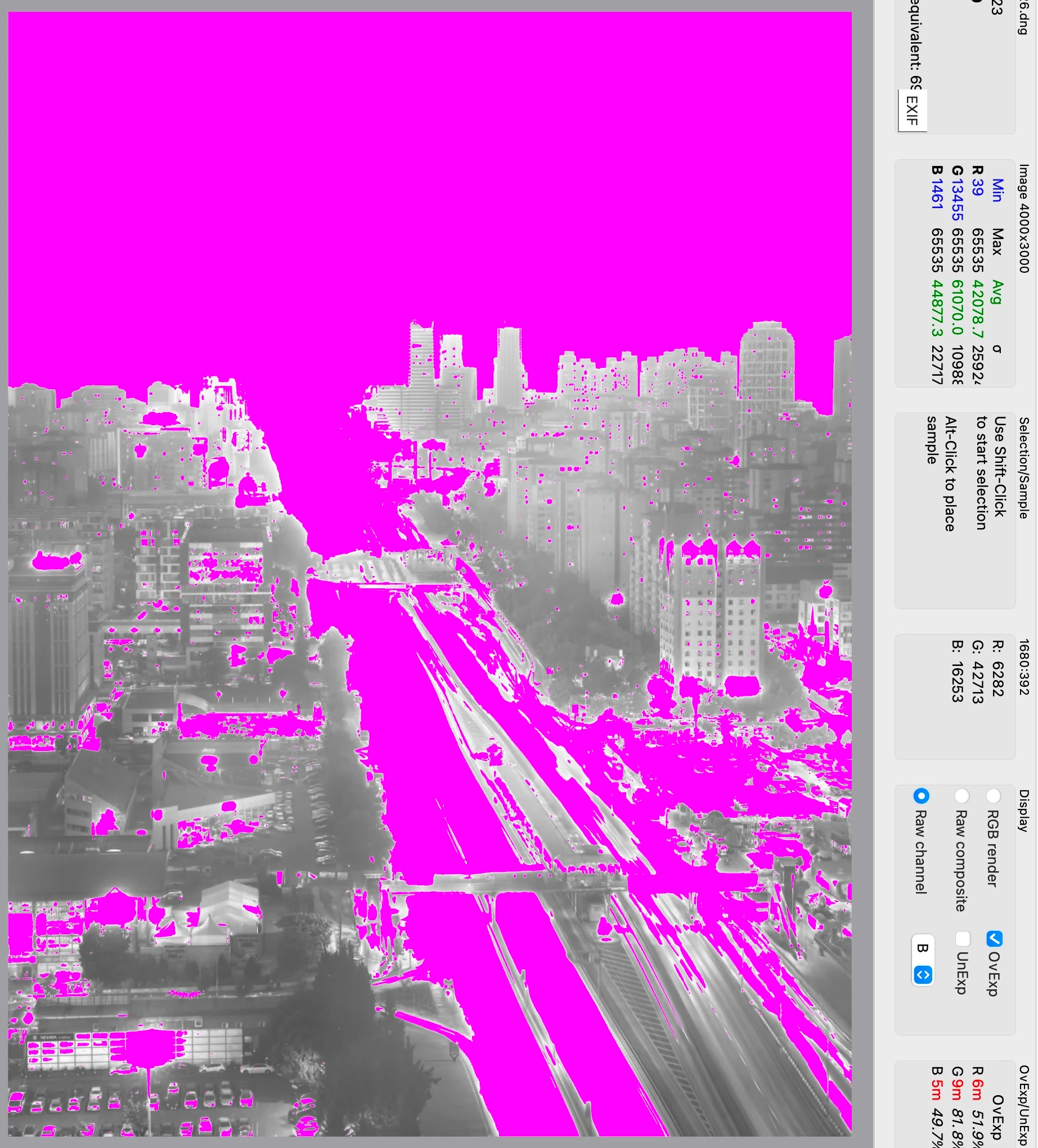
The Rawdigger app lets you examine the raw data in each of the red, green, and blue channels. It shows that the sky and highways have blown-out highlights in each of the RGB channels:
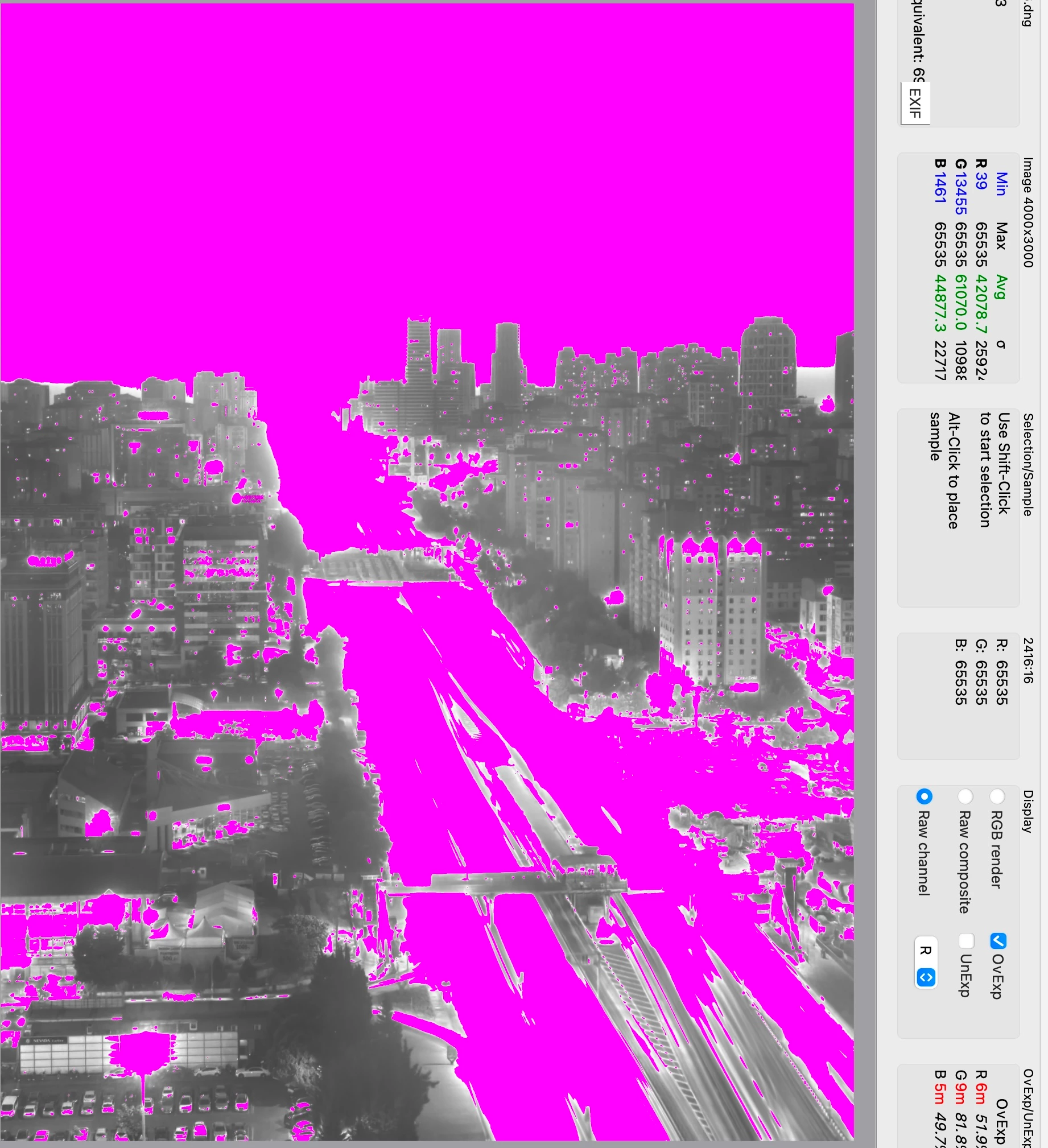
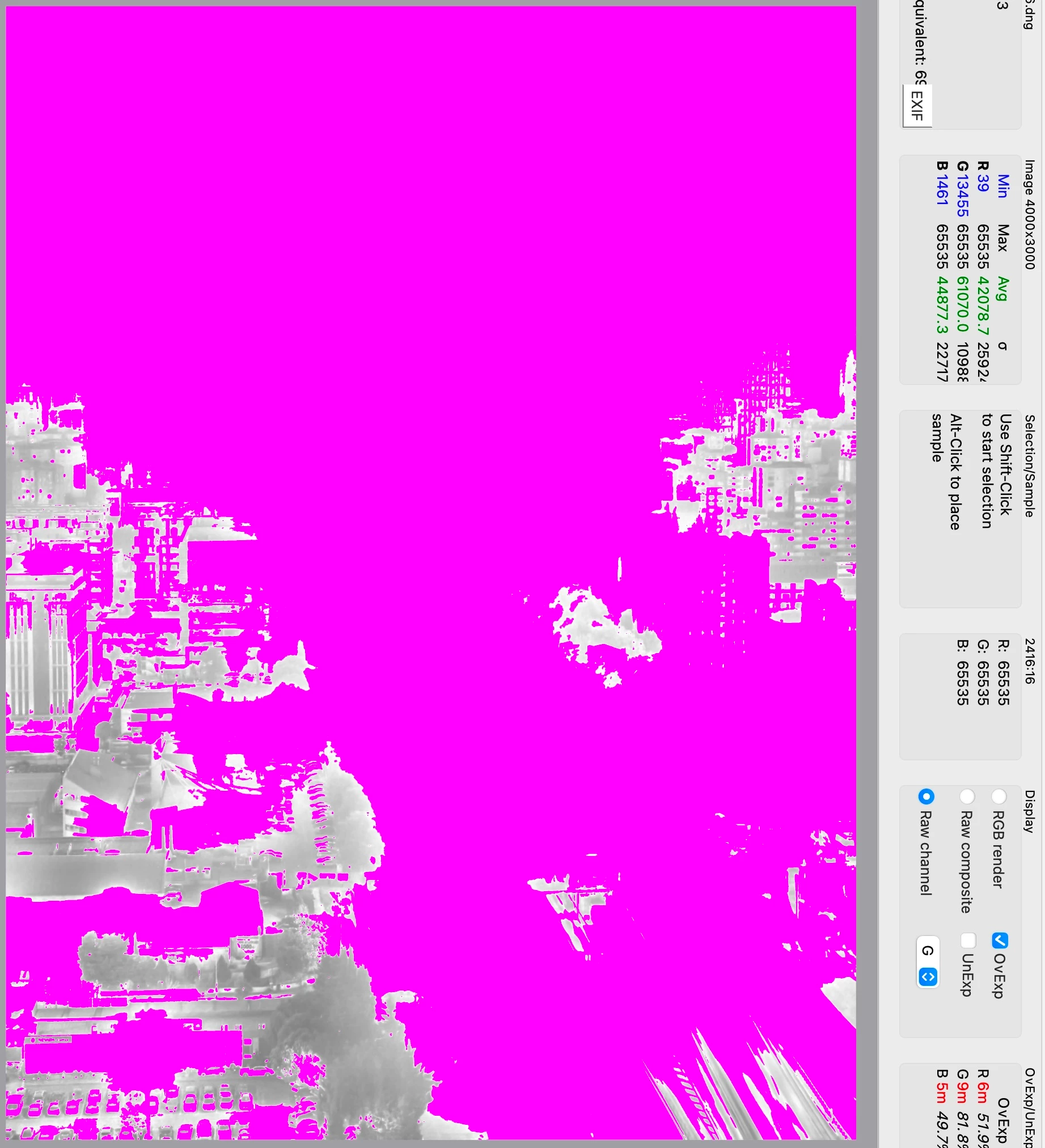
 

The Rawdigger data aligns with LR's rendering, indicating there's a problem with how the Expert Raw app is recording DNGs.


Exiftool shows that the DNG uses JPEG XL compression, and LR says "Lossy Compression: Yes" in the Metadata > DNG panel.


@johnrellis 

I can confirm reinstalling expert RAW fixes the problem in newly created images. Thanks!

10 replies

Participant
September 6, 2024

When I turn on the function lossless RAW on my samsung galaxy s23 ultra lightroom mobile can't render the details and blows out the whole picture. Please Adobe fix this...

August 26, 2024

Hi. Trouble. The same problem. All files shot with expert raw in Samsung (Samsung's Expert raw program was installed last from the store) Adobe Lightroom in win 10 (and in android) open in green and with an overexposed image. I also noticed that if you uncheck the "save lossless" checkbox, this problem will disappear (do not enable this flag). The only possible way is to save the embedded jpg (FastStone). But the resolution immediately drops there (300 dpi v.s. 96 dpi). They write that jpg XL is inserted inside the DNG container, but this does not make it easier for me. How can I restore my files that are so dear to me now? How do I save files in full resolution?

johnrellis
Legend
August 26, 2024

@33087848,  Update to the latest Expert Raw version as described here:

https://community.adobe.com/t5/lightroom-ecosystem-cloud-based-discussions/p-samsung-expert-raw-dng-...


That should fix the issue with future DNGs you take.


"The only possible way is to save the embedded jpg (FastStone). But the resolution immediately drops there (300 dpi v.s. 96 dpi)."


What matters is the pixel dimensions of the JPEG, not the recorded DPI.  Double check the dimensions -- with other problem Samsung DNGs, my Faststone shows the JPEG dimensions as 5712 x 4284.

August 26, 2024

Samsung shoots 3000x4000 in jpg

Participant
August 18, 2024

j'ai un problème avec les fichiers .dng pris avec mon galaxy s23 avec expert raw en 50MPx, une fois importée dans Lightroom mobile il ya un gros défaut d'exposition, tout apparaît plus sombre.. comment régler le problème je pense ne pas être le seul dans cette situation 


[moved to the correct community, and from bugs to discussions according to the community rules - Mod.]

Participant
August 8, 2024

Just for the sake of completion: I am able to recover those files with faststone image viewer. It loads them and shows them "in a good looking way", I can also adust brightness curves and then export to jpg etcetc.

Participant
August 8, 2024

here is one example, it worked flawless a few months ago, only difference in exif in file header is samsung version (cannot attach file, so uploaded here

https://drive.google.com/drive/folders/1qWFtMNJlIuYo8IWi8hTMEHAEBjqDVXwo?usp=sharing)

Participant
August 4, 2024

Hello everyone! 


I have a Samsung Galaxy S22 Ultra and the latest lightroom Version. 

On my last trip, I took some raw photos. Once I import them to lightroom mobile they get overexposed and with a green tint. Its not a matter of preset or editing. This happens once the photo is loaded in lightroom.

I never expirienced anything like this before. The photos get unusable, you cant edit them back on their original colors etc. 

Seems like its some kind of file reading error? I dont know how to fix. I tried re install, nothing changed.

All the photos of that trip get this treatment.


I tried to import some old photos, and they are read as they're supposed to. But not any newer that I capture.


Here is a screenshot. 


Participating Frequently
August 5, 2024

read everything above and you will find your answer:)

Participant
July 27, 2024

I noticed I had the same issue on all my raw photos I've been taking this summer with my S21 Ultra. I wanted to check them on my computer where they turn all green when/overexposed when I open them in Photoshop and I did not save .jpg as a backup. I also photographed multiple objects for photogrammetry during a trip where I was counting on being able to use the extra information in the raw data to produce a clean mesh.

I mean if the photos truly are lost this sounds like a major fu**up by Samsung? There must be a lot of people affected, maybe some just don't know it yet? And in that case thank you for ruining several hundred photos Samsung...

Is there no other way of recovering the files at all? I tried running them through the DNG converter application but the resulting file had the same issue.

johnrellis
Legend
July 28, 2024
Participant
July 25, 2024

I had the same issue. The solution is: uninstall expert raw on galaxy store then reinstall it. The problem will disappear.

Balakay612
Participating Frequently
July 14, 2024

Hi. I've got a bunch of DNG images from my phone that appear just fine in the Windows preview pane, or in the Windows photo display "app." But as soon as I try to open them in Camera Raw, they look like garbage. The weird thing is photos from the same phone, from a prior outing, seem to work just fine with Camera Raw, so I'm not sure why images that look "fine" in File Explorer look so completely wrong in Camera Raw. Here's what I mean: In the first photo, the preview looks fine, the Camera Raw preview is all wrong; in the second photo, the preview looks fine, and the Camera Raw preview looks correct. Both images were shot on the same phone: I have no idea why I'm getting these results nor what to do to correct things. Any thoughts? Thank you.


Photoshop 25.9.1

Camera RAW 16.4
Windows 11

Samsung Galaxy S23 Ultra, Expert RAW 3.0.06.28


Participant
August 20, 2024

I clicked around 250 pictures in Expert RAW on recent trip - all default settings. Out of those, first 50 were shot at RAW + JPG and they all look fine in Camera RAW. Then I made the change to shoot only RAW/DNG. I thought that stopped the additional processing that the camera does and allows for a more reactive application. To my horror, all 200 odd DNG files appear washed out in camera raw. I hope I will get a fix soon as the same opens perfectly fine in default Windows Photos application.

Participant
November 23, 2024

There's no fix coming for that issue it seems, Samsung failed and pushed an update that made dng images corrupt for certain systems. There are three things you can do.


1. You can fix future images by following the advice found in this thread.


2. You can recover JPGs from your DNGs, but the full range of image data stored in the dng is corrupt.


3. You can make sure to not buy Samsung in the future and tell your friends the same.


Do not buy Samsung is a good idea, if they cannot provide a solution to the broken photos then, there is no purpose in trusting them that other things will work.

flyingdogfish
Participating Frequently
July 6, 2024

DNG files from Samsung Galaxy S23 Ultra get a very strong green tint after import. At first they look normal, but after a few seconds they turn green. This bug was not present in the previous version and previously imported images are not affected. After some poking around I discover the problem appears when using lossy compressed DNG.


[moved from bugs to discussions according to the community rules - Mod.]


johnrellis
Legend
July 7, 2024

Please upload one of the problem DNGs to Dropbox, Google Drive, or similar and include the sharing links here. Without a sample file, Adobe is unlikely to pay attention.

flyingdogfish
Participating Frequently
July 6, 2024

I have the excactly same problem.


flyingdogfish
Participating Frequently
July 6, 2024

On Lightroom classic the problem seems to only occur when using lossy compressed DNG format. See https://community.adobe.com/t5/lightroom-classic-bugs/lossy-compressed-dng-files-from-samsung-galaxy-s23-ultra-turn-green-after-import/idi-p/14722968#M55292 .

You can set the type of DNG format in settings of Samsung Camera Raw app.