Inspiring
February 28, 2023
Answered

P: Samsung S23 Ultra doesn't synchronize library

  • February 28, 2023
  • 4 replies
  • 8452 views

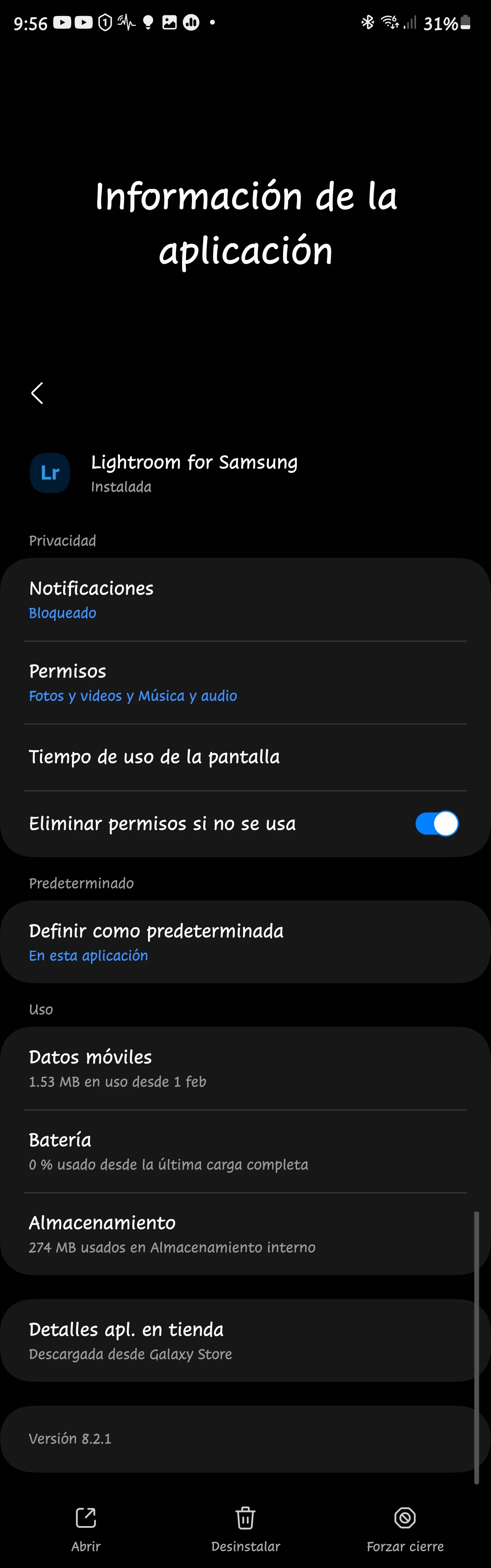
I've Installed Adobe Lightroom from Play Store and from Galaxy Store and neither synchronize my library on my S23 Ultra device.


And then, when I re lauch the app, it only shows a black screen.

I've tried reinstalling, erasing caché, and It still doesn't working.


Any advice/solution?

This topic has been closed for replies.
Correct answer Dack28626097wsvh

Not yet.


But Rikk is working on it 💪.


Hope he could resolve it.


@Rikk Flohr: Photography @ClapperDan I've solved the issue:

1.Delete caché and all app data

2.Uninstalling

3.Reboot device

4.Reinstall.


Thank you very much for your attendance, and support.


Regards.

4 replies

New Participant
August 22, 2023

1. **Clear Cache:** Go to your device Samsung S23 Ultra settings, find the Lightroom app, and clear its cache. This might resolve synchronization and black screen issues.

2. **Update the App:** Make sure you have the latest version of Lightroom from either store. Updates often bring fixes for bugs and compatibility issues.

3. **Permissions:** Check if Lightroom has necessary permissions to access your photos and storage. Grant all required permissions in your device settings.

4. **Device Restart:** Restart your S23 Ultra to refresh system resources, which might help with the black screen issue.

5. **Contact Support:** If the problems persist, contact Adobe support for more specific troubleshooting steps or potential solutions for your device model.

New Participant
March 2, 2023

Got the same issue with s23 ultra.

Thankyou for the fix. 


Adobe cs doesnt help but blaming samsung.

Participating Frequently
March 1, 2023

Hi so as the topic says, Lightroom for Samsung suddenly stopped working properly despite working fine just earlier the same day. I have a Samsung Galaxy S 23 Ultra,. Factory unlocked, and right now if I launch Lightroom, it will load my library. I can interact with the sidebar stuff just fine and even use the camera in app. However if I do anything related to a photo or video, even adding one to library, the app will immediately cancel my action and then load infinitely. If I try again, sometimes the app will crash, and a message will pop up, which I've attached to this post. I've cleared the cache and restarted, I've cleared data and restarted and I even uninstalled and reinstalled from both Galaxy Store and Play Store and nothing helps.


I made a bug report and emailed Adobe support but they told me to post here 

Rikk Flohr_Photography
Community Manager
Community Manager
March 1, 2023

I've shared your post with the team and they've requested a diagnostic log. 


Instructions 

Android Log File

Open Settings Panel, long press on the top left “Lr” icon. This will enable a “Send Feedback” button on the settings panel.

b)Now perform the usual tasks in LrA for few minutes and then please reopen the Settings Panel and tap on “Send Feedback” from settings panel. This will open up your email client after few moments and attach the logs.


Can you provide this?


Rikk Flohr: Adobe Photography Org
Participating Frequently
March 1, 2023

Yes, give me a few moments 

Rikk Flohr_Photography
Community Manager
Community Manager
February 28, 2023

Are you a free app user or do you have an active subscription?

Rikk Flohr: Adobe Photography Org
Inspiring
February 28, 2023
Hi.
I have a subscription.


Enviado desde mi Galaxy
Inspiring
March 1, 2023

Thank you for sending that.  The engineers have reviewed and need a slightly different recording.


"The customer’s recording does not show the issue on S23 Ultra from the login step. The video we need to see is: 

  1. Uninstall Lightroom and reinstall again form play store (assuming no unsynced data exists on S23 ultra as this step will wipe off all unsynced data from Lightroom).
  2. Now launch Lightroom and move to sign in screen.
  3. Enter username and password.
  4. Start the recording and hit continue. on sign in screen.
  5. Once the issue is shown on recording, stop the recording and share.

    Is it possible for you to share this as well?

Hi, Rikk.


Here is the new video.

I've stopped 'cause the file size.

But after 5 more minutes, nothing change.


Again  thanks for all your support.