
Known Participant
September 30, 2021
Question

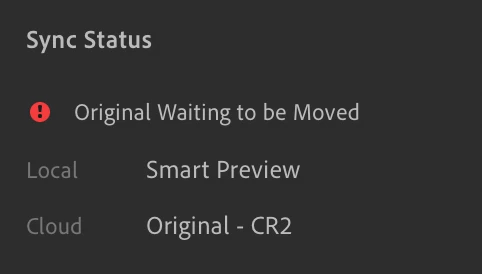
"Originals Waiting to be Moved" ??

So, I got a new external SSD to use as the storage location for all my originals, while leaving smart previews in the cloud or on my internal harddrive. The originals used to be on another external drive, but it was having connectivity issues... anyways, I transferred the photos by plugging both drives in and then changing the "storage location" in LR preferences and then LR moved all the photos for me from one drive to the other... it took like 10 hours.

When it finished I thought everything was dandy, but I am realizing now that all I have are the smart previews and when I click the cloud dropdown window says it is 'all synced and backed up'... When I click the info tab, it says "Sync Status: Orginal Waiting to be Moved". This is the case with all my photos... not sure what the deal is. Thanks in advance


Ce sujet a été fermé aux réponses.

1 commentaire

Rikk Flohr_Photography
Community Manager
September 30, 2021

If you reconnect both of the drives again do you still see the message?

Rikk Flohr: Adobe Photography Org
Known Participant
September 30, 2021

Thanks for the reply. I connected both drives and tried again and this time it moved about 95% of them. Itsd missing about 5000 photos tho and is asking me if I want to try again... I guess I willl and hopefully it gets them all this time. thanks


Rikk Flohr_Photography
Community Manager
October 1, 2021

Does not change the behavior... It seems to be only be trying to move 15 photos as well... In preferences > Local Storage, it shows this message (attached)... When I click 'Move Now' it restarts lightroom and tries to move the 15 photos but then says 'Oops! We couldnt move all your files' and I am back where I started. There are some 5k photos that need to be moved still tho, super frustrating


At this point there are two things to try:

Preference file reset:

This procedure works for both Lightroom Classic and Lightroom Desktop.


If you are using Lightroom Desktop it can change the location of your local storage. Please review this setting after resetting preferences. 


Reset Procedure:

1. Close Lightroom.

2. Hold down [Alt/Opt]+[Shift] while restarting Lightroom.

3. Overwrite the Preferences when prompted by the dialog.

4. Close Lightroom.

5. Restart Lightroom.


Next step - clean installation:

Clean Lightroom Install Procedure

Close Lightroom

Restart the computer

Use the Adobe Creative Cloud App to uninstall Lightroom

Restart the computer

Install Lightroom via the Creative Cloud App without launching any other programs.

Restart the computer

Launch Lightroom

Wait 5 minutes


Note you can perform these in either order as they do not affect one another. 

Rikk Flohr: Adobe Photography Org