michellee61462637
Participant
July 12, 2021
Answered

Rebekka Plattner Pet Presets

  • July 12, 2021
  • 3 replies
  • 800 views

Hello! I am trying to import the free Adobe presets that Rebekka has created, as their previews look amazing! However I keep getting told that "Unable to import presets - All items were already imported". But I can't find them in the list anywhere - does anybody know if they maybe come under a different name than

  1. Mountain

  2. Forest

  3. Retro

  4. Cozy

  5. Sunset

  6. Ocean

  7. Urban

  8. Soft

, please? Here is the link to her article https://creativecloud.adobe.com/cc/discover/article/free-adobe-lightroom-presets-and-tips-for-pet-photography?trackingid=35SVBRNX&mv=email&locale=en

Thank you in advance!
Correct answer Ian Lyons

You haven't mentioned which version of Lightroom you're using. Hopefully below helps.


Lightroom Desktop


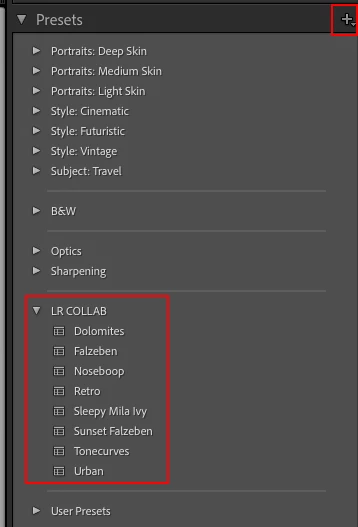
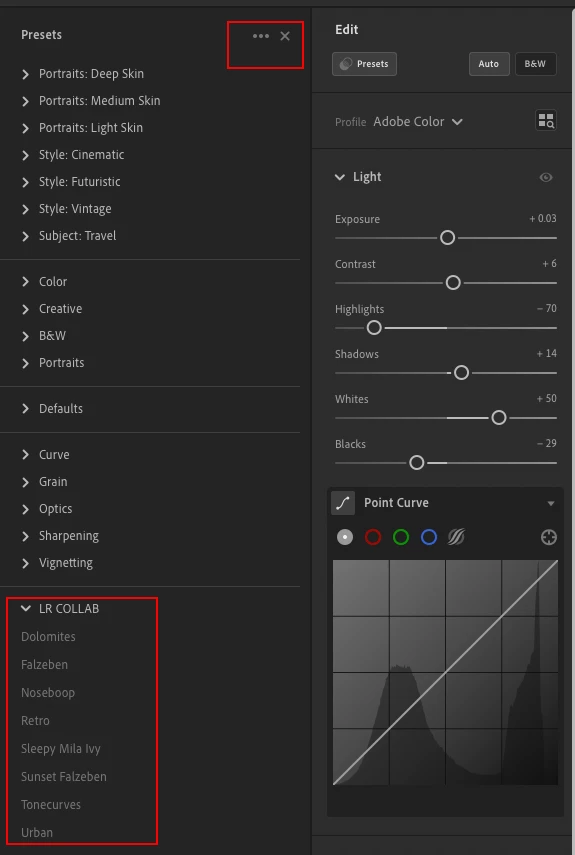
They should be in a folder named LR COLLAB - see below screenshot. If the folder isn't visible, then click on the 3 dots menu at top right corner to open the Preset Manager, then make sure that there is a check mark against the LR COLLAB folder


Lightroom Classic


They should be in a folder named LR COLLAB - see below screenshot. If the folder isn't visible, then click on the + button  at top right corner to open the Preset Manager, then make sure that there is a check mark against the LR COLLAB folder.


3 replies

Ian Lyons
Community Expert
Ian LyonsCommunity ExpertCorrect answer
Community Expert
July 12, 2021

You haven't mentioned which version of Lightroom you're using. Hopefully below helps.


Lightroom Desktop


They should be in a folder named LR COLLAB - see below screenshot. If the folder isn't visible, then click on the 3 dots menu at top right corner to open the Preset Manager, then make sure that there is a check mark against the LR COLLAB folder


Lightroom Classic


They should be in a folder named LR COLLAB - see below screenshot. If the folder isn't visible, then click on the + button  at top right corner to open the Preset Manager, then make sure that there is a check mark against the LR COLLAB folder.


michellee61462637
Participant
July 20, 2021

Thank you! I definitely have those ones that you have in the red box - so maybe they are correct just with different names than in the post - if that is the case I will have a play around with them, thank you for your help!

Ian Lyons
Community Expert
Community Expert
July 22, 2021

The problem is that the author is using a different name internally to what has been used externally. For example, the preset externally named as 'Cozy' is internally named as 'Sleepy Mila Ivy', and the preset externally named as 'Ocean' is internally named as 'ToneCurves'. So, you have the correct presets, it's just that the author hasn't named them correctly when creating them.


The issue is easily resolved. Just right-mouse click on each of the presets and rename.


GoldingD
Legend
July 12, 2021

Ah, looking at that link, my advise may be incorrect. I am thinking Lightroom not Lightroom Classic

What exact version of Lightroom are you running? The program name and version. 


michellee61462637
Participant
July 20, 2021

So sorry I missed this reply! I am using Adobe Lightroom Classic, 10.3 release, Camera Raw 13.3

GoldingD
Legend
July 12, 2021

In LrC, in the Presets Panel, click on +, manage the presets, make sure the ones in question are not in fact present but turned off from view.


These are Develop presets, not Profile  presets, right?