
Participant
May 17, 2020
Answered

Trial version of lightroom video filters

  • May 17, 2020
  • 5 replies
  • 1734 views

I have trial version for lightroom on my PC and I want to add a filter to a video I have made but when I click the video it says editing video is unsupported. I see many tutorials on youtube and other places but they all look different. I dont see the options to change my videos like they have. Is this because it is a trial version? Or am I doing something else wrong.
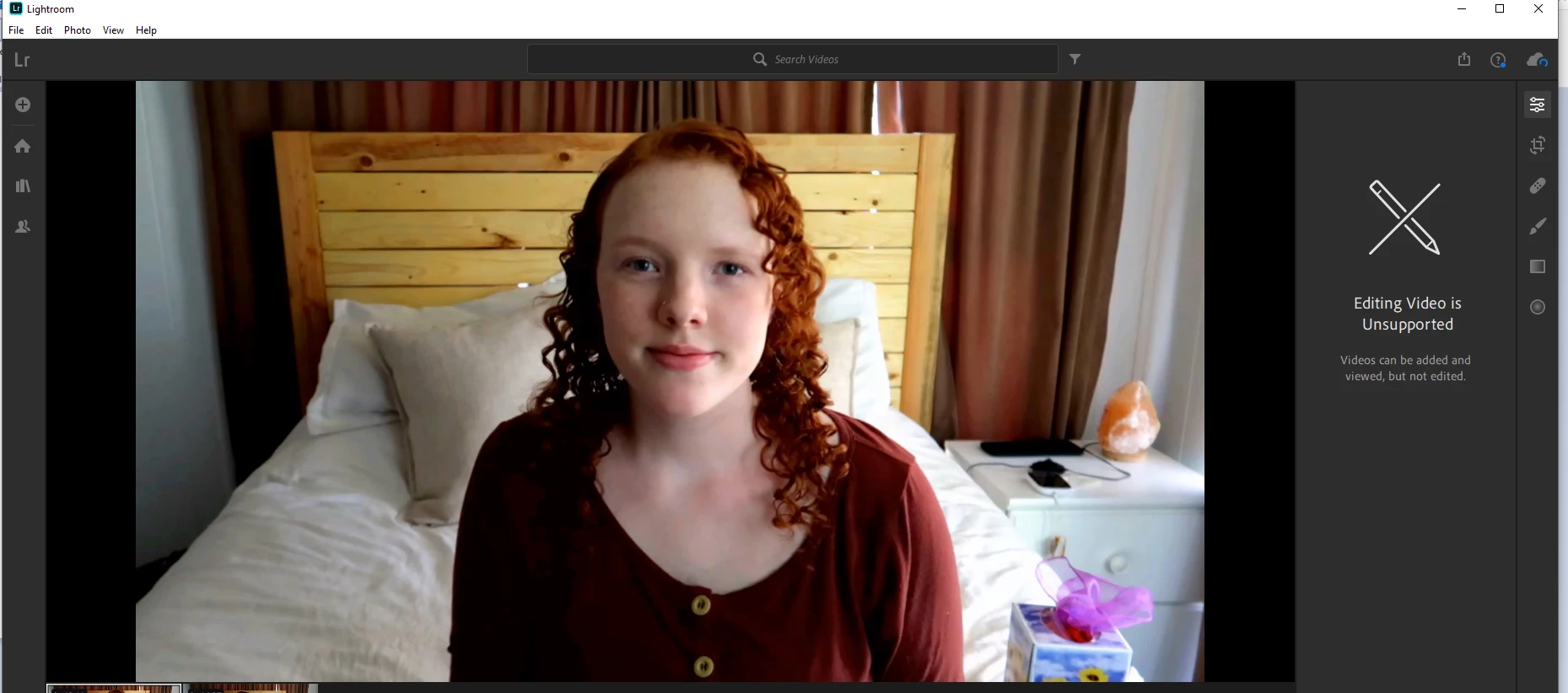
 

Here is a SS of what it looks like for me. I dont have any options to the right, The top bar doesnt show library or anything. I watch other videos of people adding filters they simply load a screen similiar to this and the options on the right side they can change what they like.

This topic has been closed for replies.
Correct answer Akash Sharma

Hi there,


Editing a video in Lightroom is not possible. 


Which version of Lighrtoom are you using? Lightroom Classic or Lightroom desktop?


Working with video in the Library module of Lightroom Classic offers some simple tools for previewing, setting poster frames, and creating stills from frames that can be exported to the Develop module.

See https://youtu.be/c7yvmFrOixU


Thanks,

Akash

5 replies

JP Hess
Inspiring
May 18, 2020

You are NOT using Lightroom Classic! You are using Lightroom (which some users call Lightroom CC), the version of Lightroom which stores your images in the cloud. It is a totally different version of Lightroom designed for a different user with different needs, And a different and somewhat abbreviated feature set when compared to Lightroom Classic. As the screen indicates, video editing is not supported. You can't do it.

JP Hess
Inspiring
May 18, 2020

Then it would be best for you to go back and review those videos. Lightroom Classic is not designed as a video editor.

IyekaneAuthor
Participant
May 18, 2020


This is what it looks like when I click on a video. It doesnt look anything like the video that Akash Sharma

just posted up top. It is completely different. 


JohanElzenga
Community Expert
Community Expert
May 18, 2020

Which version did you install as trial? Lightroom, or Lightroom Classic? Lightroom Classic does allow some basic video editing (white balance, exposure, contrast, whites, blacks, vibrance, saturation), but that can only be done in the Quick Develop panel in the Library module. You cannot edit a video in the Develop module.

-- Johan W. Elzenga
IyekaneAuthor
Participant
May 18, 2020

I thought classic. I have seen youtube videos and know people who have added fliters to videos so I know its possible

99jon
Legend
May 18, 2020

You basically grab a frame from the video as a jpeg. Edit the jpeg in develop. Then copy & paste the settings to the video clip.

In Lightroom Classic if you open the video in loupe View (E) it is possible to play/pause the clip and then click the pull-down menu and choose capture frame – see image.

If you choose the same folder as the video you should be able to use the menu:

Photo >> Stacking >> Unstack

IyekaneAuthor
Participant
May 18, 2020

I am pretty sure its classic lightroom because it doesnt say anything else. Just says lightroom. And I have seen people put filters on videos. They cant be doing each frame. They must be apply to the entire video somehow?

Akash Sharma
Akash SharmaCorrect answer
Legend
May 18, 2020

Hi there,


Editing a video in Lightroom is not possible. 


Which version of Lighrtoom are you using? Lightroom Classic or Lightroom desktop?


Working with video in the Library module of Lightroom Classic offers some simple tools for previewing, setting poster frames, and creating stills from frames that can be exported to the Develop module.

See https://youtu.be/c7yvmFrOixU


Thanks,

Akash

IyekaneAuthor
Participant
May 18, 2020

Its PC version so I think classic on PC. When I load your video and look at top left mine doesnt say lightroom CC and to the left there is no library/develop/ect bar. The options to change anything dont pop up on the right side.


This is what it looks like. As you can see no choices like in the video