Participant
September 8, 2017
Answered

LG G6 .dng appears in Lightroom CC with violet cast

  • September 8, 2017
  • 3 replies
  • 4595 views

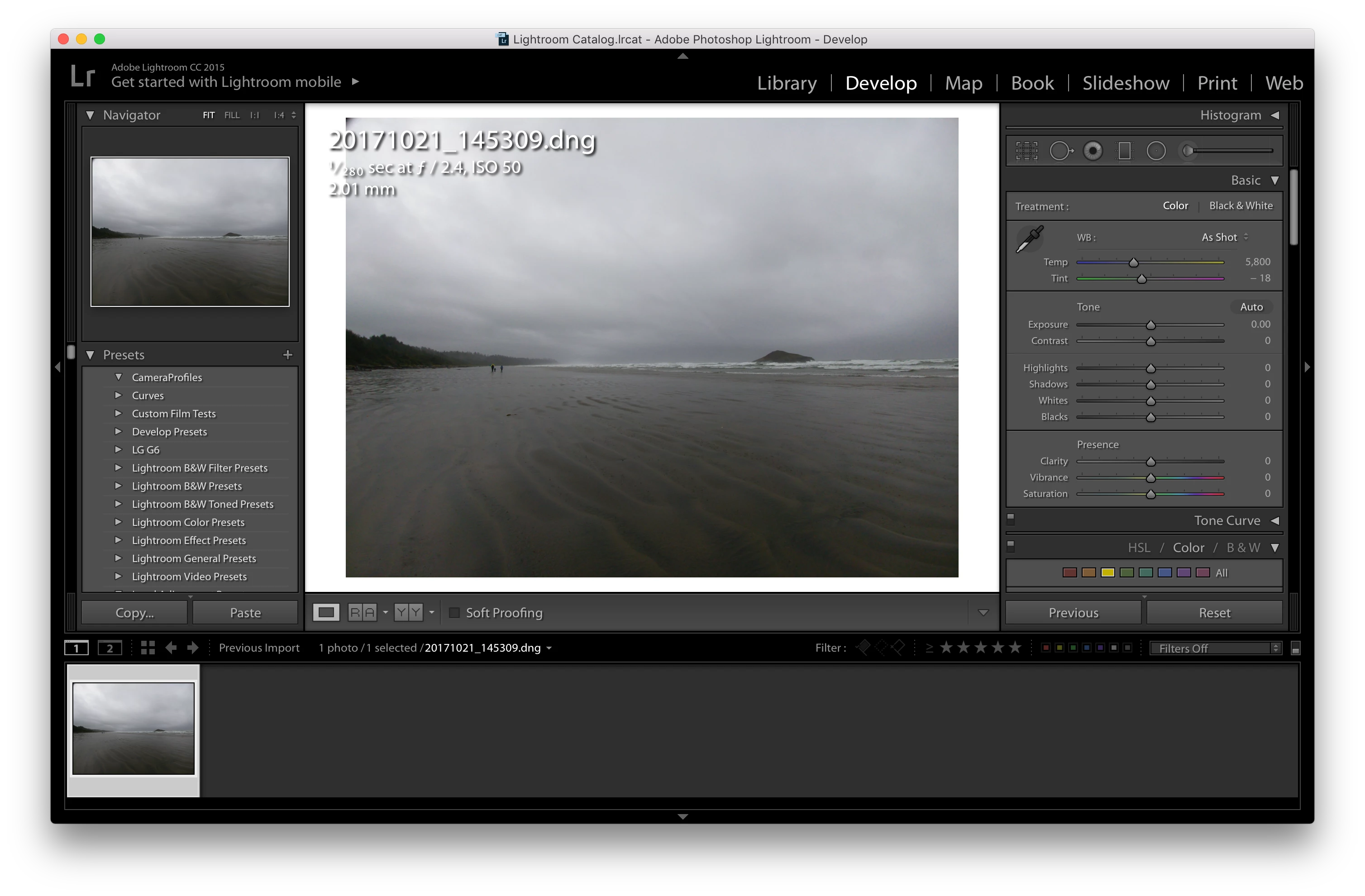
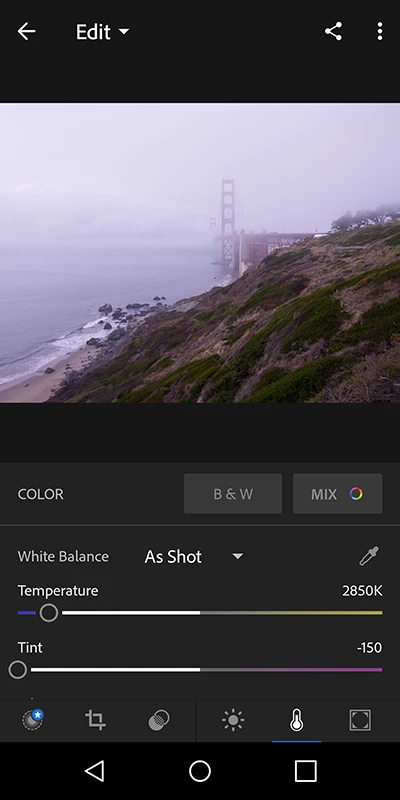
When importing a .dng file from a new LG G6 Android phone, it appears with a severe violet cast.  Lightroom CC automatically pegs tint at -150 and it's still pretty bad, and gives me no flexibility to work with that slider. Is this a known issue?

Camera RAW, Photoshop CC and Lightroom Mobile also shows the violet cast.

RawTherapee and Snapseed seem to read the file normally (which makes me think it's not an LG issue, hence my posting here).  I can export to .tif from there, and then import the .tif to Lightroom, but it's an inconvenient workflow.

Thanks!

Message was edited by: Mod (Discussion successfully moved from Lightroom Classic CC to Lightroom CC)

This topic has been closed for replies.
Correct answer QuintanN

This might be a temporary solution this thanks to Reddit (See Azriel0's comment) https://www.reddit.com/r/lgg6/comments/77oyoo/my_g6s_rawdngs_are_purple_whose_arent/

https://www.reddit.com/r/lgg6/comments/77oyoo/my_g6s_rawdngs_are_purple_whose_arent/

It looks like something's up with LG's profile on this thing. The metadata doesn't match the model number of my phone, and I think this might be a similar issue with all H873's.

In the linked Reddit thread, Azriel0's comment recommends downloading the DNG Profile Editor from Adobe. His attached profile didn't quite do it for me, but he gave enough information to work with. Here's what I did:

1. Open DNG Profile Editor

You can download this straight from Adobe at Digital Negative (DNG), Adobe DNG Converter | Adobe Photoshop CC

2. Open A Photo

Grab one of your purple-tinted DNG's that you want to work with. Find an example with neutral color (cloudy sky, etc)

3. Do one of the following:

a) Open the photo in DNG Profile Editor.

     1. Click a neutral color with an excessively purple tint.
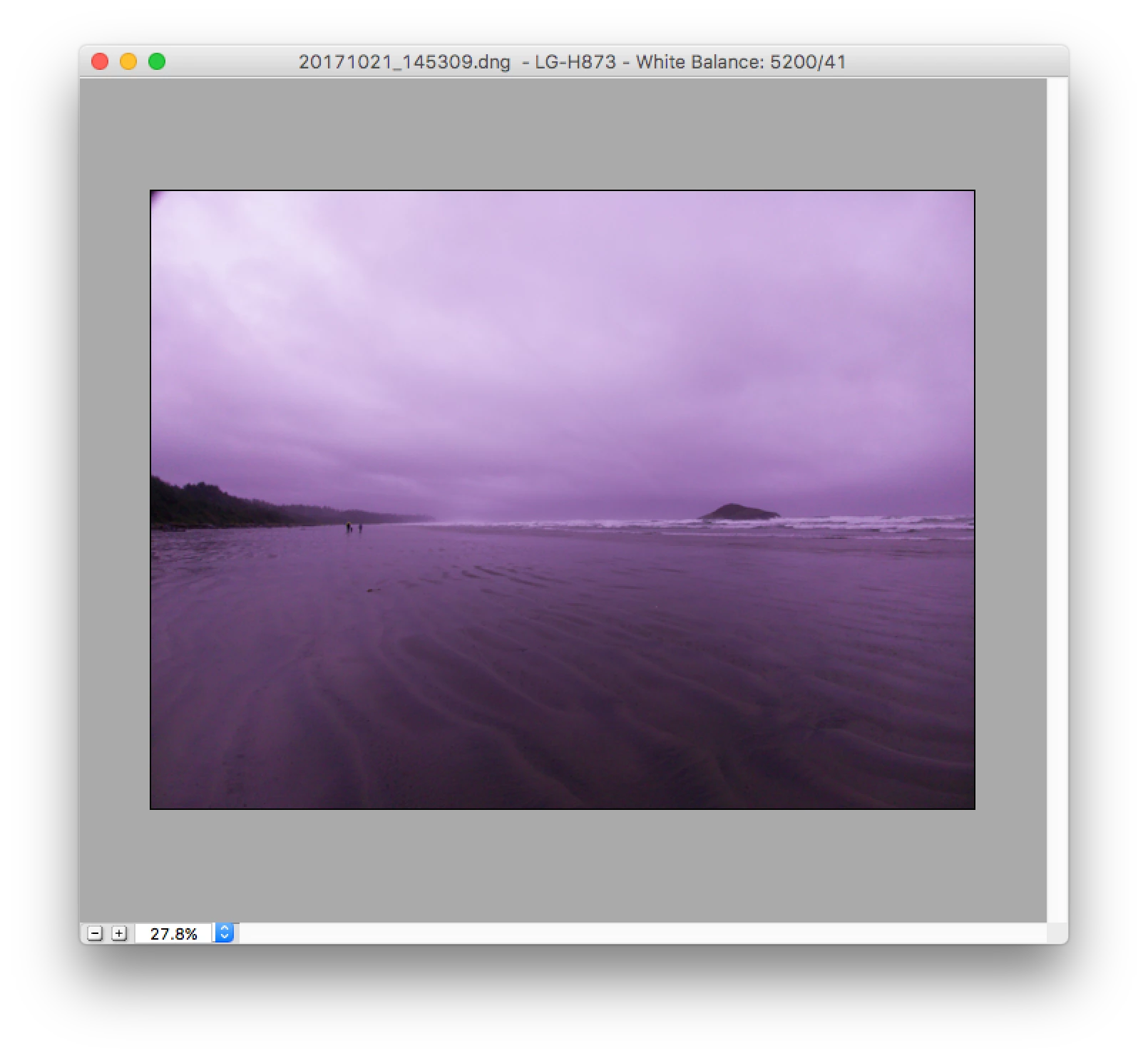
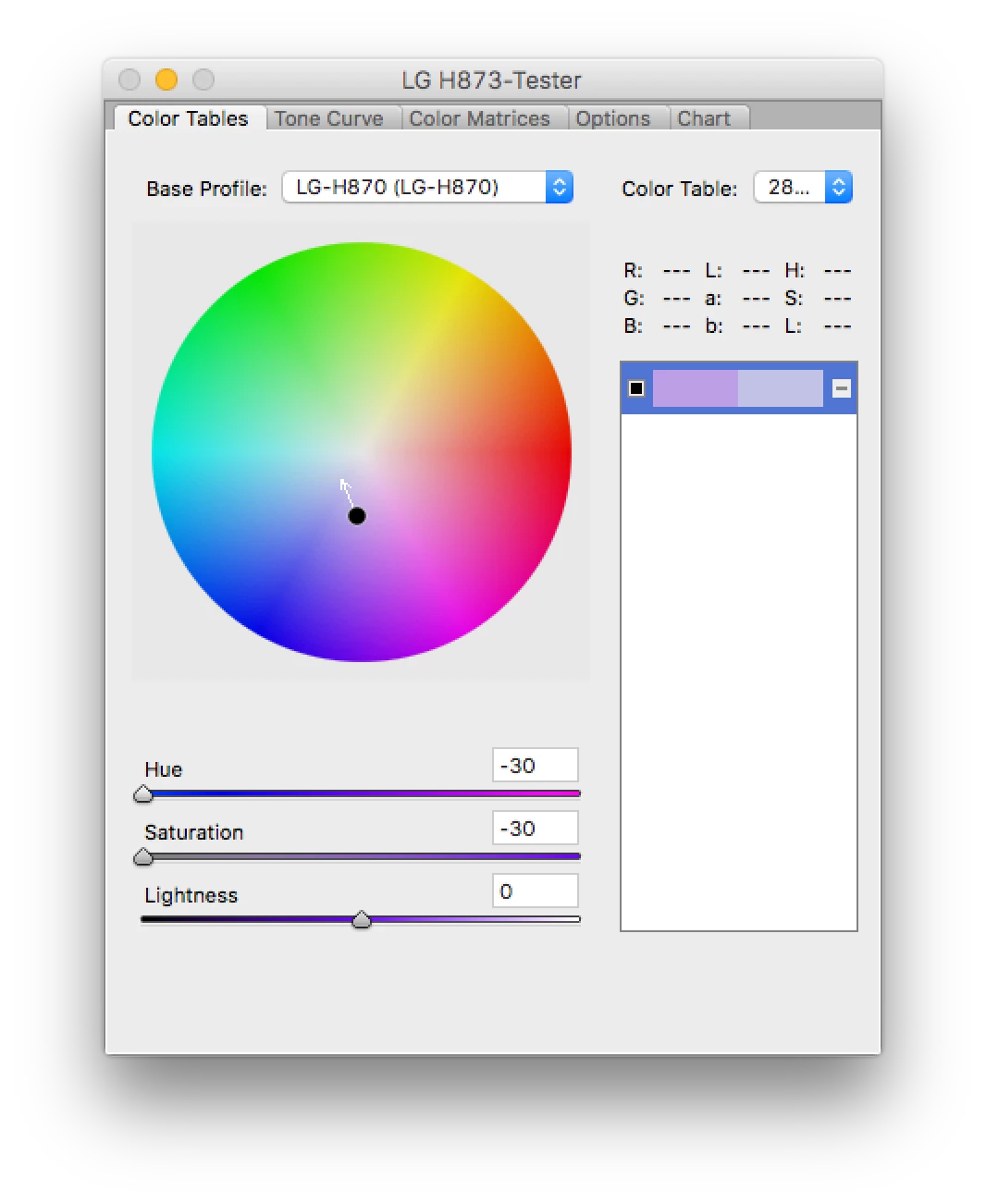
     2. Click a purple part on the color wheel, and adjust the purple to point towards green, as following.
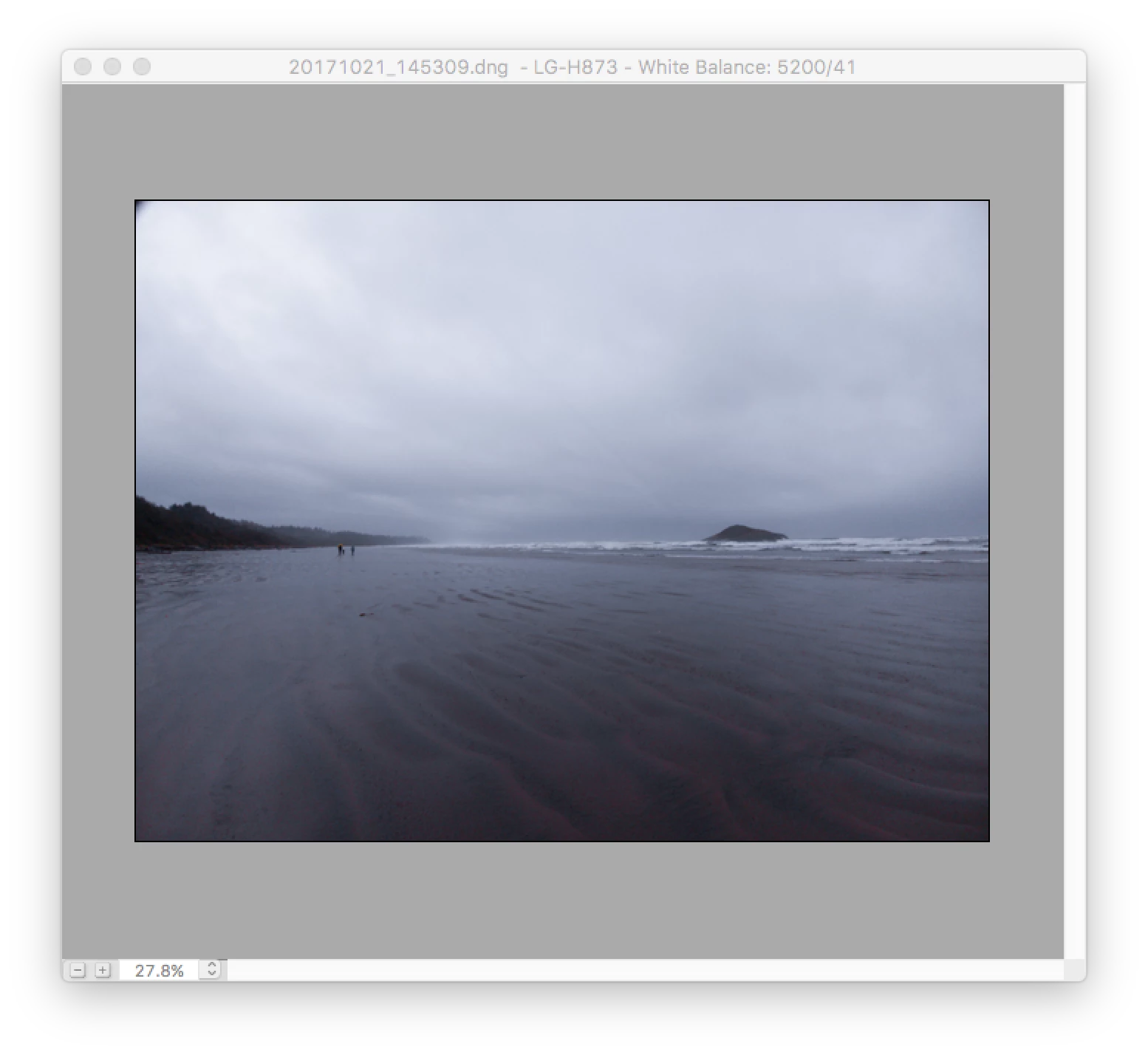
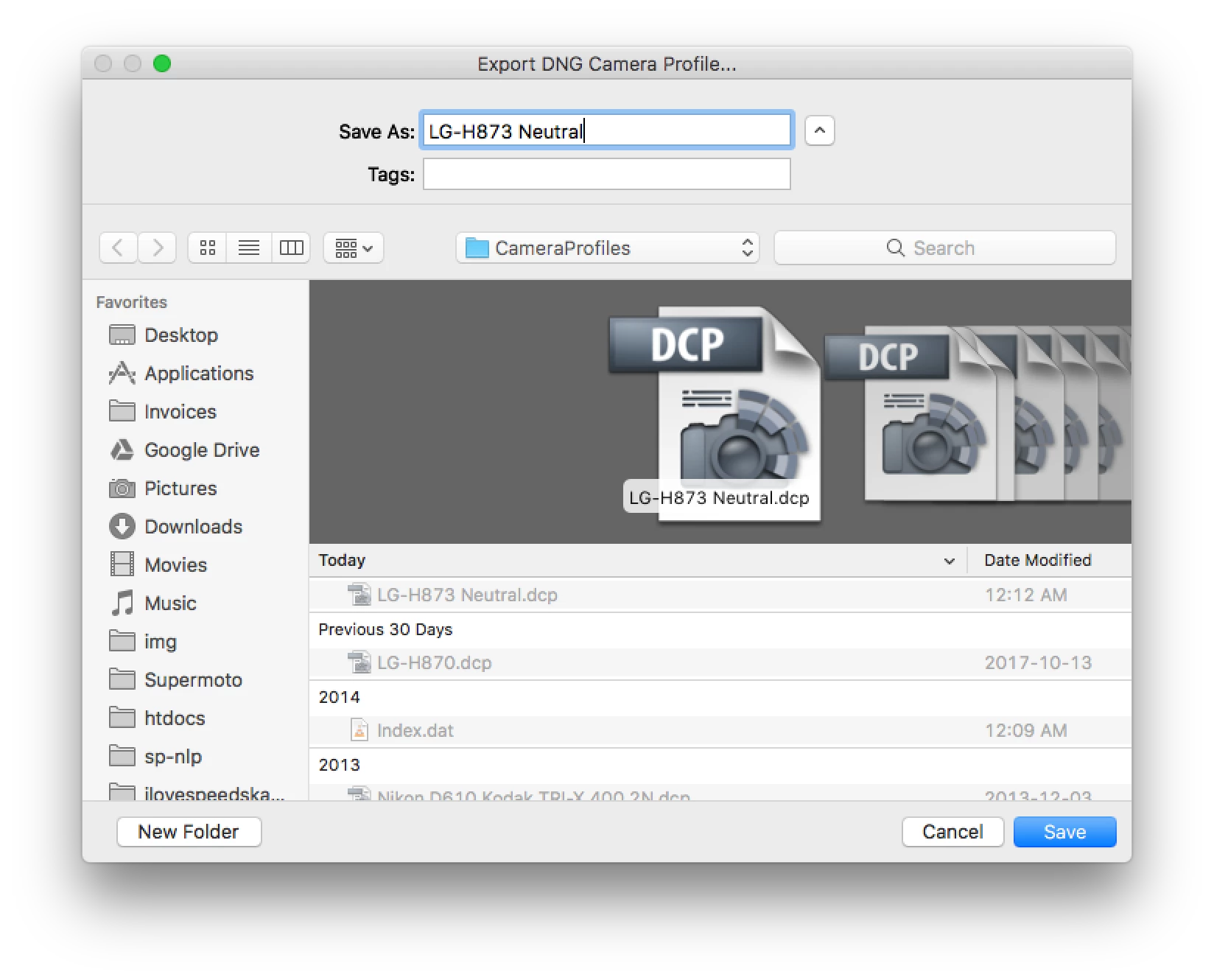
     3. After making changes, export the new profile to {HOME FOLDER}/Library/Application Settings/Adobe/CameraRaw/CameraProfiles.


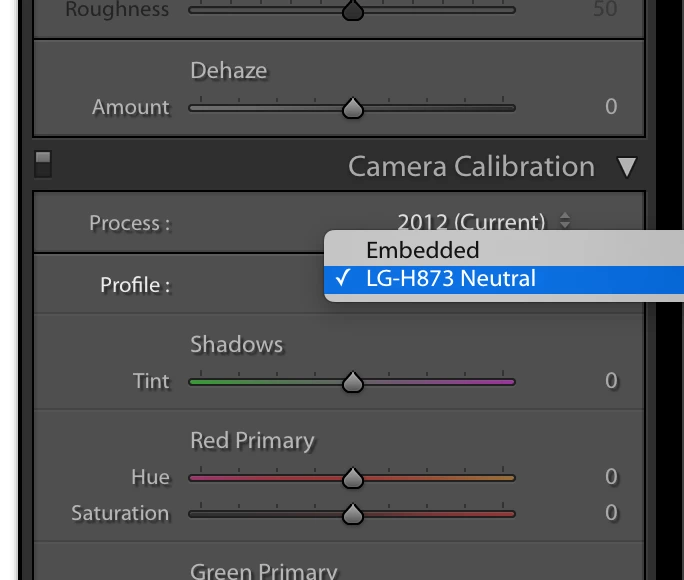
     4. Import your photo to Lightroom. It should appear somewhat closer to normal.
5. Now thanks to that newly-exported profile, you can throw it on all your old photos.
b) Or just download this starter profile (right click, Download) and adjust from there. Export from DNG Profile Editor as above, and it should appear in Lightroom.

------------------------------------

I hope LG figures out this issue in a future software update. Adobe might be able to bandaid this so we can use our photos in Lightroom Mobile, but for now desktop is actually usable with this phone.

Hope this helps someone!

3 replies

Participant
October 29, 2017

I have this problem too. Same model of LG g6. I took the photo with Lightroom mobile and it looks purple.

I have to also comment though that I have a number of photos where from one shot to the next the raw image looks very different. Grass various greens in shots taken seconds later with similar light and similar position. Not very happy with this.

QuintanNCorrect answer
Participant
October 24, 2017

This might be a temporary solution this thanks to Reddit (See Azriel0's comment) https://www.reddit.com/r/lgg6/comments/77oyoo/my_g6s_rawdngs_are_purple_whose_arent/

https://www.reddit.com/r/lgg6/comments/77oyoo/my_g6s_rawdngs_are_purple_whose_arent/

It looks like something's up with LG's profile on this thing. The metadata doesn't match the model number of my phone, and I think this might be a similar issue with all H873's.

In the linked Reddit thread, Azriel0's comment recommends downloading the DNG Profile Editor from Adobe. His attached profile didn't quite do it for me, but he gave enough information to work with. Here's what I did:

1. Open DNG Profile Editor

You can download this straight from Adobe at Digital Negative (DNG), Adobe DNG Converter | Adobe Photoshop CC

2. Open A Photo

Grab one of your purple-tinted DNG's that you want to work with. Find an example with neutral color (cloudy sky, etc)

3. Do one of the following:

a) Open the photo in DNG Profile Editor.

     1. Click a neutral color with an excessively purple tint.

     2. Click a purple part on the color wheel, and adjust the purple to point towards green, as following.

     3. After making changes, export the new profile to {HOME FOLDER}/Library/Application Settings/Adobe/CameraRaw/CameraProfiles.


     4. Import your photo to Lightroom. It should appear somewhat closer to normal.

5. Now thanks to that newly-exported profile, you can throw it on all your old photos.

b) Or just download this starter profile (right click, Download) and adjust from there. Export from DNG Profile Editor as above, and it should appear in Lightroom.

------------------------------------

I hope LG figures out this issue in a future software update. Adobe might be able to bandaid this so we can use our photos in Lightroom Mobile, but for now desktop is actually usable with this phone.

Hope this helps someone!
Participant
November 2, 2017

Thanks, I'll definitely try this soon!

Akash Sharma
Legend
October 17, 2017

Hi mattm,

Do you see an develop preset getting applied to the image while importing?

Image result for lightroom import develop preset

Also, Please re calibrate your monitor to ensure that the issue is not due to inconsistent monitor color profile. See How to manage color in Lightroom

Thanks,

Akash

Participant
October 17, 2017

Hi,

I do have the same problem with dng from LG G6. The issue can be found in other forums in the www as  well.

No preset while importing, no problem with the calibration of my monitor.

The problem only apears with dng form LG G6, not with dng from LG G4, CR2 from Canon or ARW from Sony

Greetings

Franka