

Community Manager
March 7, 2025
Question

Adjust Colors Ready for Beta Testing

  • March 7, 2025
  • 17 replies
  • 10192 views

Adjust Colors enables you to make quick and easy hue, saturation, and lightness adjustments to the 6 most prominent colors in your image.


HOW TO TEST

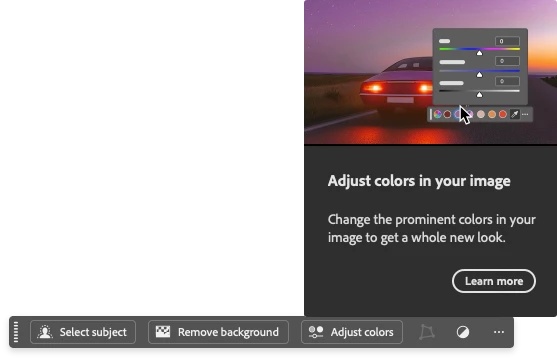
When a "pixel" layer is selected with the Contextual Task Bar enabled, you'll see an "Adjust Colors" button. Clicking it shows the six main colors in your image. You can select a color and adjust its hue, saturation, and lightness. Changes appear instantly on the canvas, and the swatch updates to show the before-and-after colors.
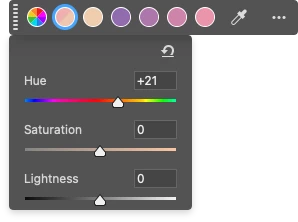


Using the eyedropper tool, you can choose any different color for the swatches. A magnifier loupe appears when you click to help you preview a color. You can reset the colors anytime from the ••• menu on the Contextual Task Bar.


You can also find "Prominent Colors" in the Presets dropdown under Hue/Saturation in the Properties panel.


Other updates to the Hue/Saturation Adjustment in the Properties panel include:

  • Color swatches for RGB, Cyan, Magenta, and Yellow channels
  • Color swatches for the Prominent Colors preset
  • Color swatch for the "Colorize" option
  • Indicators (before/after swatch) for updated channels
  • Improved before/after color bars with a larger, more user-friendly UI

PROVIDE FEEDBACK

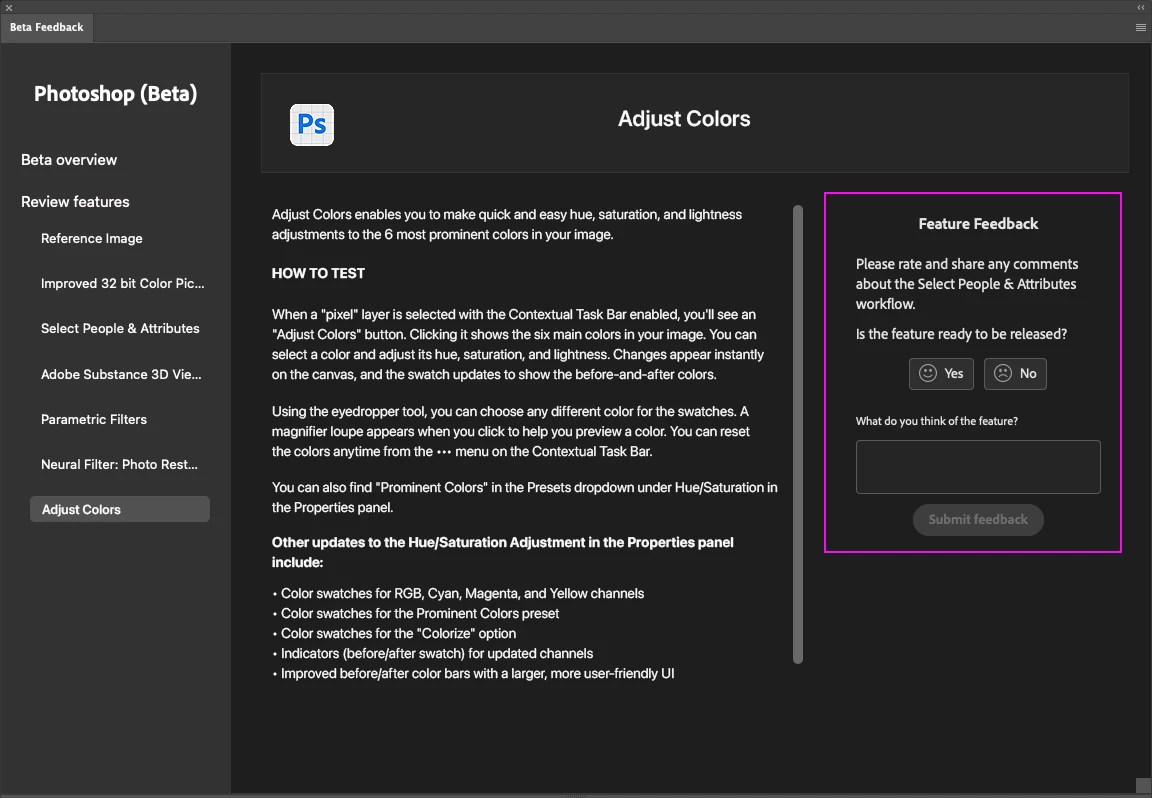
1. Click on the Beaker Icon in the upper right of the Photoshop application:

 

2. Find "Adjust Colors" in the left panel, and provide YES ready to be released or NO not ready to be released. Leave a comment if you have one...

3. Or you can leave a comment in the Beta Forum post.


17 replies

.random..
Inspiring
March 21, 2025

Amy,

this is absolutely incredible work. 
It’s exactly the kind of thing that shows how—even after 20 years of working in Photoshop—I don’t realize I need a feature until I see it.

Thank you. This will be a huge help.

Participant
March 21, 2025

This is fantastic update Amy! However, form practical point it could be improved even more.

Firstly, apart of "traditional" HSL relative +/- approach it would be great to have an alternative possibility to edit selected color in  "absolute" HSB numerical values like, for example, in color.adobe.com:

Secondly, it would be great to have a chance to export detected Prominent Colors (or Custom Colors edited from Prominent Colors) into swatch (cloud) library.

Lastly, (*optional) it would be also great to have an option to define default number of detected Prominent Colors lets say between 3 and 12.

Community Manager
March 21, 2025

@Aldor Amazing suggestions!


For input of specific color values, with the latest Beta build, you can now double-click on the color swatches to get the color picker dialog + enter HEX values. Can you try with the latest Beta build and see if that addresses your needs?


We have "export of prominent color swatches" on our to-do list - however, we might not get to it for a little while. 


Adding more prominent colors is a common request and we are thinking through how to technically deliver given constraints. 

Participant
March 21, 2025

Thank you. I tried with the last Beta and can confirm that double-click on the swatch opens Color picker dialog and allows precise color edit/correction. Also, using that it is possible to manually copy HSB values for future use. Still, it would be great to have a chance to add all color swatches to the cloud library in one click (just one additional button on the right side from the swatches).

Theoretically, for color grading purpose, it would be nice to have one more feature incorporated into the HSL(?) instrument (but it could be a bit more complicated to implement) with the next logic:

1) Make detection of current Prominent Colors.

2) Save current color set to the library.

3) Select from the library an alternative harmonized (for some model, complimentary, triad, etc.) color set.

4) Apply selected color set to the image instead of detected colors.

With this feature “old” HSL instrument would be “upgraded” to full and very powerful color grading assistant (something like NBP CMX2 but much better and based on different and more advanced foundation).

Known Participant
March 17, 2025
This seems about as useless as the "contextual task bar." We all know you’re losing market share to Conva and others, but you don’t need to mimic inferior editors to win customers back. You’re making the UI worse just to shove in an unnecessary feature. Any professional will use the other precise tools and ignore this. Stop making Photoshop "easier" and "more approachable"—you’re just going to kill the software, especially considering it’s eight times the cost of the alternatives.
Rene Andritsch
Community Expert
Community Expert
March 17, 2025

The feature is currently available in BETA-testing and the Photoshop team surely values any feedback to make this new addition as useful as possible. 

Known Participant
March 17, 2025

Hi Amy, I’m absolutely thrilled with this feature! It’s a huge time saver. We need this in the release ASAP. Also, here are three things I’d love to see added:


Squeeze the Palette / Better Integration of Colourize

A lot of the time I want to merge several colours into one and then adjust all those colours into the final colour (hex code option would be nice here for the final colour too). I often work with floral art, where the greens can come out different shades for each flower. I’d like to condense all the greens into a more cohesive single tone of green to hit a certain colour palette, and to do this currently I run several HSL layers and then sometimes a colourize and mask, other times a selective colour. We all know there's lots of ways to do things in photoshop (but feel free to let me know if I've missed one).

It would be better if I could say colourize this range of colours into this colour palette.

Alternatively in your example If I didn't want the pink colours I could either want the pinks in your example to be non existant I can grab the pink circle and drop it onto the purple circle which makes all the pinks a purple on the artboard. I guess it's essentially like merging swatches in inDesign.

So essentailly you're squeezing the colour palette. Perhaps a selection under  “Prominent Colors” which has maybe a  or maybe a 3/4/5 colors.


Consistency across images

Then want to grab that adjustment and apply it to several other (sometimes hundreds) of other images, I need to be able to grab that adjustment and make it versatile enough to apply to the other images with potentially other green shades which all need to match the end colour/hex from the first image. At the moment it basically shifts the colour by the same amounts but what I'm looking for is for the range to be a certain colour at the end. I guess I want to make a LUT but I've never had any luck with this. Be able to essentially create a LUT (I guess) where you can then drop it onto another file and do the same thing.  This would make it so helpful especially when squeezing the palette as I do, which I could then turn into an action to use over hundreds of images. 


And lastly I would LOVE to be able to control this from my streamdeck


Regardles of all that just WOW! I'm so damn impressed!!!!

Community Manager
March 17, 2025

Hi @Sami_PA thank you for the suggestions - I love everything you have noted...

Known Participant
March 18, 2025

Thanks for the reply. Honestly this change has made my life so much easier. Keep up the amazing work!!!

Participant
March 14, 2025

Wow its Amazing 

Community Manager
March 16, 2025

@Riasreds  THANK YOU!

Rene Andritsch
Community Expert
Community Expert
March 13, 2025

@amy durocher this is a great new feature! Thank you. I think it myight be beneficial to users if we could reset a selected Prominent Color. Sometimes when all the sliders have been adjusted it would be great to get to the start with just one action. This could be a double click like it is in Lightroom Classic.


Community Manager
March 13, 2025

Thank you for your feedback @Rene Andritsch - we are thinking of an intuitive solution...


Rene Andritsch
Community Expert
Community Expert
March 13, 2025

Thank you!

Known Participant
March 13, 2025

All good to see some updates to the UI of Hue/saturation, all welcome, and the auto prominent colors is a very nice and useful addition.

While there is being work being done on Hue/Saturation i would really like if the saruration method that Hue/Sat is using was updated to the same as is being used in the Vibrance/Saturation effect, Camera Raw and Lightroom.
The one used in Hue/Sat is really really really bad, and brings so many errors out in low saturated areas of an image if you raise the saturation. This becomes even worse if you adjust the lightness value at the same time.
Lowering saturation you can see that all RGB channels are weighted equally and this is so far from how humans percieve an image, and it will also make the desaturated image very bland.

Use the MUCH better saturation method that is already in use elsewhere in Adobe apps, and have a checkbox to toggle "Use Legacy Saturation" mode (like there is for the Brightness/Contrast effect)

to make it very obvious here are some example images

Known Participant
March 13, 2025

example images embedded in post for easier/faster viewing 😉

Community Manager
March 13, 2025

Thank you @RobertKjettrup for the images and great examples. Sending over to our developers for consideration.

Manu_74
March 11, 2025

Hi! I think it would be good to label with the name of each color each of the circles and, take more advantage of the space of the panel. It's not bad though. Cheers!

Community Manager
March 13, 2025

We are working on it! Thanks for the input!

Inspiring
March 13, 2025

 .

Known Participant
March 11, 2025

Really good.AThe The new options greatly improve the workflow and the colour bars are easier to see.
I can't wait for it to be implemented

Keep the good work

Known Participant
March 11, 2025

I understand that this follows the recent trend of increasing discoverability in Photoshop and making the interface more user-friendly. However, for more experienced users—or at least for me—these changes are not always for the better. The pure color swatches can be distracting when working with color. I'm not a fan of including areas of solid, pure color anywhere in the interface of design/photography software—human color perception is already deceptive enough without these additional obstacles.

That said, what bothers me the most is that the panel is now taller, which disrupts my workspaces (I'm attaching an image comparing one vs the other). It’s not the end of the world, but I’d rather keep the old format and save screen space. Perhaps a "Classic Mode" toggle could be added to the fly-out menu? The new features could be kept in the contextual task bar, while allowing us to keep the compact panel size. Or, while not ideal, at least allow us to hide the options in the lower area of the panel under a collapsable section with a disclosure triangle/arrow. But I guess that will depend on user feedback.

In any case, thanks for your efforts to improve the program.

Community Manager
March 13, 2025

@Carlos_Oliveras we are reducing some of the vertical height of the panel, hopefully, it will be noticeably better.