

Adobe Employee
March 17, 2023
Answered

Contextual Task Bars Now in Photoshop (Beta)

  • March 17, 2023
  • 70 replies
  • 101985 views

We’re excited to announce that new contextual task bars are now available in Photoshop Public Beta. We know that finding the right tool, at the right time, can sometimes slow down a great workflow. Our new contextually aware task bars aim to help by providing common tools, actions and next steps right on the canvas where you’re working. We are currently launching five bars for importing new documents, making selections and using the Type Tool. Learn more below: 


Open Image or File

  • This bar will appear when you open an image or file in Photoshop (i.e. not a new, empty document)

 

New Document Workflow

  • This bar will appear if you open a new, blank document from the Photoshop home screen

  • If you choose to select “import image”, your image will be placed in the document as a Smart Object and the Free Transform bar will appear to help finalize placement
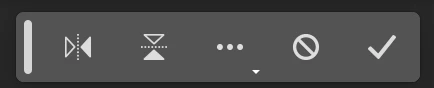
 

Type Tool Workflow

  • This bar will appear when you select the Type tool from the tool bar and draw a text box on the canvas

 

Selections Workflow

  • Once a selection is made, a selection edit bar will appear with options to refine the selection or create a mask

 

Tips and Other Menu Functionality
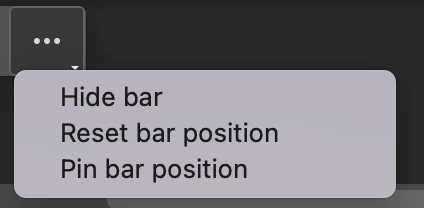
 

  • Pin bar position
    • You can pin and un-pin any bar from the “more menu”. Pinning will hold your bar (and all subsequent bars) where it was placed on the canvas until un-pinned from the “more menu” performed
  • Reset bar position
    • The context bar moves with you as you work on the canvas, keeping relevant tools at your finger tips. If you would like to reset the position, you can do so from the “more menu”
  • Hide bar
    • You can always hide the bar if you’d like to remove it completely, or temporarily, from the canvas. If you’d like to re-open the bar at any point, go to Window > Contextual Task Bar


We need your feedback!

Please let us know what you think and how we could improve the new Contextual Task Bar.

Correct answer danielm77292327

OMG just fixed it!! 


  • You can always hide the bar if you’d like to remove it completely, or temporarily, from the canvas. If you’d like to re-open the bar at any point, go to Window > Contextual Task Bar


And this is the link to where I found how to fix that:


https://community.adobe.com/t5/photoshop-beta-discussions/contextual-task-bars-now-in-photoshop-beta/td-p/13658736

70 replies

Participant
May 29, 2023

I just want to know how to hide that redudant and unnecesary crap

Known Participant
May 29, 2023

Click on the three dots on the bar and hide it or go to the window menu and the contextual command at the bottom 

Participating Frequently
May 28, 2023

Without customization options, the taskbar is only a hassle.

xanderz64171393
Inspiring
May 26, 2023

Is it possible to (add a function to) pin it into a window? With a floating menu, there is always a chance of my canvas or menu's changing, and the bar covering my work or those menus. I don't like the idea of continually having to drag it around during my work. I would much rather have it in a fixed location (not pinned, floating over another window), so I can work on implementing it into my workflow/muscle memory.

Known Participant
May 26, 2023

I think it is one of the most useful features you have added to Photoshop in quite a while, I really love it. It functions well and saves a lot of time.  I'm not a great shortcut user and this saves a lot of time and hassle such as changing the text fill color or applying a fill pattern in super quick time. I would love to see more functions added to the bar for the selection one such as (if rectangular) define pattern. The document one should also have a 'add a new document', 'fit on screen' etc. I hope you add it to the gradient tool, brush tools, etc as well. A winner for me

Participating Frequently
May 26, 2023

How do you move the bar? I want to move it out of the way and it steadfastly refuses to drag anywhere!


Known Participant
May 26, 2023

Click the far left bar and drag the contextual taskbar to a different position. If you want it to remain there then go to the three dots on the bar and select the pin command and that should then pin it to that new position so it doesn't re-position itself

Maxwelp3
Participating Frequently
June 10, 2023

Pin it and it stays ... well, not until next time you open PS and that is BS. Hide it and it is out of sight and out of mind. Not much good that way.

Participant
May 26, 2023

I closed my task bar out and now it cannot be found. It is not in the Window menu. Any advice?


louised43358484
Known Participant
May 26, 2023

I had to shut PS down then restart it and it was in the Windows menu

louised43358484
Known Participant
May 25, 2023

Right now it is just something that has to be moved out of the way frequently. I have "pinned" it multiple times and it still moves to the centre of the screen where I do not want it to be. Make it so that it can be docked and it would be great, or make it so that it actually stays where we place it when we click pin location.

Participant
May 25, 2023

I hide the bar and now I cannot find where to make it show again like it was default

Participant
May 25, 2023

I am enjoying this new feature.. some images not looking the best, there is room for improvement. but it does a great job. I am a photograoher and mixed media artist and I am looking forward to use more and more this feature.

Participating Frequently
May 24, 2023

It's in my way. I paste a screenshot, it assumes the image i'm working with is a photograph that has a subject and a background, and then presumes that i want to either select the subject or remove the background, or apply any number of layer adjustments that I only use when I'm working with photographs. Seems more or less gimmicky and worthless to me right now. I "hid" it using the properties menu on the bar, but then it returned the next time I copied and pasted another screenshot. That unexpected and undesirable behavior sent me here, though I haven't been able to replicate it, so perhaps it was a bug, or something I did incorrectly. This floating content bar might be fine for somebody, but I'd much rather it be permanently banished from my awareness.  

Known Participant
May 24, 2023

think it is a very good feature, it is excellent with selections (particularly the fill pattern command) but I hope more functionality is added to the transformations one such as scale 200% and rotate 45 etc as well as adding a few more things to the newly opened image one such as resize and create new (again) and also duplicate image as well as changing import image to 'place image' or place embedded. 


It works really well, I hope it is added to many other features in Photoshop such as with gradients, such as adding a new stop, deleting all the stops, changing type of gradients, inverting gradients, etc as well as adding it to shapes such as circles and custom shapes