Inspiring
February 23, 2022

P: Export as 8-bit PNG issue

  • February 23, 2022
  • 65 replies
  • 14927 views

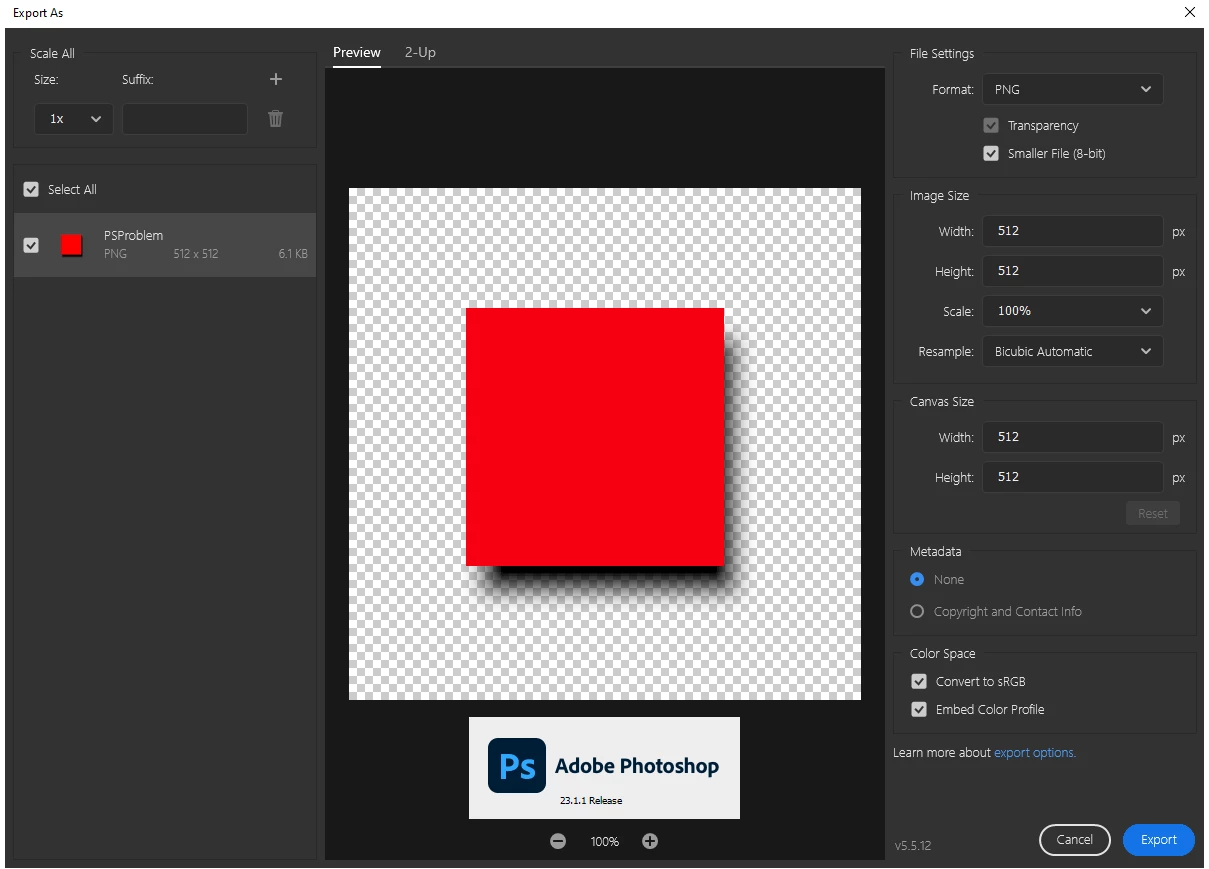
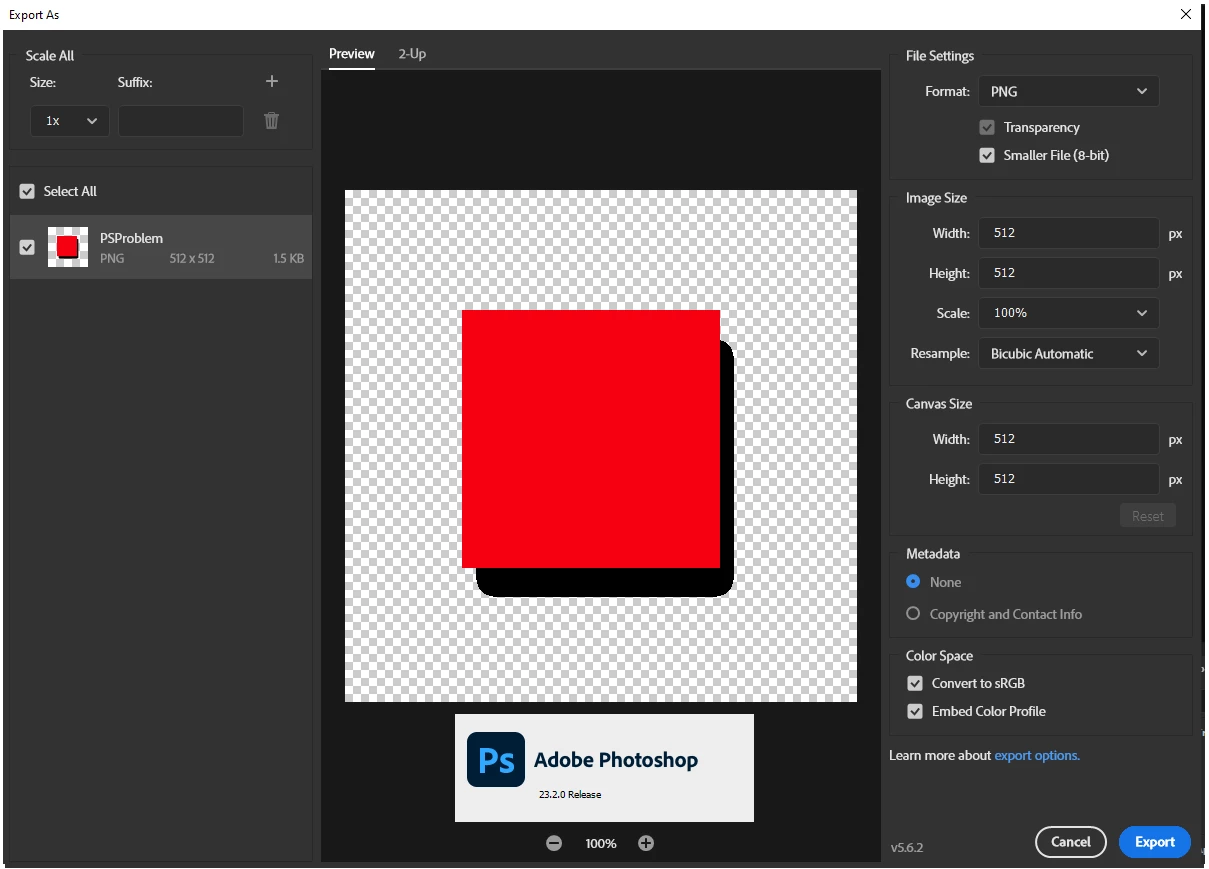
When using the export as dialog the 8-bit (smaller file) is no longer functioning first screen shot is the Export as dialog in PS 23.1.1 Second is same file and same dialog in 23.2.0

65 replies

Inspiring
February 24, 2022

No artboards in use. I have done hundreds of these files. they have never been over 200K .png's They are used in a mobile game and never had an issue. The Save as makes them enormous with no explanation. So looks like export as is still the ONLY option...but over 400 k now. The bug you "fixed" should have just been called a "feature" imo.


What is the difference between save a copy .png "smallest file size" and export as png 24 bit with transparency (so honestly 32 bit) that would cause the file to bloat from around 500k (expotrt as) to 38Meg (save a copy .png)? same file, should be the same (or close) compression after all they are both .pngs created from the same .psd. Plese explain?

BrettN
Community Manager
Community Manager
February 24, 2022

From my testing (a simple file with a single layer which doesn't cover the entire canvas and a feathered edge, thus semi-transprent pixels) would result in this:

  • Export As PNG (RGB) - 23 MB
  • Export As PNG (buggy Index) - 10 MB
  • Save as PNG (RGB, small size) - 8 MB

I'm assuming your file is more complex and there is a simple explanation for why you are seeing such a huge file size difference. My best guess is that you are working with artboards and Export As is only exporting your specific artboart which is a small part of the whole, but Save As is saving the entire file (all artboards) and thus contains much more information. 

Inspiring
February 24, 2022

thank you, i wish that worked. the save as option took my 192kb file and made it 38 Meg! using all three options


BrettN
Community Manager
Community Manager
February 24, 2022

There was never any special compression behind the Smaller File setting. It was always just supposed to make Index files (which are smaller that RGB files by their very nature, hence the name). If you export a flattened image, one with a solid background and no transparency, then you would correctly get an Index file with this setting.


Any size difference between having this option on or off when the bug was present would probably come from Photoshop attempting to convert to Index and tossing out a lot of color information until it got to the semi-transparent pixels and convertinging things back to RGB, creating an unintended type of compression. This would be extremely lossy, which is against one of the hallmark features of using PNG files (which use lossless compression normally).


[When I look at a file with this type of buggy conversion, I can see a dither applied to these transparent areas, such as when doing an Index conversion. This results in a lower quality (thus smaller file size) version of what the RGB setting provides.]


There are a few things I can suggest, depending on what you are really trying to accomplish. First, if you are just trying to get smaller file sizes with an RGB PNG with semi-transprent pixels, Save As (a Copy) is probably your best bet. You have three compression options and when you use the smallest file size setting there, you get even smaller files, the transparency you are looking for, and no index conversion-like dither (which means higher quality appearance). Save for Web is the next best option, since it gives you much better controls for managing the compression settings. Last, you can switch back to the old version of Export As where the bug is still present in Preferences > Export by checking "Use legacy 'Export As'" (not recommended). 

Inspiring
February 23, 2022

I understand all of that, i just thought you had some compression going on in the export as option that was reducing the file size (which is what i wanted) as you can see the file size is CONSIDERABLY smaller when using the "smaller file size option" yet still gives me useable transparency results. I'm not here to discuss RGB vs. index I do understand that and agree with you (i assumed that the box meant 8 bit AND/OR smaller file size because it never made an index file), what I want is a reduced size on disk rgb file which I used to get with the previous version. Can you tell me a way to achieve the same smaller file size with the latest version of Photoshop? I'm all for learning a new way to do things.

BrettN
Community Manager
Community Manager
February 23, 2022

The purpose of the Smaller File (8-bit) setting is to export a PNG file in Index Color Mode (just like a GIF file). 8-bit means it is using a indexed color table with 256 total colors. If you do not have this option on, it exports a 24-bit file in RGB Color Mode (just like JPG file). (Technically, the files are 32-bit if the Transparency option is on, but that is just another layer of confusion that we can ignore for now)


This can be a bit confusing since we generally refer to JPG files as being 8-bit. But what we mean when we say that is "8-bits per channel" (8 for R, 8 for G, and 8 for B). Another way of expressing this is to say it is a 24-bit file (8-bits X 3 channels = 24). So, having this option OFF should create an RGB color mode file while having this option ON should create an Index color mode file. This setting is not a compression method to make the file size on disk smaller (although that can be a result). 


The bug was that when a file contained partially transparent pixels (Opacity 1-99%) the file would export as 24-bit RGB even when this option was on (effectively ignoring this option altogether, giving you the same results as though you had left the option off). 


To check, open your exported files in Photoshop and go to Image > Mode. You can see whether a file is in RGB or Index color mode. If you were happy with your previous results while this bug was in place and RGB files are acceptable for your output, then you are not likely using this setting for its intended purpose and leaving it off is probably what you really want. 

Inspiring
February 23, 2022

hard to buy that explanation...here is the result of one of my actual files...both exported in 23.1 one in 8-bit and they both look perfect ( the 8-bit does show some pixelation but not in the transparency) so what is reducing the file size yet keeping the transparency? 


BrettN
Community Manager
Community Manager
February 23, 2022

@chrisn50837302 We fixed a bug with the Smaller File (8-bit) setting in Export As. In the past, when you had semi-transparent pixels in your file it would create a 24-bit file (RGB) which effectively means it is ignoring the Smaller File setting.


Smaller File (8-bit) means the files are supposed to be Index color (like a GIF) and only have one swatch in the color table for transparency. This means the pixel is either fully visible or invisible. Unfortunately we do not currently have a dither settings to create the illustion of falloff for smoother transitions. Hopefully we can get that added in the near future. 


@TheDigitalDog The reason you are seeing the old behavior is you are using the Legacy version of Export As, which still has this bug (the exported file will be RGB, not the smaller 8-bit that the selected option is supposed to give). 

Inspiring
February 23, 2022

not even close to the same. Export as has worked fine up until this version I use it all of the time. something broke.


Legend
February 23, 2022

Turn on Transparency Dither in Save for Web.

Participant
April 28, 2022

I've been using Photoshop to place product images on specific dimensions for a website and only now I've encountered the photos becoming grainy when saved as PNG (both through Smaller File (8-bit) and PNG-8 for web).

Below are screenshots for example:

I have a required dimesion and resolution that I follow.

I've edited a couple product images already before and I've never encountered this problem til now.

Would anyone know the best solution for this? Would be a great help. Thanks.


I'm using the latest version of Photoshop (2022).

Per Berntsen
Community Expert
Community Expert
April 28, 2022

The 8-bit image looks worse  because it has a limited color palette – only 256 colors.

24-bit has 16.7 million colors.   Correction: That should be 65,000 colors, or thereabouts.

But you'll get much smaller files using jpg, which is designed for photographic images.

The PNG format is designed for solid color web graphics, and will usually create larger files than jpg when used for photographic images