Inspiring
February 23, 2022

P: Export as 8-bit PNG issue

  • February 23, 2022
  • 65 replies
  • 14927 views

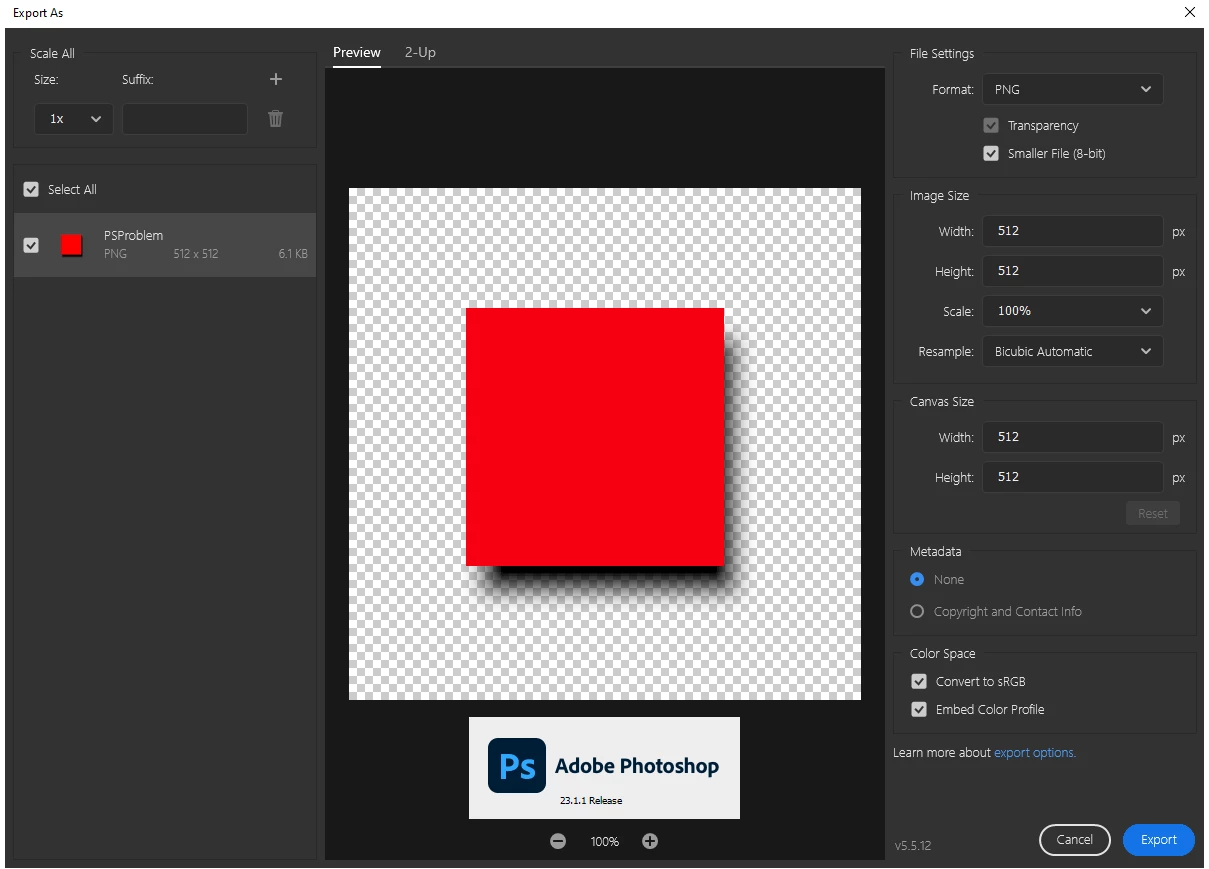
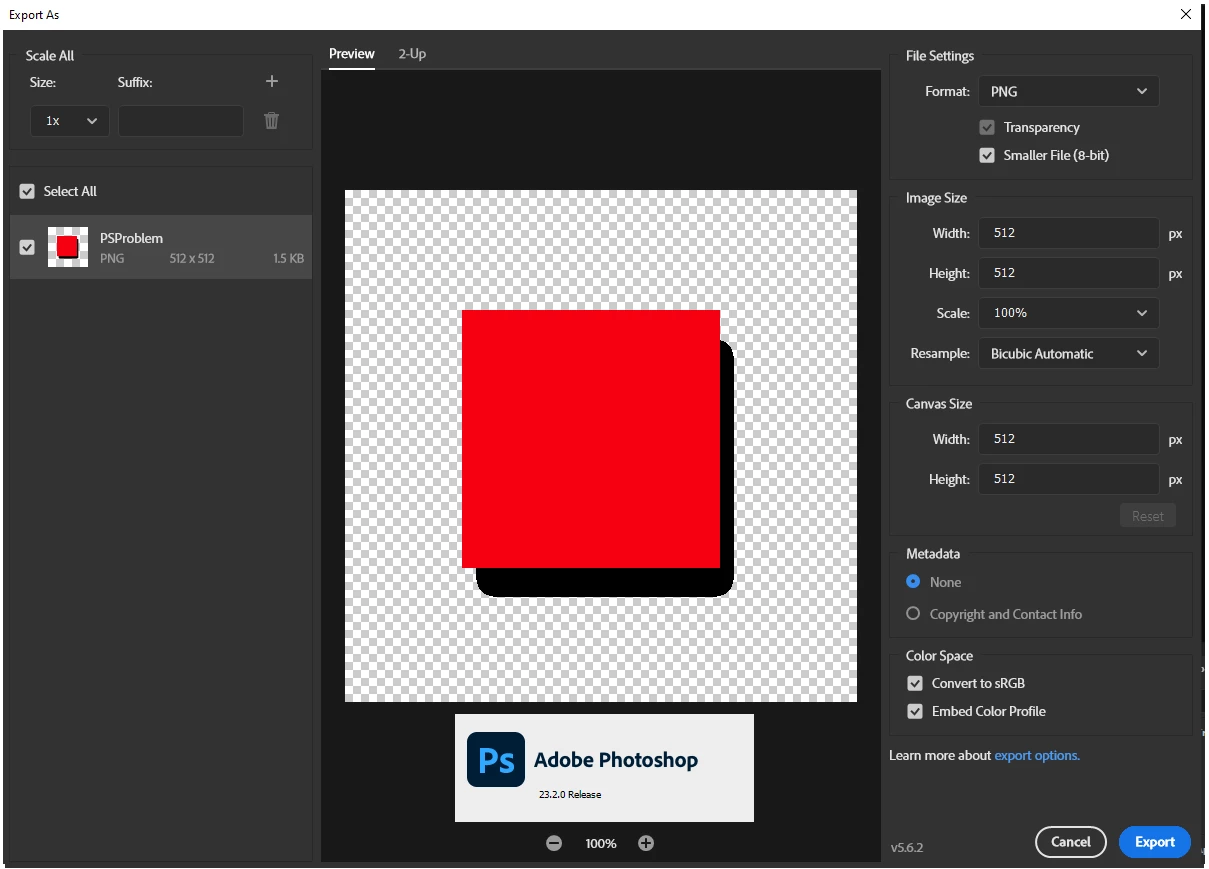
When using the export as dialog the 8-bit (smaller file) is no longer functioning first screen shot is the Export as dialog in PS 23.1.1 Second is same file and same dialog in 23.2.0

65 replies

Known Participant
March 8, 2022

@BrettN Thank you for all of your explaination here! I absolutely agree that the name of the option is confusing, especially when it has been working differently than intended for such a long time and has now changed, without people knowing there was anything wrong in the first place. The option saying "Indexed Color" rather than "8-bit" would probably help, as it's more clear to someone with not as much knowledge that indexed color doesn't support the semi-transparent pixels, or at least that's something that I was aware of. 
This is where I was looking that got me confused about the 8 bit depth supporting alpha transparency, for the record:
https://www.w3.org/TR/PNG/#11IHDR


I did try out the "Generator" option, even though it's a bug that may also be patched out, but unfortunately this will not work for me as it cuts out all blank transparent space in the canvas around the layer, if I have a 40x100 image centered on a 40x200 canvas, it will still export as 40x100. This option also created the same size of images as the Legacy Export As option did, so I will just keep Legacy on for now and hope you never remove the option! 

(About Photoshop never supporting exporting smaller file PNGs with semi-transparency; that's rather inaccurate considering it has been doing so up until this bug was fixed. 😛 It just never has on purpose, which seems to be a big oversight considering how vital smaller files with semi-transparency are for people working with web design. For me the "Smaller File" part of the option is much more important than the "8-Bit" part of the option, because in my case, I don't need to care how the files are being generated in a way that's smaller, as long as they look fine. I'm sure many people, including the person who started this thread, are in the same boat. Even though the option was not working as intended, it still was producing a valuable outcome by reducing the file size dramatically for semi-transparent images, important for the people using it for the combination of alpha transparency + small file sizes, which is now unattainable without the Legacy settings enabled. I feel like it should be considered to be added as an actual option for this reason.)

BrettN
Community Manager
Community Manager
March 8, 2022

@Jeff Arola That may be. Unfortunately, I'm not a Fireworks expert, but I'll see what I can find on that subject. I'll also look into pngquant. Maybe this is something we can add in the future. But, as is pointed out at your link, this is not something Photoshop has ever done (whether Save for Web, old Export As, new Export As, or any other means).

Jeff Arola
Community Expert
Community Expert
March 8, 2022

Sounds like some users were expecting Export As>PNG with Smaller file (8 bit) to have Semi-transparency like Adobe Fireworks can do with 8 bit pngs .


https://feedback-readonly.photoshop.com/conversations/default_topic/photoshop-support-png8-with-alpha-transparency-just-like-fireworks/5f5f45134b561a3d4232e2ea


BrettN
Community Manager
Community Manager
March 8, 2022

Unfortunately, the naming of this option is doubly confusting. First, "Smaller File" makes it sound like it is "optimized" or more compressed. But it is really just trying to describe a complext topic, as described below, in a simple fashion. Second, "(8-bit)" does not mean 8-bits per channel, like a JPG. It means 8 total bits to describe all colors (256 total) in an indexed color table, like a GIF. I'm hoping to get the language updated in the future so that it is more clear what this option is actually supposed to do. 


This bug was the equivalent of choosing to export as GIF and ending up with a JPG. That is pretty major. But it only happens when the project contains semi-transprent pixels, so not everyone would run into it. Also, due to the naming of the option, some weren't aware of what the outcome of this option was supposed to be. 


PNG files come in three bit related flavors: 32-bit, 24-bit, and 8-bit. These are not the same as the 32-bit, 16-bit, and 8-bit options that we normally think of in Photoshop. Instead of bits per channel, these are the sum of bits across all channels. To get a 32-bit file (four 8-bit channels: R, G, B, and Alpha) in Export As, you turn on "Transparency" and turn off "Smaller File (8-bit)". To get a 24-bit file (3 8-bit channels: R, G, and B), turn off both options. And to get an 8-bit file (Index color), turn on "Smaller File (8-bit)". An 8-bit file will be smaller than a 32-bit or 24-bit file simply due to the reduced number of channels, hence the option name.


8-bit Index files do not support semi-transprent pixels. The color table can only have a single, fully transparent pixel registered. It takes an Alpha channel to have a full range of partial opacity. And only an RGB PNG file supports Alpha (AKA a 32-bit PNG).


There are currently five ways to create PNGs in Photoshop and each will result in different file sizes from the same project file. The methods are: Save As, [UXP] Export As, [CEP] Export As (Legacy), Generator, and Save for Web (Legacy). Save As only produces 32-bit PNG files. Generator and CEP Export As both create 32-bit PNG files when exporting semi-transparent pixels (CEP Export As is basically just a UI for Generator). Save for Web is the original option for creating 24-bit and 8-bit PNG files. Both UXP Export As (with the update) and Save for Web correctly export Index 8-bit PNG files. The big difference between these two is that Save for Web has a matte option, which helps to anti-alias the semi-transparent areas to make things appear smooth. I'm hoping we can get that added to UXP Export As in the future as well. 


If you are simply looking for the option that will give you the smallest 32-bit PNG file, then Generator is what you want to use. Just add ".png8" to your layer (or layer group) name and turn on File > Generate > Image Assets. This is still a bug, but it will give you even smaller files than using Export As (Legacy) or any of the other options.

Known Participant
March 7, 2022

@BrettN That's great that you fixed it, but I never had any problem before with smaller 8-bit files being created, they were always smaller than the PNG-24 option and therefore there was no issue. So to some people, rather than fixing anything, you just changed the way it worked where it now works worse than it did before, creating low quality images that are actually larger than the PNG-8s being made with legacy options enabled.

I just did several tests and every time the new PNG-8 export was larger than the legacy one, 248 vs 238 kb, 7.5 vs 6.5 kb, etc, with the smaller numbers being the result of using legacy export. 

It's great that the legacy option is there for us to use, but what about when you phase it out, are we just stuck never being able to export a smaller PNG with partial transparency? The fact that your PNG-8 system now doesn't support the partial transparency is ridiculous considering that's one of the main features of PNGs. If you look at the W3 standard for PNGs, 8 bit supports alpha transparency, so there's no real argument on why to exclude it.

(You also mention not choosing the 8 bit option if we do not like how it looks now, but for web developers that simply is not an alternative that can be done. The file size difference in a 24 bit photo to an 8 bit photo is dramatic, and files used on websites need to be as small as possible without sacrificing too much quality, which is now impossible on PNGs with your current system only exporting 8 bit images with jagged edges and no partial transparency.)
Is there really no way you can come to a middle ground, and either fix it again so that the PNGs actually have one of their basic functionalities, or give us an option in the new export as dialouge to chose if there's partial transparency in it or not? PNG-8 could be a separate option from 'smaller' PNG-8 for example, if the jagged-edged no partial transparency data option is truely smaller. 

BrettN
Community Manager
Community Manager
March 7, 2022

@unique_person4993 and @Creative23439658gw6x To summarize the matter, we fixed an issue where selecting the Smaller File (8-bit) option was not creating smaller 8-bit files. If you are happy with the results from before the fix or with what you get when switching back to the Legacy version, then simply do not turn on the Smaller File (8-bit) option in the latest update to get the same results. 

Known Participant
March 7, 2022

@Creative23439658gw6x I had that issue too, going to Preferences > Export and checking Use legacy "Export As" at the bottom worked as a workaround for me for now.

BrettN
Community Manager
Community Manager
February 24, 2022

Email me the file(s) or a link to them: bnemecek [at] adobe [dot] com

Inspiring
February 24, 2022

Sure I can do that, but this is not a place I want to post my company .psd files. can I send them to you through another method?

BrettN
Community Manager
Community Manager
February 24, 2022

Would you be able to share a file where you are seeing this behavior (Save As makes bigger files than Export As)? I'd like to see if I can recreate the behavior on my end and see what the root of the issue is and provide a solution.


When you Save As a PNG, the three options you have for Large, Medium, and Small size deal with how PNG compression works. You'll note that each is paired with a Fast, Medium, and Slow save speed. What is happening is that the file is actually compressed using multiple different methods and the most appropriate results are the one you end up with. Large/Fast means it only tries a couple methods and returns the highest quality result. Smallest/Slowest means it tries many methods and returns the smallest file size. Export As doesn't give you a similar choice. Smaller File (8-bit) is not equivalent to Smallest file size (Slowest saving), instead it is the same as using the PNG-8 setting in Save for Web. 


Obviously, this all can become confusing. There are often different ways to accomplish the same task in Photoshop, each with different advantages/disadvantages. Terms in one method may sound like terms in another but mean something else (sometimes subtly and other times drastically). 


It is quite common for bugs to turn into exploits (people taking advantage of something not working the way it is inteneded but getting some side benefit). When these things get fixed it can remove a workflow people have come to depend on. But remember, there were people who were trying to use the Smaller File setting and expecting (correctly) that they should end up with an Index file and then wondering why some of their files export accurately and others did not.