Participating Frequently
December 29, 2021

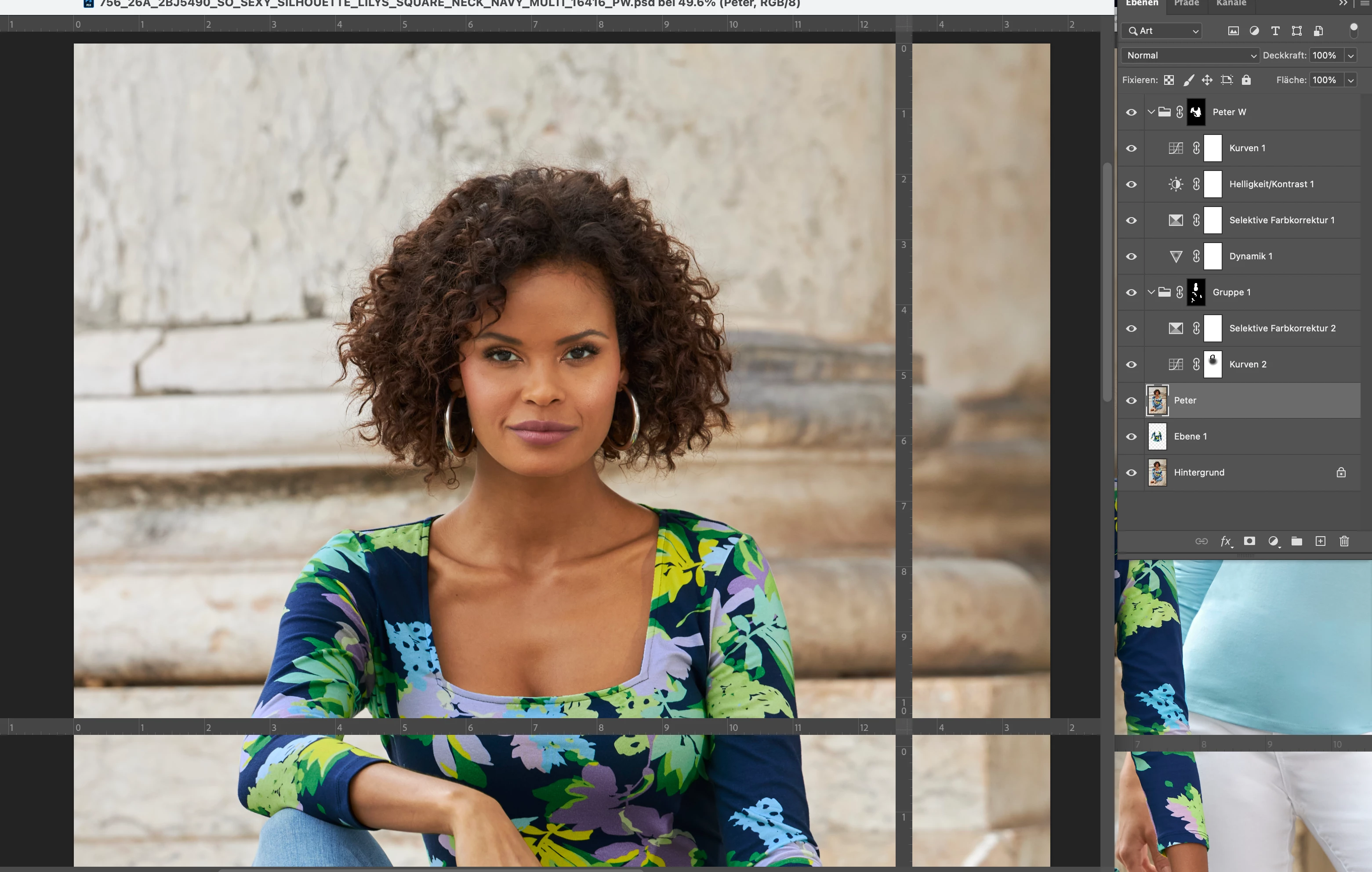
P: Extra rulers appear on image when moving Photoshop from one monitor to another
  • December 29, 2021
  • 17 replies
  • 7190 views


Does anyone get this weird ruler placement in PS 2022?


[Subject edited by moderator. Was "Ruler tool is not working..."]

["PH" edited to "PS" for "Photoshop"]

 

This topic has been closed for replies.

17 replies

Known Participant
January 17, 2022

The screen shot is self explanatory. On my M1 MBP I have a converted PSD file with artboards that the rulers will not position where they are meant to be.


Any suggestions?


Legend
January 16, 2022

@Sonofmidgard 


First: Restore your preferences using this manual method:
https://helpx.adobe.com/photoshop/using/preferences.html#Manually
Does it work correctly?
If that doesn't solve it, you can quit Photoshop and put the Settings folder back.
If it does solve the problem, I would like to get the folder of settings to try and figure out what is bad with them.


Second, if restore prefs doesn't work: Go to Preferences > Technology Previews... and check "Disable Native Canvas" - then restart Photoshop. Does the problem still occur?

RichardL1967
Inspiring
January 16, 2022
Hi man,

Seems to be the same as before - good for measuring length, and an angle
reader which acts like a protractor.

Draw a line by click and drag. Draw a second line from the second point
created in the first line, holding control. Now you have two lines and one
angle, both displayed on the Options bar at the top.

There is some literature around if you need help. Never really use it that
much, but sometimes an angle or length is necessary!

Regards,
Richard
jane-e
Community Expert
Community Expert
January 15, 2022

@Sonofmidgard 


I've branched your post from an unrelated thread about measuring with the ruler tool. I don't know why this is happening, but I have seen a couple of posts with similar screenshots. In this thread the OP restarted twice and that fixed it. Can you try that?

https://community.adobe.com/t5/photoshop-ecosystem-discussions/second-vertical-ruler-appeared-won-t-go-away/m-p/12623946


Jane

Forum volunteer


sarahpeller
Known Participant
January 11, 2022

Is this a bug? It keeps happening on my version of photoshop (which is up to date right now) and I have to hide the ruler in order to get it to go away. How do I fix this?

Sahil.Chawla
Adobe Employee
Adobe Employee
January 15, 2022

Hi there,

Sorry to hear that. Which version of Photoshop are you on? Could you try resetting the preferences of Photoshop and see if that helps? 

https://helpx.adobe.com/photoshop/using/preferences.html


Note: Make sure that you back up all your custom presets, brushes & actions before restoring Photoshop's preferences. https://helpx.adobe.com/photoshop/using/preset-migration.html


Regards,
Sahil

Participant
January 5, 2022

Hello,


I'm not certain if this is a new feature I'm unaware of or a bug. However, when I use Photoshop 23.0.0 on my Macbook Pro (OS 10.15.7) a second set of rulers pops up (image attached). They go away if I shrink the viewable window to something pretty small, but obviously that's super convinient. These rulers also go away completely if I plug into a secondary monitor. It only seems to happen when I use the laptop on it's own.


Thanks in advance.


Ged_Traynor
Community Expert
Community Expert
January 5, 2022

Hi

Have you tried updating to version 23.1, that's the most recent version, something to try, enabling this option in preferences and restart Photoshop to see if it helps

Participating Frequently
December 29, 2021

Photoshop 23.1.0 - A second vertical ruler appeared at 30 inch mark; cannot move it. how to get rid of it without losing the two basic rulers?


jane-e
Community Expert
Community Expert
December 29, 2021

@RTKnud 


Try going to Window menu > Workspace > Reset [Current] Workspace and let us know if that works.


Jane