


Exit
  • Global community
    • Language:
      • Deutsch
      • English
      • Español
      • Français
      • Português
  • 日本語コミュニティ
  • 한국 커뮤니티
86

P: Liquify lightens result on 16 bit/channel images

LEGEND ,
Nov 30, 2015 Nov 30, 2015

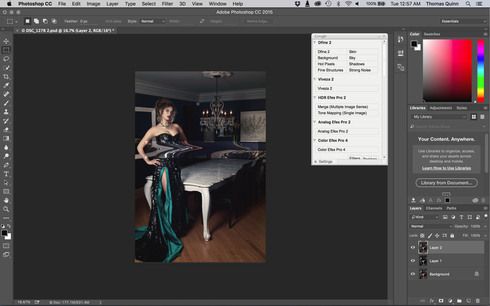
I am having issues with the new upgrade to Photoshop CC 2015 on Mac El Captain. The only thing I did was upgrade from a working CC 2015 to the new version. Using the liquify tool give the following look. There is a box around the area liquified that is lighter than the other areas. When I turn of Use Acceleration in Graphics Processor, it is better but .... I didn't have to do this in the prior version i.e.. Yesterday.

New Update: The Squiggly waist is the liquified:

Bug Fixed
TOPICS
macOS
4.1K
Translate
Report
Community guidelines
Be kind and respectful, give credit to the original source of content, and search for duplicates before posting. Learn more
community guidelines

correct answers 1 Correct answer

Adobe Employee , Dec 14, 2015 Dec 14, 2015
This issue should be solved by the 2015.1.1 update released tonight: https://blogs.adobe.com/crawlspace/20...
Translate
replies 231 Replies 231
231 Comments
LEGEND ,
Dec 06, 2015 Dec 06, 2015
Agree 100%. Proper regression testing would have picked this up immediately.
Translate
Report
LEGEND ,
Dec 06, 2015 Dec 06, 2015
Yet another reason not to upgrade from CC 2014 😞

First the botched healing brush update which, although it's now much better in this release, still requires a fiddly config file to allow us to use the legacy healing brush (a feature that was promised would be switchable in the UI in this forum)... and now this!!!??

Seriously Adobe, your assurances that you test your software before releasing it to the public are ringing pretty hollow these days. Any proper regression testing would have spotted this problem with Liquify in 16 bit IMMEDIATELY.

Very disappointing 😞
Translate
Report
New Here ,
Dec 06, 2015 Dec 06, 2015
Is that the same problem: http://feedback.photoshop.com/photosh...
Translate
Report
LEGEND ,
Dec 06, 2015 Dec 06, 2015
doesn't work for me either. Also crashes ps
Translate
Report
Explorer ,
Dec 06, 2015 Dec 06, 2015
Problem is. If I ALT liquify Photoshop crashes. So the workaround is rubbish.

Roll back is my choice of solution for the time being.
Translate
Report
LEGEND ,
Dec 06, 2015 Dec 06, 2015
This is creating a huge headache for me... now when I use Liquify in the update of CC2015 I get this bright box on my original picture once I complete the liquify. 😞
Translate
Report
Explorer ,
Dec 06, 2015 Dec 06, 2015
Do as I did and roll back to the previous release until they get their act together
Translate
Report
LEGEND ,
Dec 07, 2015 Dec 07, 2015


After I installed the latest photoshop update, the liquify tool start having issue with 16 bit images.
I was editing 16bit Tiff file and whenever I use liquify on any part of the image, it will linear dodge the section modified and generate a lightened rectangular section. I tried on 8bit images, and this issue didn't occur.
I saw in another post, people suggested using Alt + Liquify to disable GPU and the problem didn't occur.
Hope to see update fixing this issue soon...

Translate
Report
LEGEND ,
Dec 07, 2015 Dec 07, 2015
make 8 bit liquify then 16 bit again.. nothing but workload..
Translate
Report
LEGEND ,
Dec 07, 2015 Dec 07, 2015
The only way it works for me is finishing everything and using liquify at the end.. I make the image 8 bit than liquify then make it 16 bit again and save.. this is heavy workload when you work with 1000 raws.. Fix it please..
Translate
Report
Explorer ,
Dec 07, 2015 Dec 07, 2015
If you convert to 8 bit there is no point on going back to 16
Translate
Report
LEGEND ,
Dec 07, 2015 Dec 07, 2015
I'm having the same problem, and I just found this topic after quite some searching. So this is not my computer but a software problem, we do need this fixed asap.
I can't touch anything without changing the contrast locally.
Changing to 8-bit doesn't do much, only completely disabling the GPU works 😕
Translate
Report
Explorer ,
Dec 07, 2015 Dec 07, 2015
If I can suggest a solution just roll back to the previous version of Photoshop and you can continue working normally
Translate
Report
LEGEND ,
Dec 07, 2015 Dec 07, 2015
There is if you intend to create more adjustment layers that use 16 bits, like curves, although, for most, standard workflow is to liquify as the last step.

So you could duplicate the document, flatten and convert to 8 bits for liquifying and then move the liquified 8bit layer to your complete 16bit document.
Translate
Report
Explorer ,
Dec 07, 2015 Dec 07, 2015
Or you could just roll back to cc 2015 0.1 and just work normally
Translate
Report
LEGEND ,
Dec 07, 2015 Dec 07, 2015
after all the edits finished but only liquify left I turn to 8 bit.. the only solution worked for me was this..
Translate
Report
LEGEND ,
Dec 07, 2015 Dec 07, 2015
Did this work around and the Bur gallery does not work now..just amazing how at the busiest time of the year you release a new version that this many problems
Translate
Report
Community Beginner ,
Dec 07, 2015 Dec 07, 2015


I have two problem. One is that after Liquify on a 16bit image, the result is very odd. I have to convert to 8bit, and than apply liquify filter. I'm on a macbook pro 15" 2012. The second problem, it's... where is the sync settings panel?
Translate
Report
Community Beginner ,
Dec 07, 2015 Dec 07, 2015


Latest Photoshop CC after update. The Liquify tool works but does not save properly. Leaves large area underexposed (see pic).
Mac (10.9.5).
Happens every time.

Translate
Report
New Here ,
Dec 07, 2015 Dec 07, 2015


After reinstall program things not changed .
When I manipulate picture in liquify window /auto or advanced -same/ all looks normal.After I push OK ,final result looks like this photo.
Translate
Report
LEGEND ,
Dec 07, 2015 Dec 07, 2015


hallo zusammen. nach dem gestrigen PS CC update hatte ich beim "verflüssigen" bzw. nach der Rückkehr in den "Ebenen Modus" das Problem, dass das Bild von mehreren hellen Quadraten im Bereich der "Verflüssigen-Bearbeitung" überlagert war ... Hat sich durch den Update irgendwas an den Grundeinstellungen am PC getan ... oder ?? lg.Werner
Translate
Report
LEGEND ,
Dec 07, 2015 Dec 07, 2015
I noticed the same defect in creating a pattern and using a pattern. I opened a gold foil jpg, made it a pattern, then added type, selected the newly made pattern applied to the type and saw the same results I did when I tried liquidy the day before. Strange...
Translate
Report
LEGEND ,
Dec 07, 2015 Dec 07, 2015
That has nothing to do with this topic, which is just about Liquify.
Translate
Report
LEGEND ,
Dec 07, 2015 Dec 07, 2015


Liquify Tool (Intel Core i7-2600k @ 3.4GHz & 16gb of RAM)

The latest update of Photoshop CC (that was just updated with a new interface) does not render the liquefied results properly. The liquefied area ends up very bright with a rigid square around the affected areas.

I made sure to update my graphics card (Quadro K4000) and it happens with PSD and TIFF files (16bit).....once you change the file to 8bit the rendering issue resolves itself.

Translate
Report
LEGEND ,
Dec 08, 2015 Dec 08, 2015


When you use the liquify filter I get a much brighter rectangle field since the update to the latest version. So I can ́t use the filter to correct some parts of the picture
Translate
Report