Inspiring
December 6, 2024
Answered

After replacing the content of a smart object layer, why did the image get enlarged?

  • December 6, 2024
  • 2 replies
  • 964 views

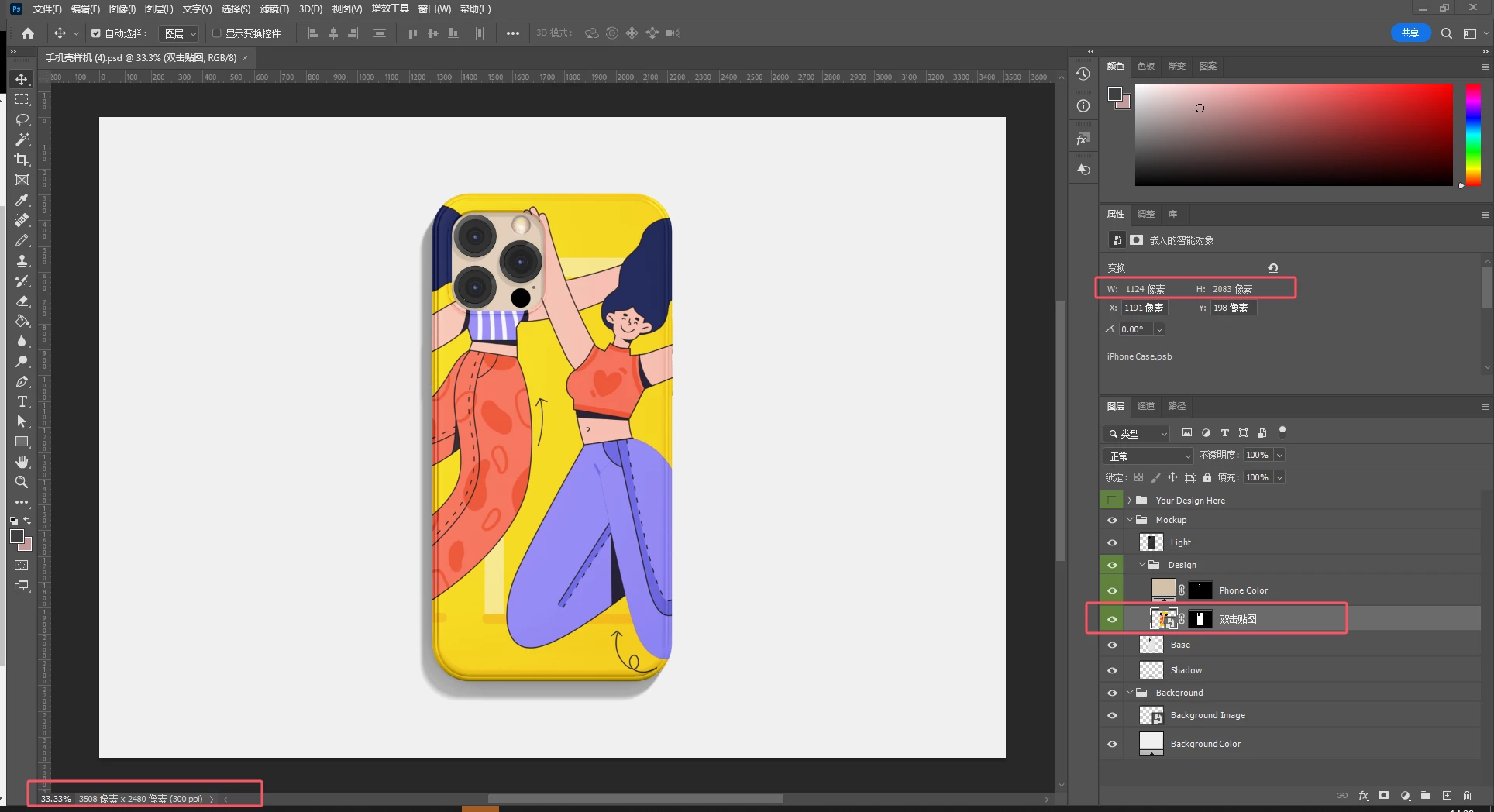
The initial state of the PSD 

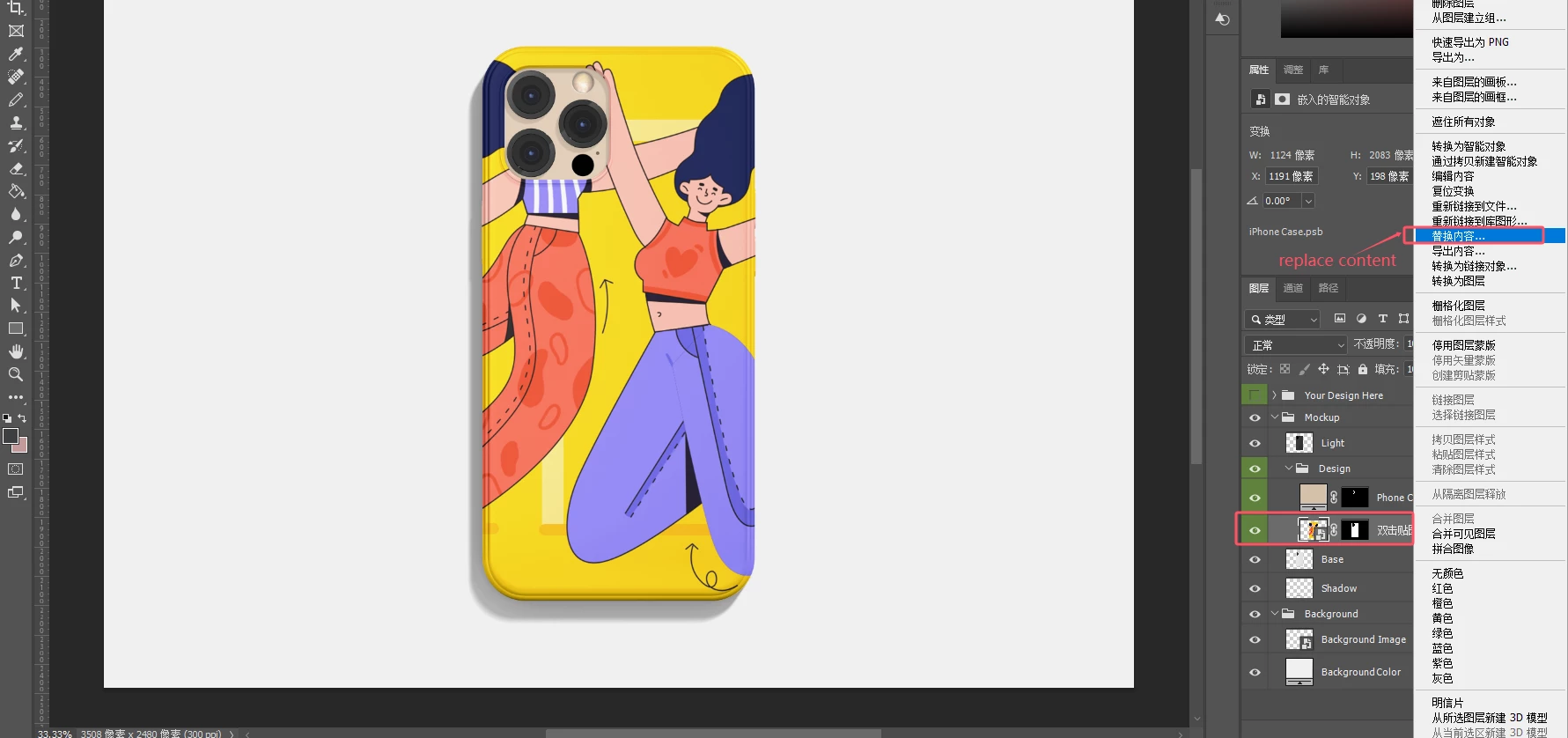
Right-click on the smart object layer and select "Replace Contents."
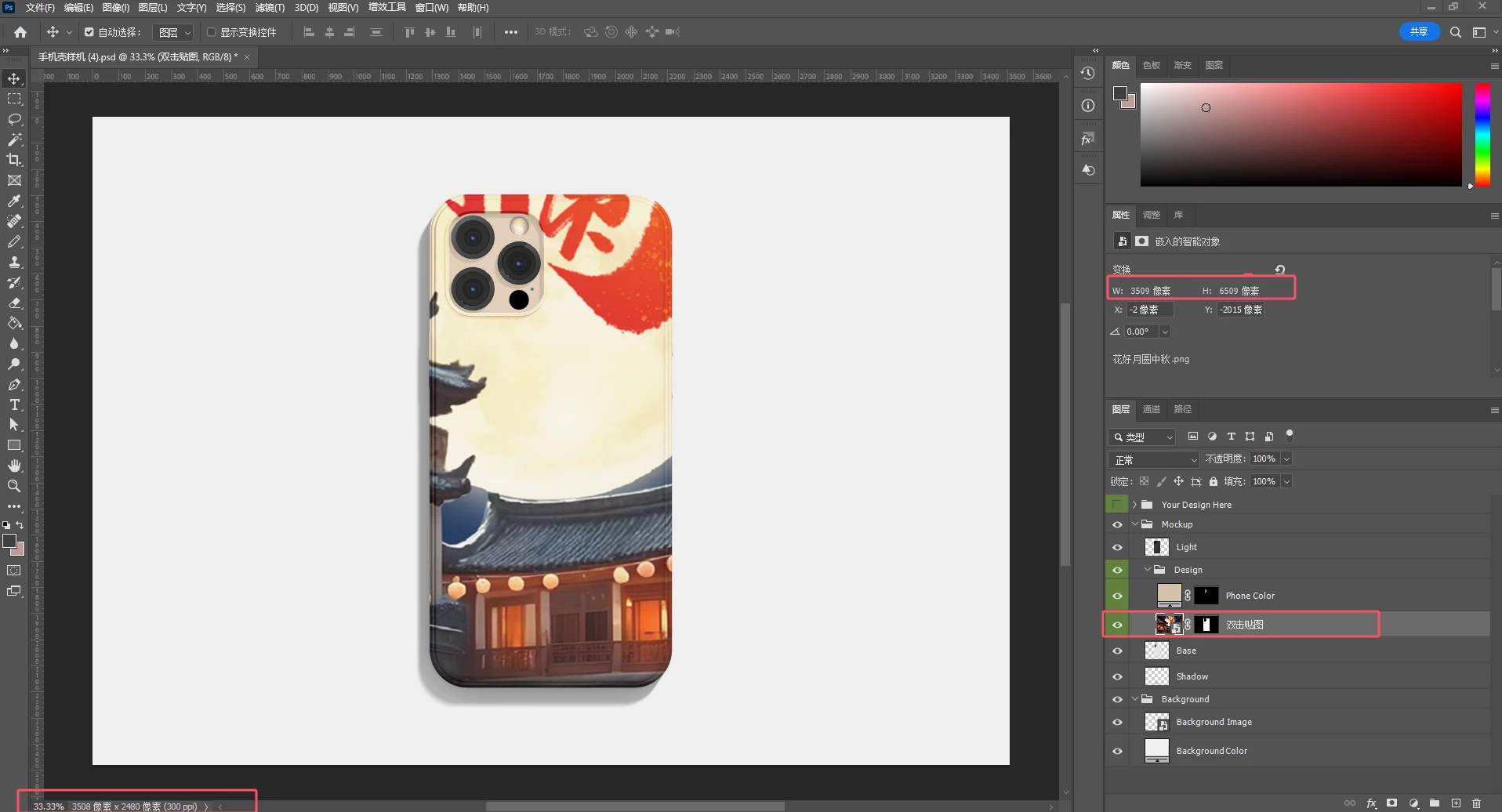
After replacing, the image was enlarged.

Please refer to the attached PSD and replacement image.
This topic has been closed for replies.
Correct answer Stephen Marsh

@javaer – Further to the reply from @D Fosse


PNG replacement image:

1018 x 1907 px @ 96 ppi (mismatch in PPI)


PSD smart object layer contents:

1019 x 1907px @ 300 ppi (target PPI)


PSD template image:

300 ppi (not important, I'm just noting this for consistency)


2 replies

Stephen Marsh
Community Expert
Stephen MarshCommunity ExpertCorrect answer
Community Expert
December 6, 2024

@javaer – Further to the reply from @D Fosse


PNG replacement image:

1018 x 1907 px @ 96 ppi (mismatch in PPI)


PSD smart object layer contents:

1019 x 1907px @ 300 ppi (target PPI)


PSD template image:

300 ppi (not important, I'm just noting this for consistency)


javaerAuthor
Inspiring
December 19, 2024

Is your conclusion that the PPI of the replacement image and the smart object layer content should be consistent?

Stephen Marsh
Community Expert
Community Expert
December 21, 2024
quote

Is your conclusion that the PPI of the replacement image and the smart object layer content should be consistent?


By @javaer


Yes.

D Fosse
Community Expert
Community Expert
December 6, 2024

Smart objects honor the physical print size, not the pixel size. This means you need to watch the ppi values for consistent size. The ppi numbers need to be the same.


This may seem counter-intuitive and against Photoshop's natural behavior - but it was intentionally designed this way for compatibility with PDF and vector data. This is just something you have to keep in mind when working with smart objects.