Participating Frequently
June 13, 2020
Question

Auto-collapsing panels and no returning back

  • June 13, 2020
  • 2 replies
  • 580 views

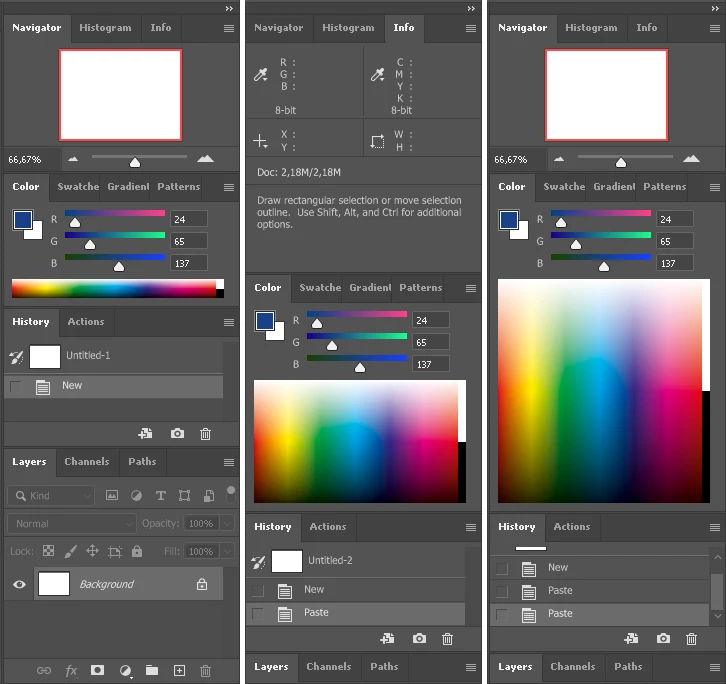
Firstly, the lowest (Layers) panel, auto-collapses on start, secondly...
 

This topic has been closed for replies.

2 replies

jane-e
Community Expert
Community Expert
June 13, 2020

Hi

You have four Groups of panels in one Dock. When you do something to make an upper panel take up more space as you did, something has to happen to one of the groups, and what happened is the group on the bottom collapsed. You can expand it again by double-clicking the title bar ("Layers") or by dragging one group to its own dock, or by collapsing the entire dock.


These links explain how it works:

https://helpx.adobe.com/photoshop/using/workspace-basics.html

https://blogs.adobe.com/jkost/2013/12/docking-tools-and-panels-in-photoshop.html


Does this answer your question? If not, please tell us what you expected to happen to the lower panels when the upper panels took up more space?


~ Jane

Participating Frequently
June 17, 2020

Hi,

Actually, I don't want it to be docked at all. I want it to be an independent windows. If the first window expands, the others should not be affected. At least it could save window positions and restore them. If I undock them, they try to be docked again, and they overlap the opened document, which is Docked too! It want to be centered, and don't know about that panels. If I undock document, then... it creates a new Taskbar button, when I move or switch to it, the image disappears, and Taskbar buttons disappears and appears again and changes their order! I'm not talking about button animation in the taskbar that flickers in front of your eyes.

jane-e
Community Expert
Community Expert
June 17, 2020

Hi


I have floating panels in a saved workspace and they stay floating unless I drag them into the drop zone. Can you position your panels the way you want them, save the workspace, and then post a screenshot? I'm not sure I understand the issue. And you read the two links, from Adobe Help and Julieanne Kost, right?


~ Jane

c.pfaffenbichler
Community Expert
Community Expert
June 13, 2020

Please read this (in particular the section titled "Supply pertinent information for quicker answers"):

https://community.adobe.com/t5/Community-Help/Guidelines-Tips-for-the-Adobe-Forums/td-p/4788157


Did you create a new Workspace with the intended visibilties and does resetting that not produce the intended result?
