Participant
May 21, 2019
Question

Black matte and glossy effect?

  • May 21, 2019
  • 2 replies
  • 26507 views

Hi everyone

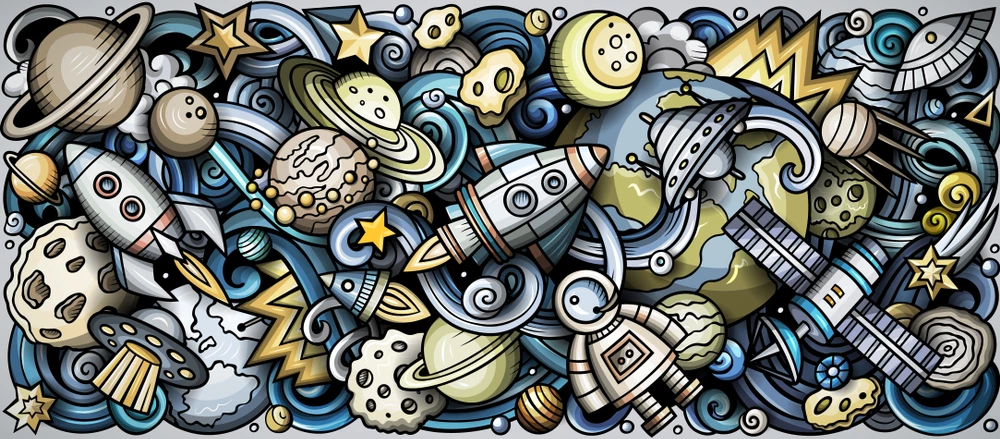
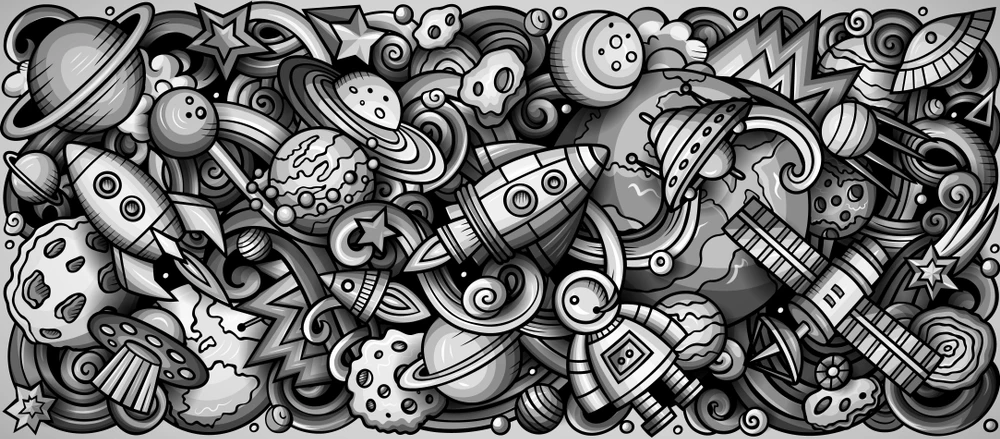
This is my first time posting here. I just started learning photoshop and am working on a product label design. Im looking to add a specific effect to a picture. Basically, I want to turn a black and white image into a 'black and black' image! What I mean by that is that I want to replace white areas of a black and white image with a lighter shade of black instead of white, or like a matte and glossy black effect.

Like this image.

Id appreciate a beginner friendly guide on doing this.

Thanks
This topic has been closed for replies.

2 replies

Michael Bullo
Community Expert
Community Expert
May 21, 2019

I can see a couple of scenarios here...

1. Preparing a graphic for professional printing.

If you are trying to achieve this look on a printed product you would need to factor in things like Spot colours and potentially different Matte or Varnish finishes. If this is the case Illustrator might be the preferred program to work in. Let us know if this is the path you are taking and some of the print specialists in this forum will have some great tips for you.

2. Duplicating this look in a stand-alone image.

If you are simply trying to achieve this look in Photoshop then here is one possible solution...

  1. Add a Threshold layer that splits the image into black and white.
  2. Add a Curves adjustment layer which heavily darkens the whites. Drag the point in the upper right corner of the graph down to whatever value creates the look you like.

Note 1: If you are finding the Threshold method is giving you boundaries between shapes that are too jagged, you could achieve something smoother with an extremely steep Curves adjustment layer. Keep in mind though that if you soften the edges you are introducing different shades of grey which is an issue if you wanted true black and "lighter black" only.

Note 2: Was this artwork created in Illustrator? If so, do you have access to it? Let us know if you do as again you might get a better result doing this all in Illustrator.

Participant
May 21, 2019

The methods I was provided with here seem to only darken the white areas, which is not what Im looking for.I want the darker areas to have a matte black and lighter areas to have a glossy black color (so basically no white at all) but Im not sure how this can be done. And yes, I am trying to achieve this look on a printed product.

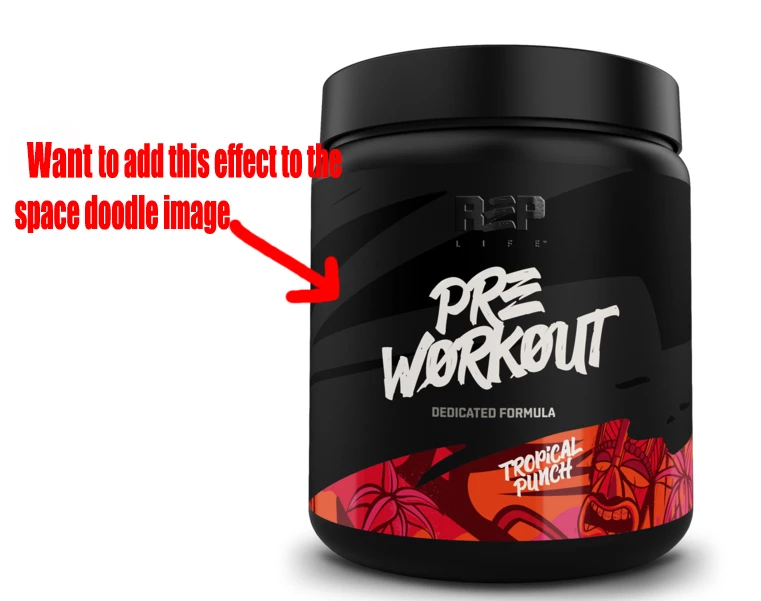
See the image below:

Im looking to use the space doodle image as a pattern texture, similar to the hexagon texture used in this product label. Notice that there is no white. only different shades of matte and glossy black

I also do have access to illustrator but I dont have any prior experience with it. If you think it will be more effective in this case, I can use it by following a step by step guide.

Thanks again and I appreciate your input.

andreamaestri
Participating Frequently
May 21, 2019

Hi Parsa, you might want to separate the layers in glossy/matte black and if it's just a mockup, you can use a gradient to achive a glossy look Use gradients in Photoshop . Otherwise if you feeling more savy, you can use Dimension and change the roughness level of the decal to achive the effect you want applied to a 3D model! Apply materials and graphics to 3D models I hope this helps.

Andrea

Silkrooster
Legend
May 21, 2019

You can use the levels adjustment layer. Just push the white slider below on the gradient below the graph towards black.

You can also get a similar result using the Hue/Saturation/Lightness adjustment layer.

I am sure I could keep going on with other examples. Photoshop almost always has more than one way to skin a cat. Just find one that you can easily apply and go on.
Have a great day...

Participant
May 21, 2019

Thanks for the response. I will try it out right away