

Mike_Gondek10189183
Community Expert
Community Expert
July 23, 2019
Question

Brush Management Questions — Resolution & brush settings

  • July 23, 2019
  • 1 reply
  • 464 views

When creating a new brush preset, i select all on a Photoshop 500 x 500 px layer, then Shift Command B to save the preset Though I want the resolution to stay 500, I would prefer the default sizeto be about  50px

I then  hit the left bracket a few times, add some shape dynamics to vary the rotation size and add some spacing.  I then chose new brush preset, and delete the original HB 1. I am thinking this was a bad move, as I lost the 500px version.
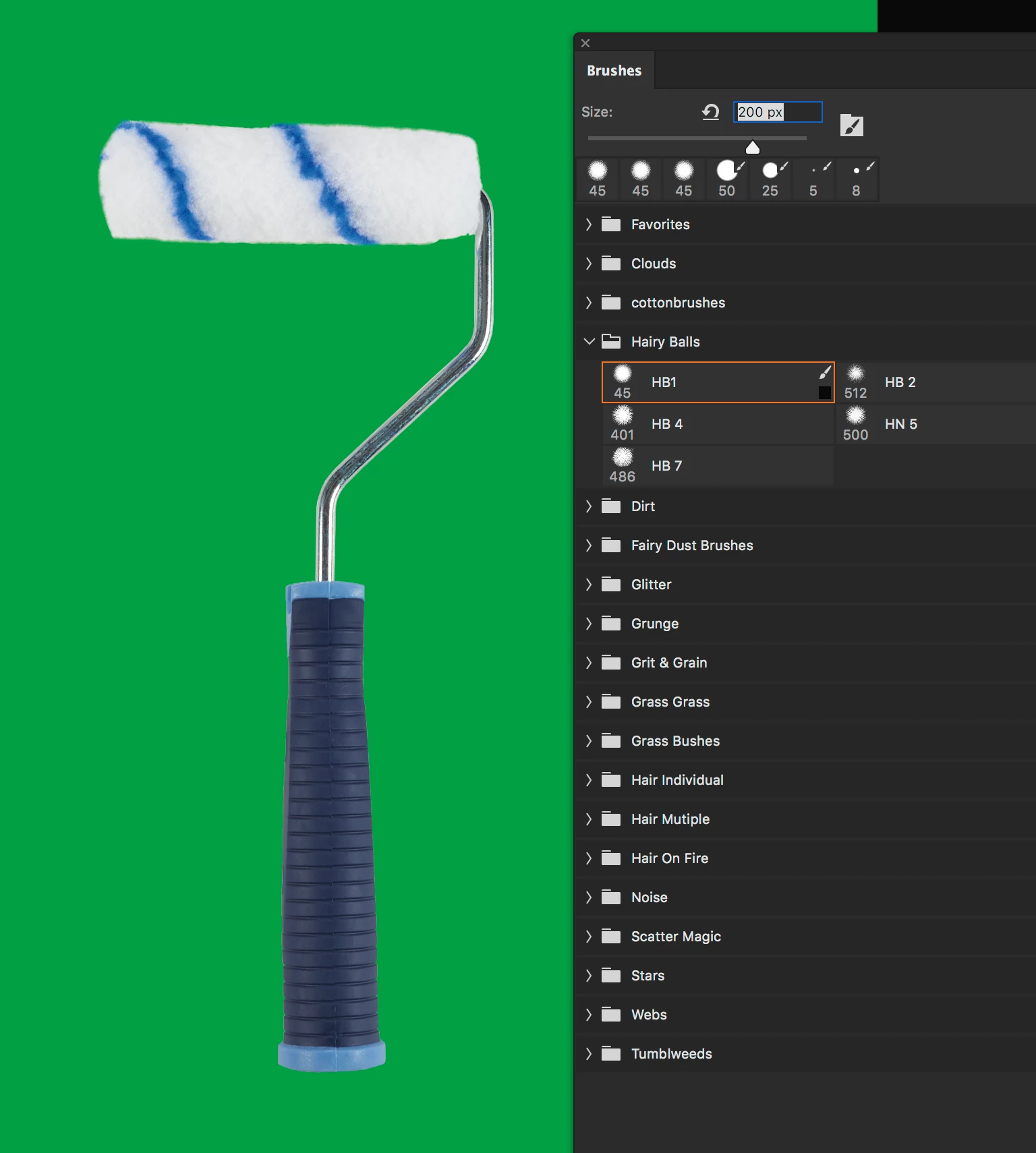
Is there a way to

  1. copy all these shape dynamics & paste attributes, to more quickly add the shape dynamics need to new brushes?
  2. double click on the brush to edit and revise in future
  3. drag & drop a brush set to desktop, to make quick backups of my custom brushes as separate .abr files
  4. Keep the resolution at 500px, but the default  at 50px, without making 2 brush sets (hi res & default size).
  5. Quicker & consistent way to resize brush, then hitting left bracket shortcut 10 x or using Contorl Option drag to do a live resizae?

Sorry about the funny name for this brush set, but their purpose is to make rough edges, and tumbleweeds is what I used to call these.

    This topic has been closed for replies.

    1 reply

    Trevor.Dennis
    Community Expert
    Community Expert
    July 24, 2019

    MikeGondek  wrote

    Is there a way to

    1. copy all these shape dynamics & paste attributes, to more quickly add the shape dynamics need to new brushes?

    Just select the brush and click on the New Preset icon after right clicking.  Make any changes in the Brush Settings panel first to save time, and check the required boxes in the New Brush pop-up.  You need to have the required group selected, or the new preset will go into the group you selected the original preset from.  It is so easy to drag presets into groups nowadays, I often tend to let them go outside of any group, and organise them later.

    MikeGondek  wrote

    Is there a way to

    2. double click on the brush to edit and revise in future

    Not that I am aware of, but as you can edit settings on the fly, and save or not save as required, I am not sure this would be useful.

    MikeGondek  wrote

    3. drag & drop a brush set to desktop, to make quick backups of my custom brushes as separate .abr files

    After making your new presets, and dragging them into the required group(s), open the Preset Manager either from the Brush right click menu, or the Tool Presets panel corner menu (the former is way quicker.

    Then select the group (or make a new one and drag your presets into it) and save it.

    This will create an .abr file that you can move, share, back-up etc.

    MikeGondek  wrote

    4. Keep the resolution at 500px, but the default  at 50px, without making 2 brush sets (hi res & default size).

    Not that I am aware of.  The new preset will be saved at its current size, and AFAIK when you select a new preset it will be at its saved size.  I could well be wrong with this one though.

    MikeGondek  wrote

    5. Quicker & consistent way to resize brush, then hitting left bracket shortcut 10 x or using Contorl Option drag to do a live resizae?

    I expect we all have our preferred method, but mine is to use the Express Wheel on my Intuos 4 to change size. You can see I have it set to effectively toggle between brush size and rotate canvas, but I actually never use the table to rotate, as it is better to use the spring-loaded R key on the keyboard.

    For brush hardness I use Alt right click and drag, but that leads me to a question of my own.  For the last few days, Alt right click is showing as white instead of the usual red.  I had to invert the background in order for this screen shot to make sense.  I have had this happen before, but I can't remember how I fixed it, and Google does not appear to know.  If you suggest resetting Preferences, I will hunt you down and reset _your_ Preferences on _all_ of your systems.   So who knows the answer to this one?

    jane-e
    Community Expert
    Community Expert
    July 24, 2019

    Trevor.Dennis  wrote

      If you suggest resetting Preferences, I will hunt you down and reset _your_ Preferences on _all_ of your systems.  

    Trevor, because I have a mountain lion to protect me, I am very tempted to make that suggestion to you right now! 

    A very wise buddy just sang the praises for resetting preferences in this post on 22 June. Should I listen to him or to you?

    Photoshop Preference Reset Fixed a Broken Lazy Nezumi Pro

    "So there you have it.  Next time your car won't start, or your boss gives you a funny look, or your SO has a headache, reset Photoshop Preferences... your car will fire right up, your boss will give you a raise, and you'll have an excuse for sleeping through the alarm next morning."

    I am getting the usual red, btw.

    ~ Jane

    Trevor.Dennis
    Community Expert
    Community Expert
    July 24, 2019

    Jane, I expect that resetting Preferences would get me back to red, but I I won't have learned what the cause was.  I did try resetting All All Tools because that is not a hassle, but I hate resetting Preferences unless I really have to.