



yash-lucid
Inspiring
August 20, 2025
해결됨

Colors are looking washed out

  • August 20, 2025
  • 5 답변들
  • 1187 조회

My colors are looking washed out on my Dell monitor, accurate yellows in Quicklook preview (right), inaccurate colors in PS (left)
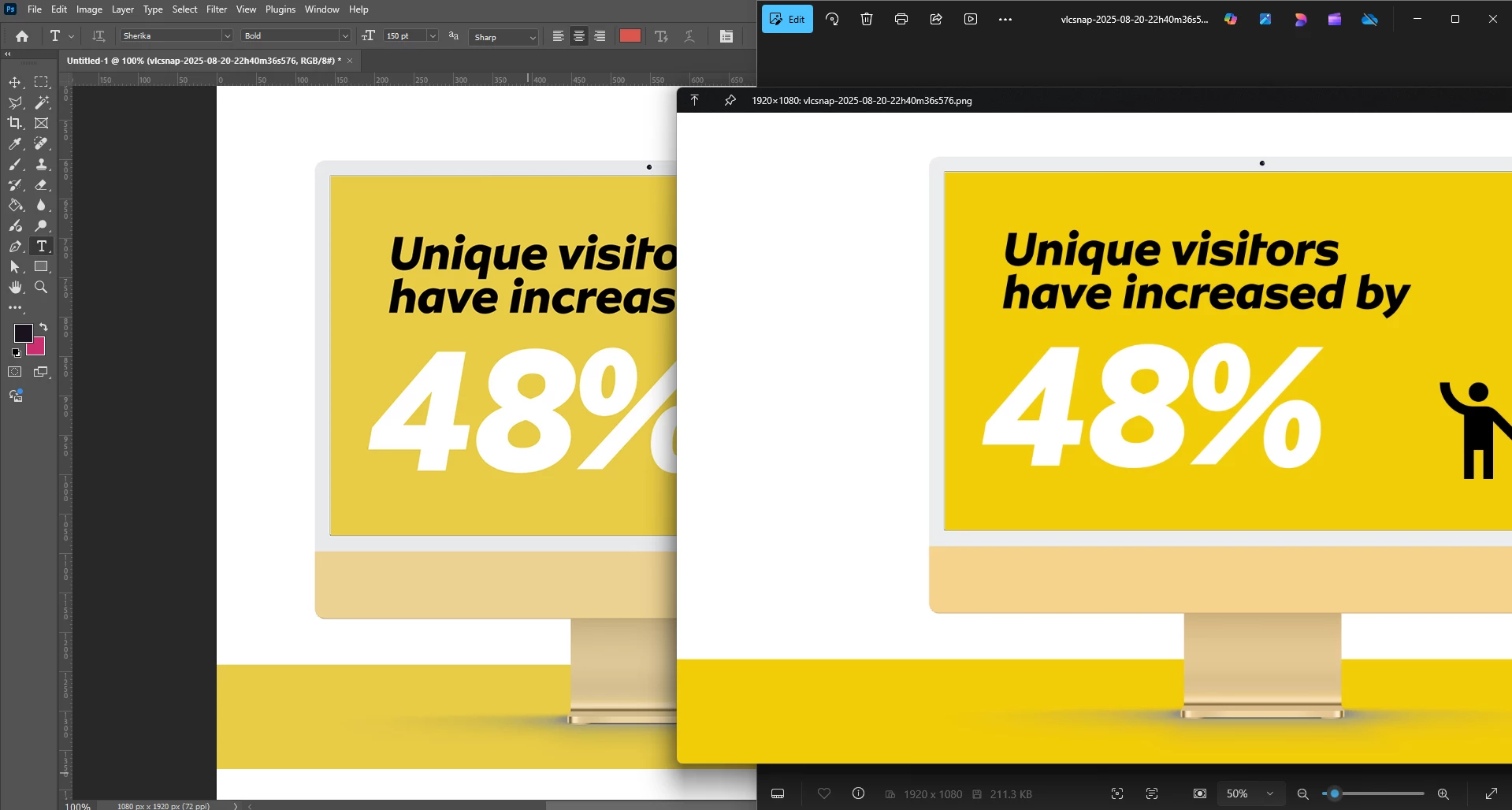
 

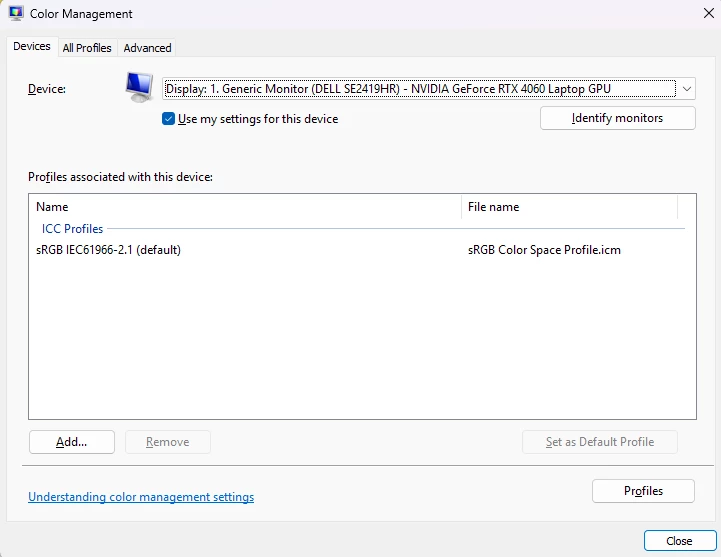
I am using sRGB:
 

SPECS

  • Intel Core i9-14900HX

  • NVIDIA GeForce RTX 4060

  • 64GB DDR5 RAM

  • 1TB SSD

  • All latest Adobe/Win11Pro/and video drivers
  • DELL SE2419HR 24"


Additionally, if I press Win+P to bring up display settings and enable extended monitors, to extend my screen onto my Asus ROG Strix G16 laptop screen, suddenly the Dell monitor wakes up and shows accurate colors. The moment I disable the laptop screen, the Dell goes back to washed out colors.

최고의 답변: D Fosse

That disables all color management. It demonstrates that either your monitor profile is incorrect for the monitor, or that there is no embedded document profile. Or that the other application, Quicklook, has no color management support. Or all three.


You still haven't answered whether there is an embedded profile.


It could also be that the laptop configuration prevents correctly assigning monitor profiles. A more remote possibility, but you never know with laptops. They are often very heavily modified by the manufacturer, overriding basic operating system functions. Docking stations also do this.

5 답변

davescm
Community Expert
Community Expert
August 21, 2025

@yash-lucid If you go to the bottom left of the document window, next to the zoom level you will see some information about the document. There is a right pointing arrow next to it, and if you click on it you can choose what information is shown. Set it to document profile. That will now show you the document profile. If it says untagged RGB then you have a document where the meaning of the colour values are unspecified. You will need to go to the Edit menu and choose Assign Profile to give those values a valid meaning. If you are working with Hex values then they are usually, but not always, quoted against the sRGB profile, so try assigning that first. 

For your monitor, the best way is to calibrate and profile your monitor with a hardware device such as those available from Calibrite, or DataColor. That way the monitor profile represents your monitor in its current state of adjustment. Altering brightness, contrast, colour  etc requires a new profile.
Second best is a profile from Dell that represents your monitor model in default settings. As stated above it will be inaccurate if anything has changed in the settings.
Last is setting it to a document profile such as sRGB. This is sometimes used for testing but will not accurately represent your monitor.

Dave

D Fosse
Community Expert
Community Expert
August 21, 2025

In fact, the screenshot in the first post reveals that it's untagged (# in the title bar). I should have thought of that right away.


D Fosse
Community Expert
Community Expert
August 21, 2025

OK. It's everybody's right to say, "this is good enough for me". If the OP just wants color managed and not color managed apps to look the same on his screen, whether strictly correct or not, then they have that now and they can stop reading.


If, however, they want color that is accurate to industry standards, and can be trusted everywhere, then color management is the solution to that problem. Just let me be clear: color isn't defined by Photoshop. Color is defined by icc profiles.


Contrary to myth, color management isn't difficult or complicated. It works right out of the box in Photoshop, it just needs two things:

  • an embedded color profile in the document. This defines numbers as actual colors.
  • a valid monitor profile. If Photoshop is to correctly remap from the document color space into the monitor color space - in other words, display the file correctly - it needs to use a profile that describes the actual and current behavior of the monitor. The profile is a map, and like any map it needs to represent the actual terrain.

That's it. If both these profiles are present and correct, then Photoshop will display correctly.

NB, colourmanagement
Community Expert
Community Expert
August 21, 2025

@yash-lucid you have aparently set sRGB as the device profile for your Dell monitor, Please be aware that no monitor is really accurately defined by the sRGB colourspace profile, you need to set the actual Dell monitor profile there.


When did this go wrong? Did you only recently connect that Dell? 


you wrote: "The brand colours are ffcb05"


That's a HEX code, please be aware that HEX codes (like RGB values) are colour-space dependent (an ICC profile needs to be associated to fully define appearance) - if you make the HEX colour in Adobe RGB its not going to look the same as it would in sRGB. as demonstrateded by @D Fosse in an earlier reply and explained (thanks to google) here: https://asktimgrey.com/2020/05/13/color-consistency-with-hexadecimal/


I hope this helps

neil barstow colourmanagement - adobe forum volunteer,

colourmanagement consultant & co-author of 'getting colour right'

See my free articles on colourmanagement online

Help others by clicking "Correct Answer" if the question is answered.

Found the answer elsewhere? Share it here. "Upvote" is for useful posts


yash-lucid
yash-lucid작성자
Inspiring
August 21, 2025
  1. I set it as sRGB since another poster on the forum was recommended to do so, but I've removed the setting so now there is nothing listed in the dialogue box, and monitor RGB in PS shows colours that correctly correlate. I'm mostly certain that I've solved the issue with my limited knowledge on colour profiles.


It happened this week, Dell has been connected since 2018 with no issues.

yash-lucid
yash-lucid작성자
Inspiring
August 21, 2025

Edit - Colour Settings - RGB: Change to Monitor RGB

Fixed.

D Fosse
Community Expert
D FosseCommunity Expert답변
Community Expert
August 21, 2025

That disables all color management. It demonstrates that either your monitor profile is incorrect for the monitor, or that there is no embedded document profile. Or that the other application, Quicklook, has no color management support. Or all three.


You still haven't answered whether there is an embedded profile.


It could also be that the laptop configuration prevents correctly assigning monitor profiles. A more remote possibility, but you never know with laptops. They are often very heavily modified by the manufacturer, overriding basic operating system functions. Docking stations also do this.

yash-lucid
yash-lucid작성자
Inspiring
August 21, 2025

i already answered saying I don't know if there is an embedded profile. I'm pulling content from my After Effects files as JPEG and PNG snapshots for a thumbnail in PS.

D Fosse
Community Expert
Community Expert
August 20, 2025

No idea what quicklook is, but does it support color management? Does the file have an embedded color profile?


In these cases, people generally assume that the most saturated version is the correct one. But it can just as well be the other way round.


Here's the thing: as long as your monitor profile is valid, that is, correctly describes the native color space of the monitor, and the document has an embedded profile, then Photoshop displays correctly. The numbers are remapped from the document color space and into the monitor color space.


The critical factor is the monitor profile. This is why people buy and use calibrators. The calibrator will write a profile based on actual measurement of the monitor's response. If your monitor exactly reproduces sRGB, wich no monitor does, then sRGB would be the right monitor profile. But in real life, it's never an exact match. And then Photoshop cannot display correctly. The profile needs to be accurate.


yash-lucid
yash-lucid작성자
Inspiring
August 21, 2025

Quicklook for Windows a spacebar preview like Mac - I don't know if it supports color management and I don't know if the file has an embedded profile. But the most saturated one is the correct one, it aligns with the brand colours, it's a globally famous brand and I've worked on it for years. If you see the attached video from the post, you'll see how extending monitors fixes the glitch. However I need to fix the glitch without extending monitors.


Photoshop started displaying incorrect colours for the first time in 15 years of me using it for the exact same workflow. The monitor has been around for 10+ years. The colours are accurate on my phone, other laptops etc...


I need help fixing this glitch.

D Fosse
Community Expert
Community Expert
August 21, 2025

Without an embedded profile, color is undefined and can display as anything at all, depending on application default policies. The profile must always be embedded, no exception. That tells Photoshop how to interpret the numbers. An application without color management support ignores the profile and it's all to the wind.


Numbers are color space specific. A given set of numbers will produce different colors according to color space. Note that the numbers are identical in these random examples: