Known Participant
August 20, 2018
Answered

Colour swaps..

  • August 20, 2018
  • 2 replies
  • 1115 views

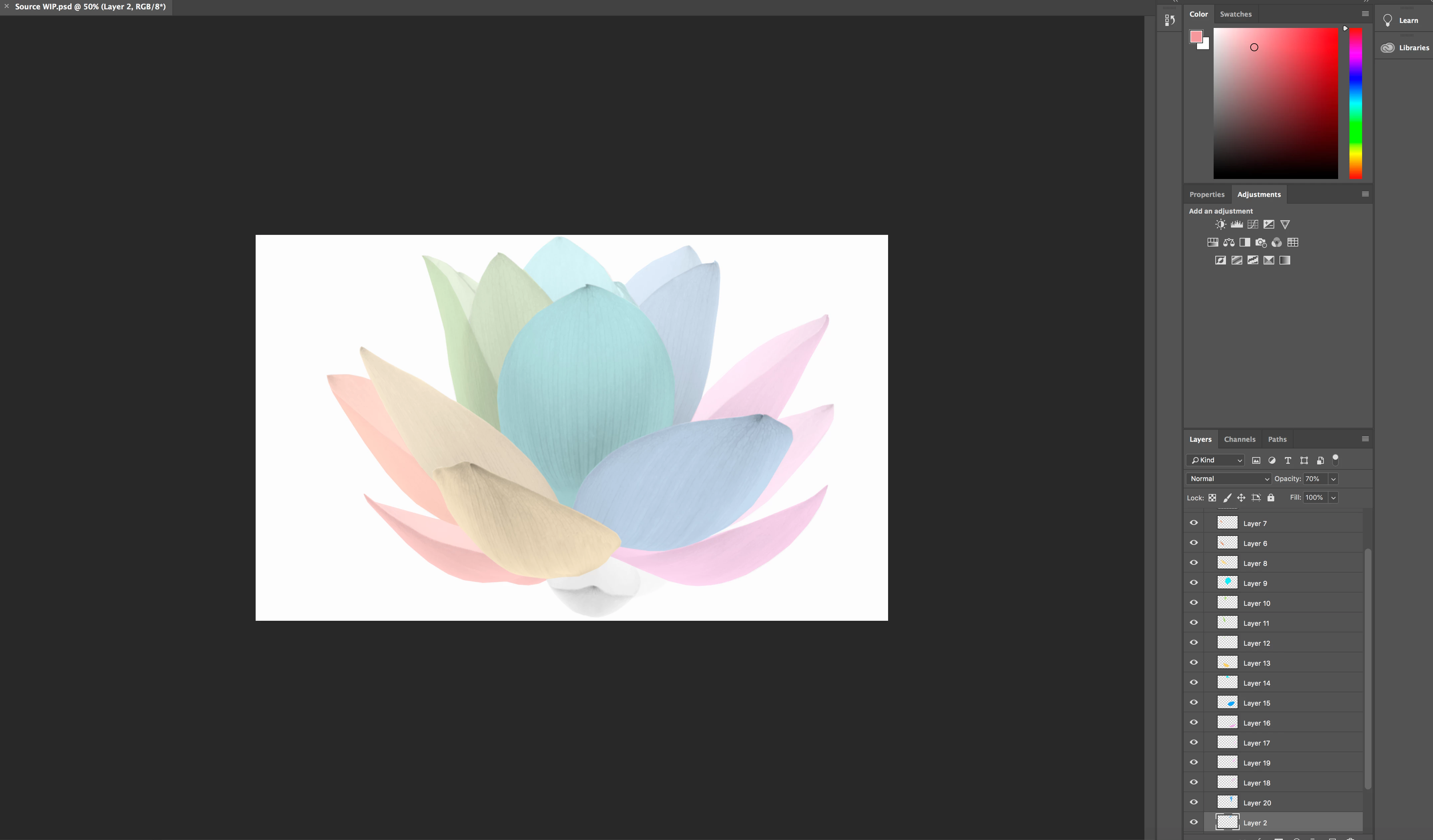
Hi guys, Im more than a newbie.. Ive had some help from a colleague who is now unavailable. Ive had help creating a lotus flower see below.

So basically each petal is a different pastel shade. With the pinks have three depths of colour, blue, green, yellow etc...

I am wanting to create about 20 copies of this image where by I switch all the colours around. I want therefore to change the pinks to orange,

the yellow to orange, the green to yellow and so on. Is there a way i cam do this utilising the colours within the layers by swapping the colours out ?

If you can help just as simple as possible step guide would be greatly appreciated.

Thanks

Rob
    This topic has been closed for replies.
    Correct answer barbara_a7746676

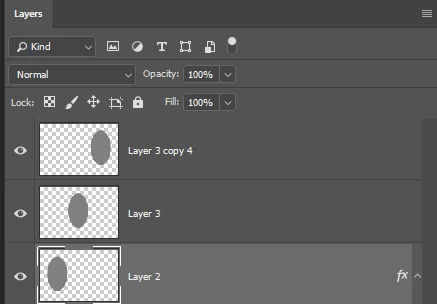
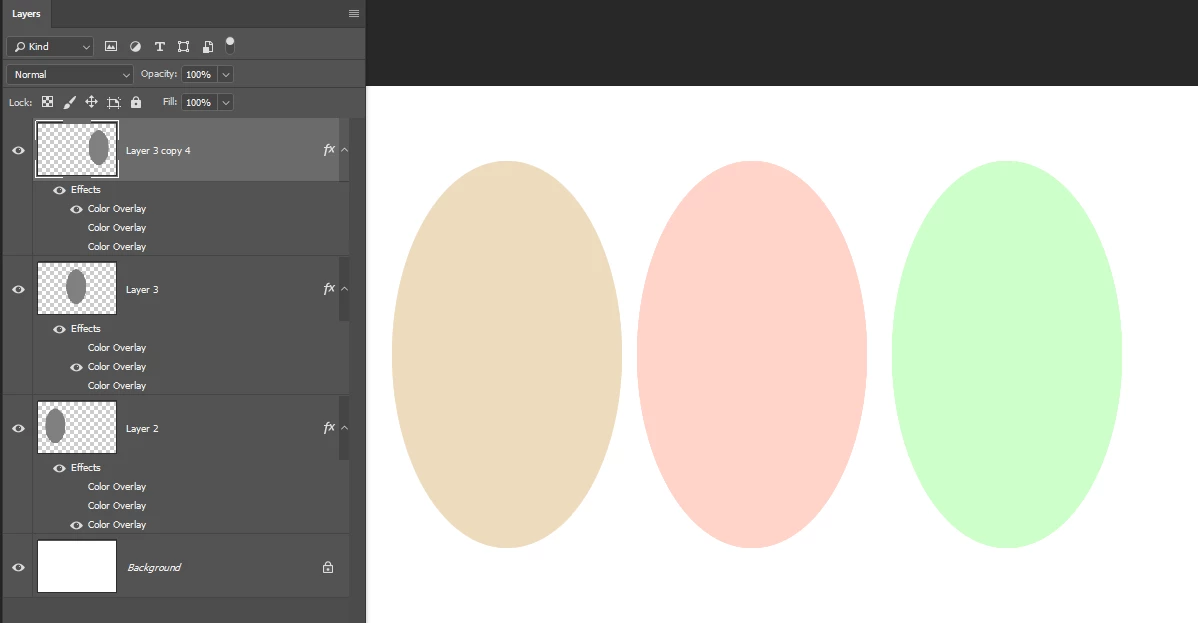
    You could put each petal on a separate layer. The original color doesn't matter.

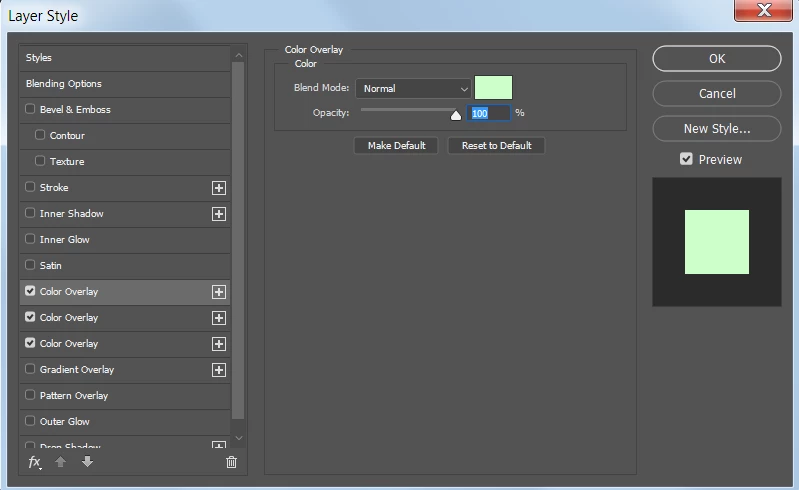
    Take one of the layers and add as many Color Overlay effects as you need, each one a different color. I'm using 3 in the example.

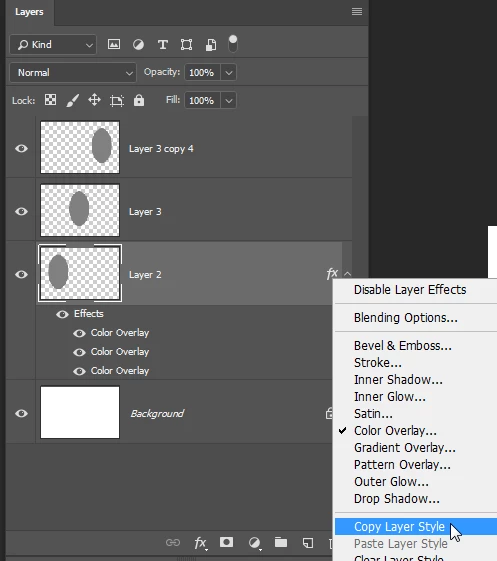
    Right click on the layer style and copy it.

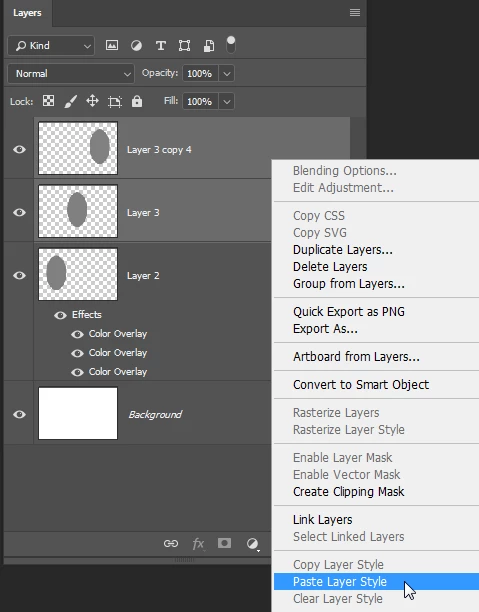
    Select the other layers and paste layer style.

    You can turn the visibility of the layer styles on/off as you wish.

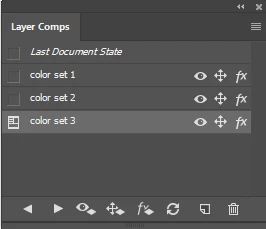
    You could go further by creating a layer comp for each of the color variations.

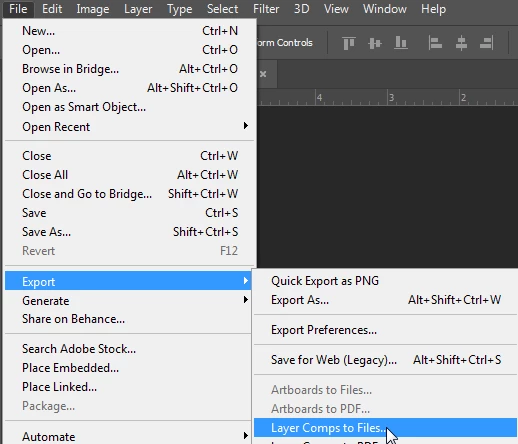
    That would make it easy to create a separate file for each color variation.

    2 replies

    barbara_a7746676
    Community Expert
    barbara_a7746676Community ExpertCorrect answer
    Community Expert
    August 20, 2018

    You could put each petal on a separate layer. The original color doesn't matter.

    Take one of the layers and add as many Color Overlay effects as you need, each one a different color. I'm using 3 in the example.

    Right click on the layer style and copy it.

    Select the other layers and paste layer style.

    You can turn the visibility of the layer styles on/off as you wish.

    You could go further by creating a layer comp for each of the color variations.

    That would make it easy to create a separate file for each color variation.

    Known Participant
    August 20, 2018

    WOW.  Thank you for taking the time to explain all this. Let me have a go and I will let you know how I got on. So very greatly appreciated.  

    Myra Ferguson
    Community Expert
    Community Expert
    August 20, 2018

    You can use the Hue adjustment layer. Once you add it, you can slide the hues so that the shift. You can either apply one adjustment layer to all your layers that shifts all the colors at once or you can apply an adjustment layer that affects each layer independently. If you want it to apply to all, select the topmost layer and in the row of icons at the bottom, click the 4th button from the left. If you hover over it, the tooltip will show it's the "Create new fill or adjustment layer" icon. If you want to apply it to individual layers, select the layer you want to be adjusted, click that icon, hover between the layers, and Alt (or Option on a Mac) + click. You'll know it's been set to apply to just one layer because it'll indent the adjustment layer.

    Then use the Hue slider to change the color for either all the layers or per layer--however you decided to set it up.

    Known Participant
    August 20, 2018

    HI Myra, how should add a hue adjustment layer ? 

    Known Participant
    August 20, 2018

    Here's more info on Adjustment Layers Adjustment and fill layers in Photoshop , but here are some pics that might get you started. Here's where you add the Adjustment layer .  I used a screenshot of your image which would simulate adding an Adjustment layer to the top of your layers which would affect them all. To change the color, double-click on the Adjustment layer to open it's Properties. Move the Hue slider to change the color.


    Thanks Myra I wanted to be able to swap the colours around on the petal. Does your method just change the whole colour of the flower in one go ?

    BR
    Rob