kerrilynf61453979
Participant
February 6, 2017
해결됨

Convert Photo to Grayscale in PS- exports link to ID and is showed as RGB color space

  • February 6, 2017
  • 3 답변들
  • 5262 조회

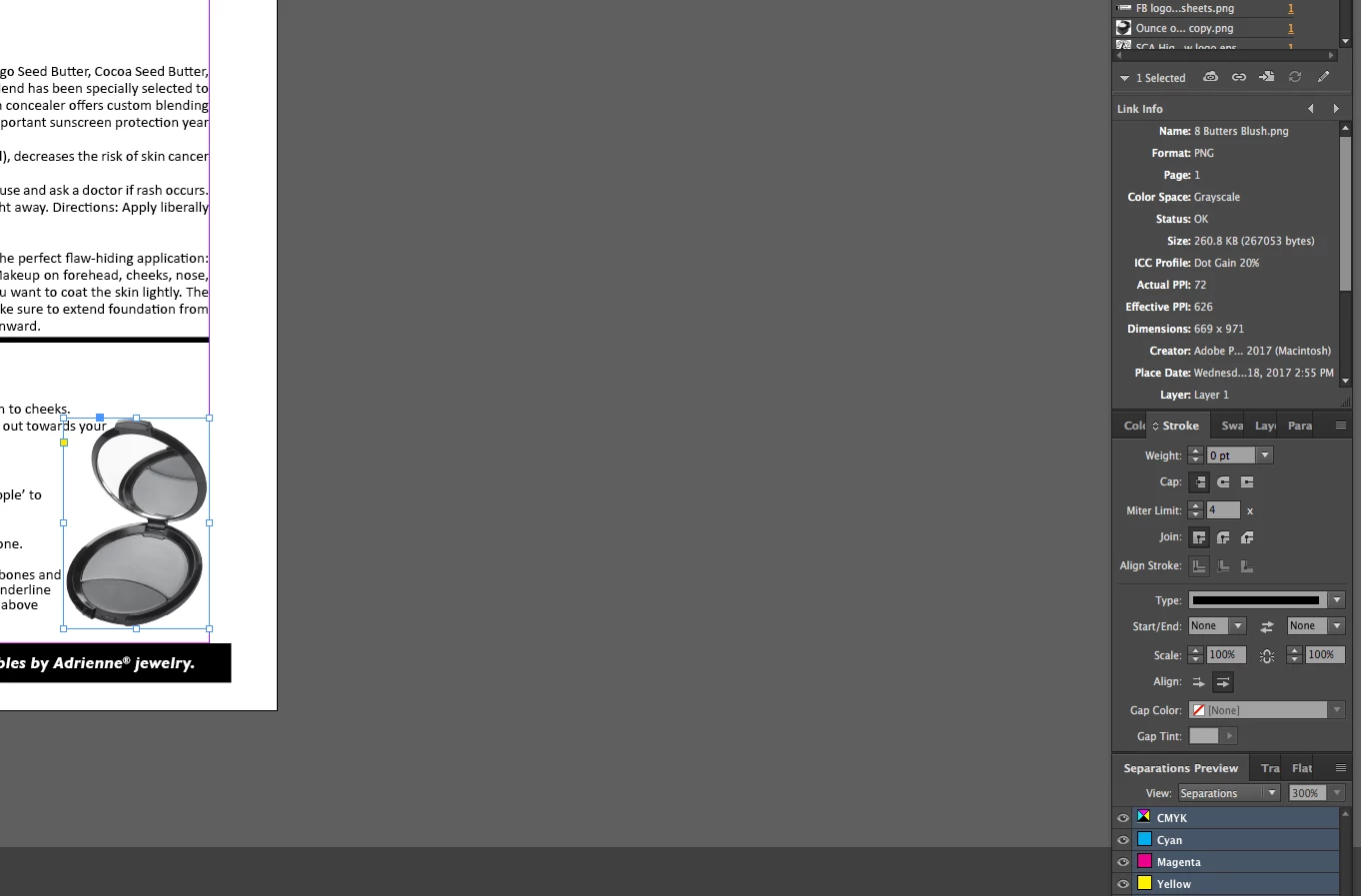
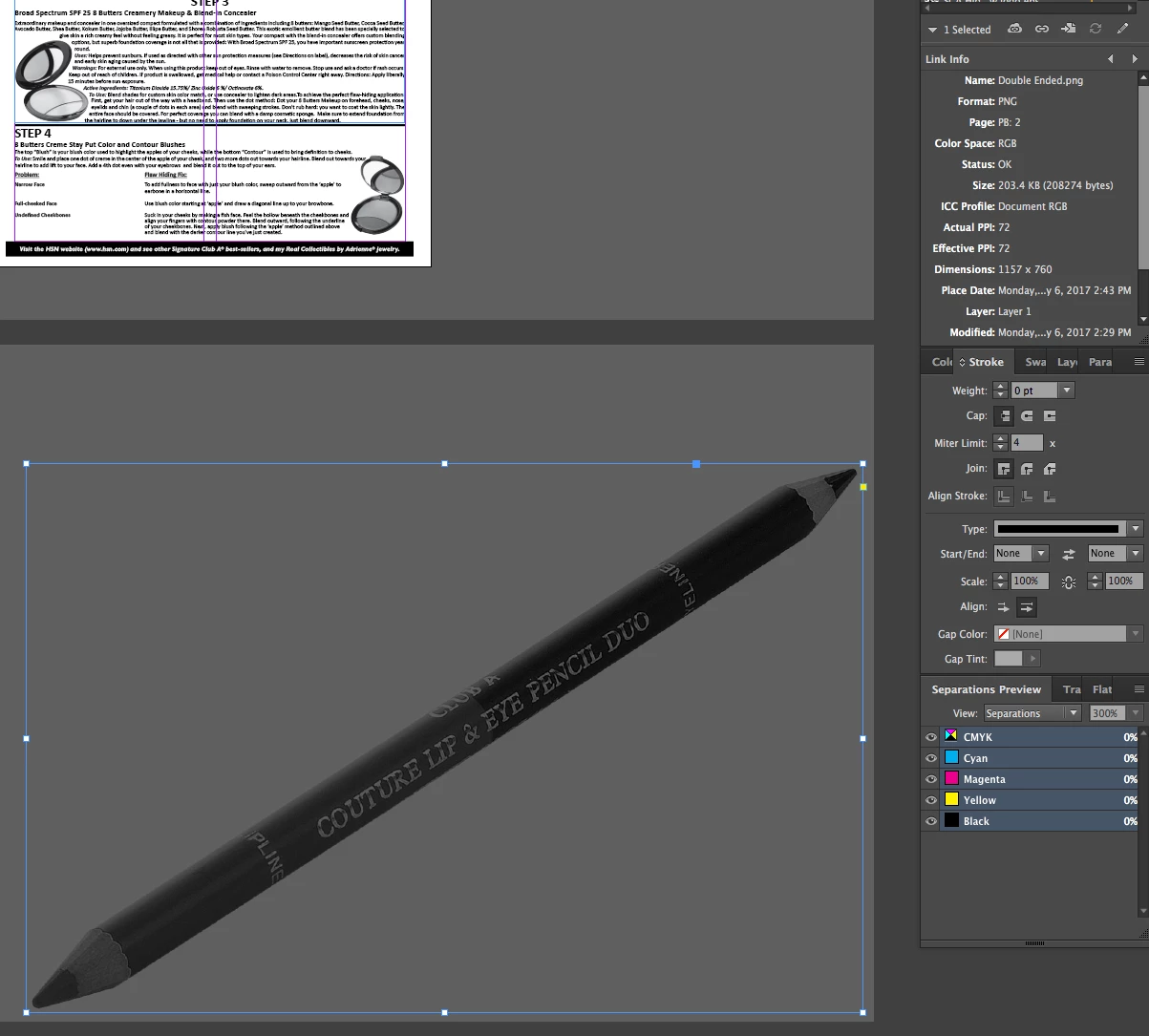
I have aphoto that i have converted to grayscale in Photoshop CC. I've quick exported it to a .png file. Then i go to an InDesign document and placed the grayscale photo in the document. When i click on the same photo the color space in InDesign comes up as RGB color space rather than Grayscale like all the other photos that i have on the document. I've saved them all the exact same way and i've only run into this problem with 2 photos recently. Any solutions and suggestions will help. The First photo is the one that should say grayscale but it says Document RGB in color space. The second photo shows that it says Grayscale in the color space 
이 주제는 답변이 닫혔습니다.
최고의 답변: Chuck Uebele

i don't know how they were saved. I was given them and told to edit them. I'm assuming so.


Ok, most likely they were just save using the normal save as, which seems to be the only way to save jpgs and pngs and keep them grayscale. So if you want the files to remain grayscale, you will need to save them that way and not use quick export, export as, or save for web.

3 답변

Inspiring
June 1, 2020

I just experienced the same bug, and this is a bug. If I convert a file to Grayscale in Photoshop and then save it as a JPEG, it should be in grayscale, not RGB. This is how it's been for years and now, all-of-a-sudden, it's giving me RGB jpegs that are grayscale in Photoshop.

Participant
March 16, 2021

Hi,

Any updates on this? I'm having the same problem...

Chuck Uebele
Community Expert
Community Expert
February 6, 2017

How did you save the jpgs? They are converting to RGB as well, if I use save for web and export? Perhaps as those are both web features, it's assumed that they are going to be RGB.

kerrilynf61453979
Participant
February 6, 2017

they are saved as jpegs. and i convert them to grayscale

Chuck Uebele
Community Expert
Community Expert
February 6, 2017

i don't know how they were saved. I was given them and told to edit them. I'm assuming so.


Ok, most likely they were just save using the normal save as, which seems to be the only way to save jpgs and pngs and keep them grayscale. So if you want the files to remain grayscale, you will need to save them that way and not use quick export, export as, or save for web.

Chuck Uebele
Community Expert
Community Expert
February 6, 2017

I think the problem is that any of Photoshop export for png will convert the image to RGB. If you really want a grayscale image, you will need to use the normal save as feature, and not quick export or the legacy save for web.

kerrilynf61453979
Participant
February 6, 2017

I've converted every all the other photos including the one thats pictured in grayscale. Any reason why what would happen? When i do save as do i save as a JPEG instead?