
Participant
August 3, 2018
Answered

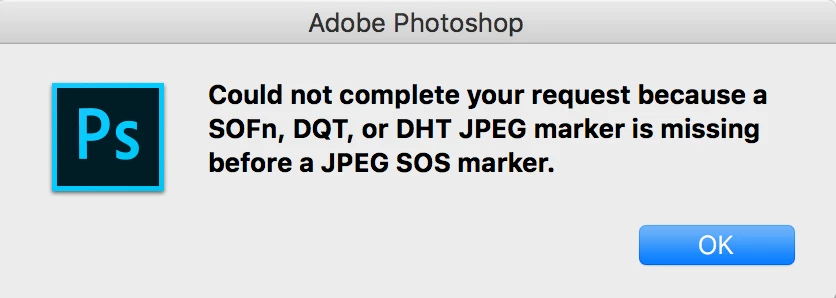
Could not complete your request because a SOFn, DQT ...
  • August 3, 2018
  • 34 replies
  • 310359 views

This is a weird message from Photoshop, could not open an image !!?

Could not complete your request because a SOFn, DQT or DHT JPEG marker is missing before a JPEG SOS marker.

what is that mean at first place !!! ... Im using MacBook and its up to date, photoshop version is 19, and it was working perfectly, I use it everyday to edit photos and so on.

Now I have one way to avoid this message by take a screenshot of the image and open it, but this is not a solution at all !

I don't know why this message is thrown by Photoshop.

is there anyone have a solution of this error !!!!!!

THANKS

Correct answer Rafael Osipov

I have created a free and open-source tool to fix these issues with images. It is easy to use and fast.

Application works for Windows and MacOS as well.

Source code and binaries are available here: https://github.com/cdefgah/whatsapp-jpeg-repair

Instructions are displayed on the page link I provided above (check README.md file).

34 replies

cdfc
Participant
March 7, 2019

I have the same problem sometimes with my Adobe Suite when I download WhatsApp images. I have a macOS Mojave, just in case this doesn't work in other OS.

If you want to import the image directly to Adobe Illustrator:

  1. Download and save the image from WhatsApp.
  2. Change the file extension from ".jpeg" to ".heic" (Not ready to import to AI yet)
  3. Open the new ".heic" file in Adobe Photoshop
  4. Save as a ".jpeg" and set the quality needed
  5. Now you can use the picture in any of the Adobe Suite software.

It's super annoying to do this but until WhatsApp/Adobe solve the issue that's my way-out.

stevethornton
Known Participant
March 3, 2019

This worked for me:

If you have access to a Windows machine, open an app called "Paint". Just about all Windows computers will have this app. Just do a search.

After you have opened Paint, go to: File, Open, then navigate to the photo you want to open and open it.

Then go to the menu and click "Save as, rename the image, I just add an X to the end of the file name (But before the .jpg).

Now you should be able to open the image in Photoshop.

I feel Mac certain has something like Paint that comes with the OS. I do not know for sure though as I moved back to Windows many years ago.

And I agree, Photoshop SHOULD be able to open this. If Paint can open it, why in the world can Photoshop not?

Good Luck!

Participant
January 19, 2019

I recommend to open your file in default viewer, then you have to click in edit, and save a copy, but make sure that the file extension be JPG not .JPG

Regards.

Participant
January 12, 2019

Rename the file extension as a tiff. Eg. "filemname.tiff" That should work. That issue usually happens with downloaded WhatsApp images.

Participant
January 13, 2019

Hi Hotspot01, I and others on this forum tried that trick, but it doesn't work. Something inside the coding of the downloaded Whatsapp image is what causes photoshop to issue an error message. Therefore, the WhatsApp image needs to be opened and saved in another application before it can be opened in photoshop.

Hope that helps.

Natalie

iconz80
Participant
January 3, 2019

I have also encountered this message recently related to WhatsApp image download, I did was I open it in analog efex pro or fx photo studio pro and save as jpeg. problem solve I can now open in Photoshop. this is just my opinion.

hsawires2
Inspiring
December 28, 2018

This is a very weird discussion I had ever seen specially from pros.

They are keeping argue about if should professional and expensive software should bypass a small error and open the file or not.

The correct answer in not hiding behind argues.

After all it seems that the photoshop the pro and the most expensive software pagake in photo editing is wavering for people's requests by Rikk Flohr from LR Ecosystem in that post

Can’t import Images from whatsapp

After all photoshop after Jun 2018 updates should open WhatsApp images without prompting any errors.

I was using another professional software that bypass that error and "without the arrogance suffered by the Photoshop staff members" the software called ACDsee ... ahh by the way ... Adobe Bridge is another professional software that can bypass the error and let you preview your whatsApp images without errors.

So I am using ACDSee and Adobe Bridge to reconvert the images to be able to open it in Photoshop.

JJMack
Community Expert
Community Expert
December 28, 2018

This is a Photoshop users site where Photoshop users can help each other out here.  Your are not dealing with Adobe support here. Some Adobe Staff do drop by from time to time.  Most here will agree Adobe support should be better than it is. Photoshop has many bugs that should be fixed. Adobe does not fix all buge and it takes Adobe a long time to fix some bugs. So one need to be able to work around Adobe bugs the bite them.  I always have more than a single version of Photoshop installed  CS6 and CC 2014 are quite stable and have fewer bugs then newer versions of Photoshop.

If you want to give Adobe your feedback please use Adobe Feedback site. Photoshop Family Customer Community

JJMack
alexc8435158
Participant
December 21, 2018

i have come across this issue. i open the image in Lr CC and then right click on the image and choose Edit in Ps CC 2019, then you  just save your image under a new name. Good luck.

Legend
December 10, 2018

There does seem to be a common thread here of whatsapp. I've done some reseach and found that whatsapp will automatically reduce the quality and resolution of JPEG files you send. So when it arrives at the other end, it's leaving out stuff that Photoshop needs. There are ways, however, to send the full quality JPEG with whatapp. Discussed here - https://www.guidingtech.com/69774/full-resolution-whatsapp/

Participant
December 5, 2018

I had the same problem. I work on a MacBook Pro, so if you have a Mac, this should help.

My workaround is the following:

Open the WhatsApp picture by double clicking it, and it should open the image in  "Preview"

Once you have the image open in Preview, choose "Export..." from the File tab.

Choose one of the other formats from the dropdown menu, click save.

I was able to open my file in Photoshop CC in all the formats

I hope this helps. Good luck!

Participant
December 10, 2018

This solved the issue, thanks!