Inspiring
January 6, 2017
Answered

Create oddly shaped photos

  • January 6, 2017
  • 4 replies
  • 1786 views

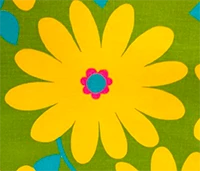
Here is the inspiration:

I want to  crop a large number of photos into a kind of a "mod daisy" shape.

I guess I'm probably using "crop" incorrectly, because as I understand it, PS will only make square or rectangular images. But inside that square or rectangle I want just the "daisy shape" of pixels, with the negative space transparent. So maybe it is a mask?

My original photos are all different sizes, and I'd like the option of moving the daisy frame around in order to find the best portion of the image to apply it to.
    This topic has been closed for replies.
    Correct answer davescm

    Hi Marie

    There are two ways

    The first is to create your flower shape as a mask - save it as an Alpha channel and copy it to your other images.

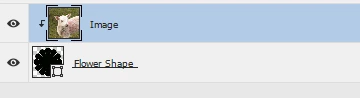
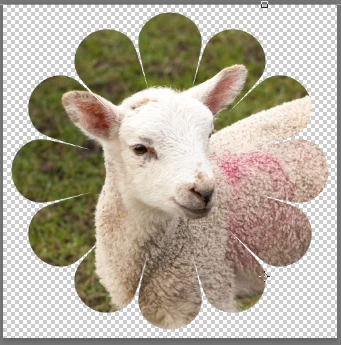
    The second is to create it as a shape. Then put your image on top and Alt click on the border between the layers. This will cause the image to be clipped to the shape and only show where the shape is solid below.

    Don't forget if you want to save the transparency you need to save in a format that supports it (jpeg does not)

    I hope that helps

    Dave

    4 replies

    davescm
    Community Expert
    Community Expert
    January 6, 2017

    Hi Marie

    To do what I showed, you want your shape to be black and surrounded by transparent pixels. What is it currently surrounded with ?

    Put your image layer above the shape and then Alt-click on the border between the layers. This will cause the layer to clip. That means that the image will only show where there are solid pixels below it. So you move your image layer around and it fills the shape below with image pixels.

    If the result in my earlier post is not what you want - please come back.

    Dave

    Inspiring
    January 6, 2017

    OF course! I was thinking I had to size the shape first - but of course I can do it after.

    Thank you!!!!

    davescm
    Community Expert
    Community Expert
    January 6, 2017

    You're very welcome

    Dave

    italosan
    Community Expert
    Community Expert
    January 6, 2017

    Well yes and no. But that's why you should go for the vector shape. So you will be able to scale it without any problem.

    Inspiring
    January 6, 2017

    OK, I'll definately give this a try. I assume that I should copy the shape from Illustrator and paste it as a shape layer in PS. How to scale the shape to match the pixel dimensions of my photo?

    davescm
    Community Expert
    Community Expert
    January 6, 2017

    You could copy the shape from illustrator or make it in Photoshop with the pen tool.

    I didn't even make the one I used above to demonstrate. I just used the  custom shape tool and selected the shape from the nature set

    To resize a shape - click on the shape layer then go to Edit - Transform Path - Scale.

    Dave

    davescm
    Community Expert
    davescmCommunity ExpertCorrect answer
    Community Expert
    January 6, 2017

    Hi Marie

    There are two ways

    The first is to create your flower shape as a mask - save it as an Alpha channel and copy it to your other images.

    The second is to create it as a shape. Then put your image on top and Alt click on the border between the layers. This will cause the image to be clipped to the shape and only show where the shape is solid below.

    Don't forget if you want to save the transparency you need to save in a format that supports it (jpeg does not)

    I hope that helps

    Dave

    Inspiring
    January 6, 2017

    Doesn't the sharing of the alpha channels require that all the images have the same pixel dimensions?

    davescm
    Community Expert
    Community Expert
    January 6, 2017

    You can resize a mask just as you can an image.

    The easiest way is the way I showed with a shape.

    Drop that into your images underneath the image layer  - it will scale cleanly as it is a vector  - and you can move your image around on top

    Dave

    italosan
    Community Expert
    Community Expert
    January 6, 2017

    Hi MarieMeyer,

    yes its exactly a mask what you need. Or more simply, in this case, you will need a selection. My suggestion is (since you have so many different sizes of the images) is to create a vector with bezier curves (pen tool) of your daisy shape and then convert it into a selection. Then simply erase the unwanted part of your image and save it as psd or png (transparent pixels).

    Inspiring
    January 6, 2017

    I can see that working for one file - but how would I make that same selection available in other files?

    italosan
    Community Expert
    Community Expert
    January 6, 2017

    as davescm brilliantly showed