Participant
October 24, 2018
Frage

Ctrl+Alt+Shift+E shortcut malfunction

  • October 24, 2018
  • 5 Antworten
  • 1228 Ansichten

Hi,

I would like to ask for your help.

the Ctrl+Alt+Shift+E shortcut is not working correctly on my PS CC2014 or CC2018.

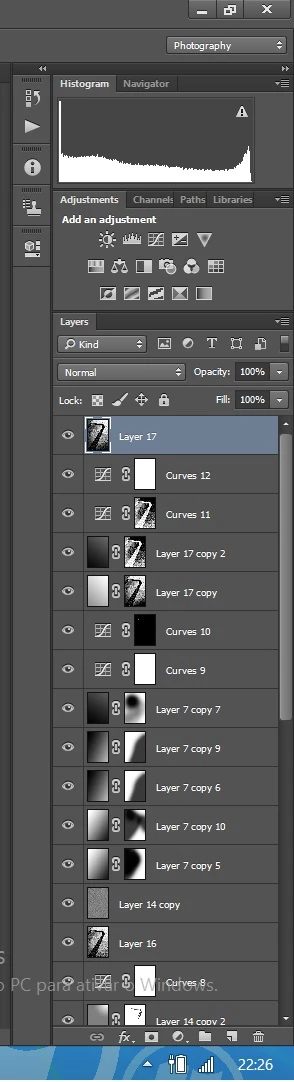
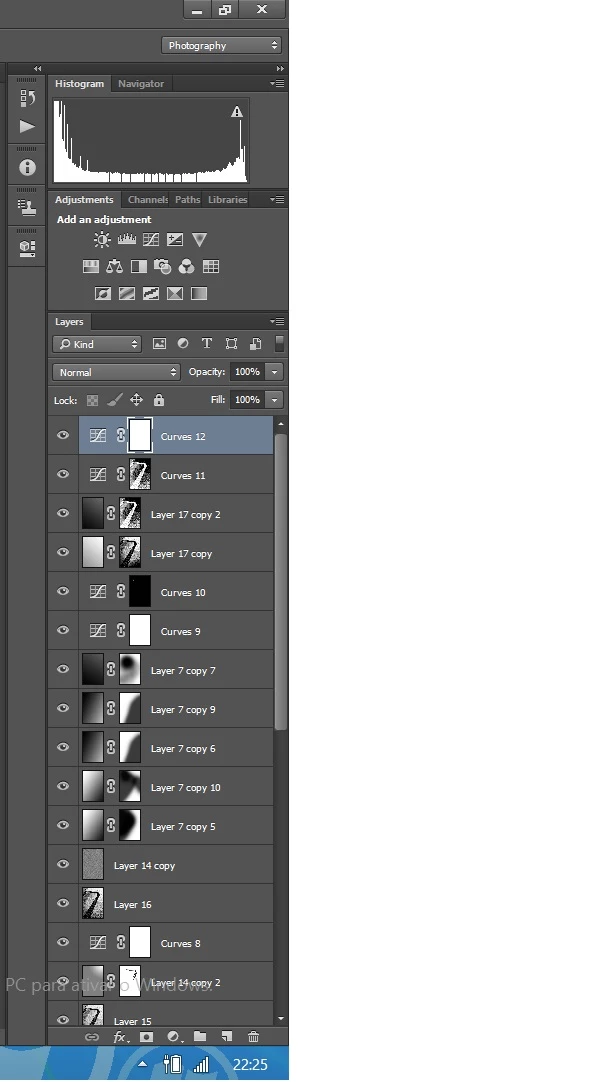
I want to copy the merged all layers into a new layer, but the problem is that it creates a layer different from the one I see on screen....

In the left side picture you can see the histogram of the photo i've been woorking

In the right side picture i made the  Ctrl+Alt+Shift+E shortcut and we can see the changes in the histogram

Thanks a lot for your help,

Rui
Dieses Thema wurde für Antworten geschlossen.

5 Antworten

Known Participant
March 24, 2023

Did you ever figure this out?  View at 100% didnt' work for me.  It is driving me nuts.

JJMack
Community Expert
Community Expert
October 24, 2018

Both Histograms have a warning triangle and I can not see from its palette  what the source its using. the two images posted look like the new top layer may have some pixels not 100% opaque so they blend with lower layers and change the composite image.

JJMack
Participant
October 24, 2018

JJMack

the source is "Entire Image"

Jeff Arola
Community Expert
Community Expert
October 24, 2018

Click on the Yellow Triangle for an Uncached view of the histogram before merging and then after merging and see those match.

Participant
October 24, 2018

here are the photos corresponding to histograms


D Fosse
Community Expert
Community Expert
October 24, 2018

You need to view at 100% - one image pixel represented by one screen pixel. Then they will match - just as histograms will match when you refresh it.

All adjustment previews are calculated on the basis of on-screen zoom ratio (for performance reasons).

If the image has noise, grain or other sharp pixel transitions, scaling will soften these sharp transitions and thus introduce intermediate pixel values that aren't there in the original. So you get an incorrect adjustment preview.

You must view at 100% for an accurate preview.

D Fosse
Community Expert
Community Expert
October 24, 2018

Update the histogram by clicking the !-triangle. Then they should match.

If you see visual differences, it's because you are not viewing at 100%.

Inspiring
October 24, 2018

Is it just the histogram you're noticing a difference?

Because if you click the ! button (in a triangle on histogram) it will create a more accurate histogram, as when you use multiple layers the histogram may not always be very accurate.

If however the actual image looks different after you apply a stamp visible layer. I can see you have no obvious layers above the file, so can you advise in what way it is different? Does it look brighter/darker when you create a stamp visible?

Can you show a demo image of the before and after.