Participant
June 6, 2017
Answered

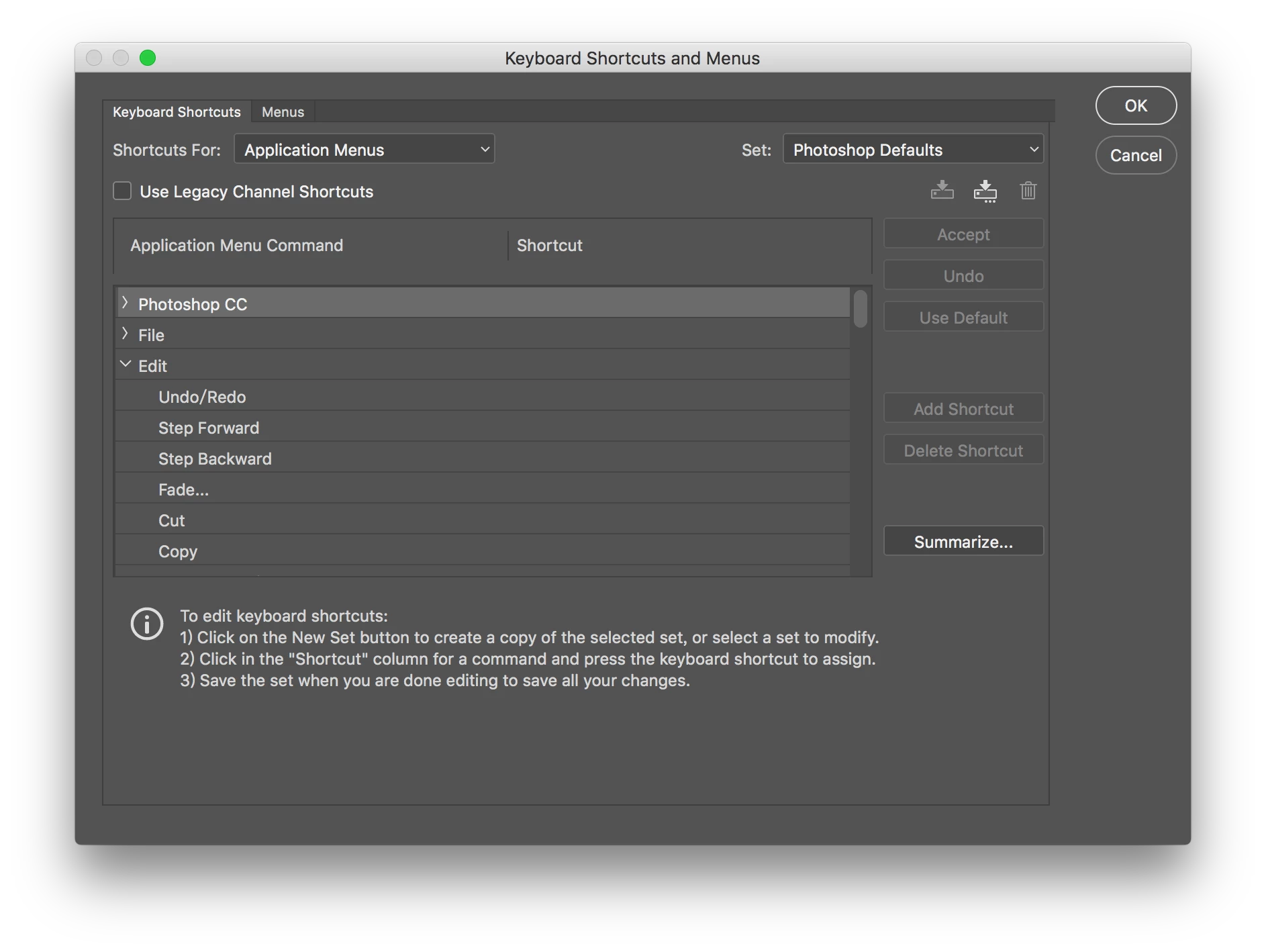
Default Photoshop keyboard shortcuts missing

  • June 6, 2017
  • 4 replies
  • 18249 views

Hi,

I encountered this problem when switch the app language from Chinese to English. The whole list of keyboard shortcuts disappeared.

I've tried uninstall and reinstall Photoshop, but nothing changed.
Correct answer Mohit Goyal

Hi satywt,

Please reset the Photoshop preferences back to the defaults and check if that fix this issue.

Preferences in Photoshop

Regards,

Mohit

4 replies

Participant
September 17, 2022

I find another solution as well, hope this helps too:

1) Open Photoshop, click "Edit > Presets > Export/Imports Presets "

2) Click "Select an Import Folder" , then go to C:\ Program Files\ Adobe\ Adobe Photoshop 2022 [depends on your Photoshop version] \ Locales\ [whatever it shows on your computer] \Support Files\Shortcuts\Win ) 

3) Now you should see "(Win) Default Keyboard Shortcuts.kys" on the left panel, double-click it and click "Import Presets". Restart Photoshop.

4) Go to "Edit" again, click "Keyboard Shortcuts", choose "Default Keyboard Shortcuts" on the Set option. Restart photoshop again and it should be fine now.

Participant
September 25, 2022

This worked for me. Thank you so much!

Participant
July 15, 2021

None of the above solutions works for me. So that I want to add one more solution that worked for me here just incase anyone need it in the future. 

-I changed one shortcut in the shorcut menu.( Just using it as an signal or test sample to see if that was succesfully installed)

-Download the custom shortcut and save it on the desk

-What I use is Mac. I go to User-the folder of my name-library-application support-Adobe-Adobe photoshop 2021-presets-keyboard short cut 

-Copy and paste the custom shortcut into the 'keyboard short cut' folder

Participant
April 6, 2020

I had the same problem and the solution did not work for me...

Participant
April 7, 2020

Actually I just made it work after lots of struggle, and my solution is: check the language settings for your adobe creative cloud, if it's set to "English(International)" like how I did it and caused the problem, please change it to "English(North America)". Then everything should be working fine. My shortcut settings came back after I changed the language setting.

Participant
April 17, 2020

Thanks, this worked for me!

Mohit Goyal
Community Manager
Mohit GoyalCommunity ManagerCorrect answer
Community Manager
June 6, 2017

Hi satywt,

Please reset the Photoshop preferences back to the defaults and check if that fix this issue.

Preferences in Photoshop

Regards,

Mohit

Jussssstin
Participant
April 30, 2018

i had the same issue and i tried the method you mentioned. but it's still not working for me

Participant
November 6, 2018

I tried this on my mac, and it worked: go to applications, find Photoshop, double-click to open, find Locales folder - en_US - support files -  shortcuts, and located Default Keyboard Shortcuts.kys file, double-click it and recheck Photoshop shortcuts.